Having several PDF files for the same project can quickly become inconvenient. You may have a cover letter in one PDF, certificates in another, an application form in a third and supporting documents in several more files.
Instead of sending all those files separately, you can combine them into a single PDF document. This makes the files easier to share, store, print and organise.
The good news is that you do not need advanced computer skills to merge PDF files. Depending on the device and software available to you, you can combine PDFs using Adobe Acrobat, an online PDF tool or other PDF applications.
In this guide, we explain how to combine multiple PDF files into one document while keeping the pages in the correct order.
Why Combine Multiple PDF Files?
Merging PDFs can be useful in many situations.
For example, you might want to combine:
- Several pages of a school assignment
- A CV and supporting certificates
- Multiple documents for a job application
- Scanned pages of an application form
- Business documents
- Receipts and invoices
- Bank statements
- Project reports
- Study materials
- Several chapters of an ebook
- Documents that need to be submitted as one file
Instead of sending 5 or 10 separate attachments, you can create one organised PDF.
A combined PDF is also easier to archive because all related documents are stored in one file.
Method 1: Combine PDF Files Using Adobe Acrobat
One of the easiest ways to combine PDF documents is with Adobe Acrobat.
Adobe’s current Acrobat tools allow users to combine multiple PDF files and other file types, including Word, Excel, PowerPoint and image files, into a single PDF. You can also arrange or remove pages before creating the final document.
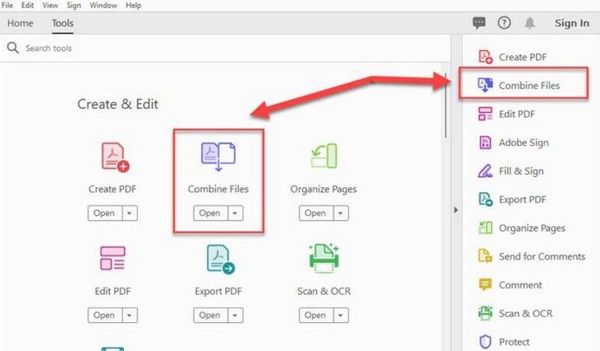
Step 1: Open Adobe Acrobat
Launch Adobe Acrobat on your computer.
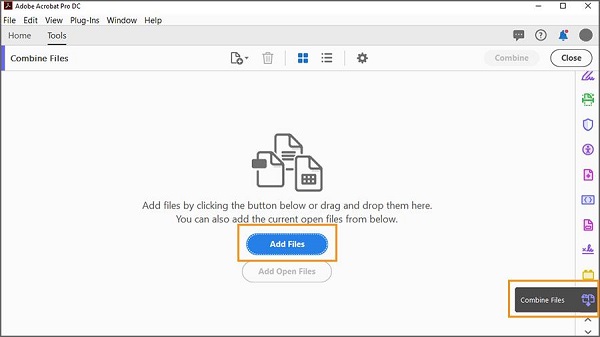
Depending on your version, select All tools and then choose Combine files.
Step 2: Add Your PDF Files
Click Add Files.
Browse your computer and select the PDF documents you want to merge.
You can select multiple files at once if they are stored in the same folder.
Adobe Acrobat also supports dragging and dropping files into the Combine Files window.
Step 3: Arrange the Files
After adding your PDFs, check their order.
For example, if you are combining documents for a job application, you might arrange them like this:
- Cover letter
- CV
- Degree certificate
- Professional certificates
- Identification document
- Other supporting documents
You can drag the files into the correct position.
Acrobat also allows you to expand a file and inspect individual pages before combining them.
Step 4: Remove Unwanted Pages
If one of your PDF files contains pages you do not need, you can remove them before creating the final document.
Review the thumbnails carefully and delete unnecessary pages.
This is particularly useful when combining scanned documents because a scanner may have accidentally captured blank pages.
Step 5: Combine the PDFs
Once everything is correctly arranged, click Combine.
Acrobat will create one PDF containing the selected documents in the order you specified.
Step 6: Save the New PDF
Give the new document a descriptive name.
For example:
Job_Application_Documents.pdf
or
University_Application_Documents.pdf
Save the file somewhere you can easily find it.
Method 2: Combine PDFs Online
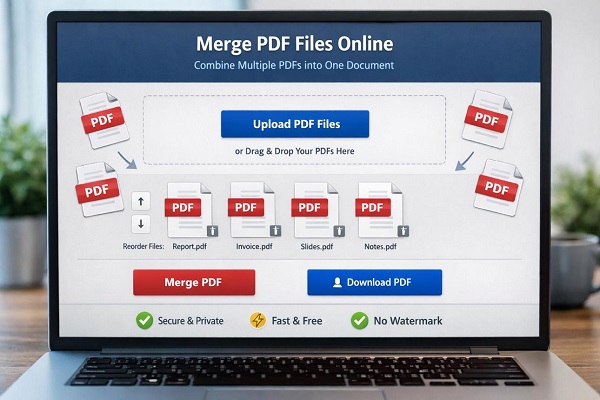
If you do not have a desktop PDF application installed, an online PDF merger can be another option.
Adobe also provides an online PDF merger that lets users combine multiple files from a web browser. It supports PDF files as well as other formats such as Word documents, spreadsheets and images.
The general process is similar:
- Open a trusted PDF merging website.
- Select the option to combine or merge PDFs.
- Upload your PDF files.
- Arrange the files in the correct order.
- Remove any unwanted pages if the service provides that option.
- Select Merge or Combine.
- Download the resulting PDF.
Be Careful With Sensitive Documents
Online PDF tools are convenient, but you should think carefully before uploading sensitive documents.
Avoid uploading documents containing information such as:
- Bank account details
- Passwords
- Private business information
- National identification numbers
- Passport information
- Confidential contracts
- Other sensitive personal information
For highly sensitive documents, using a trusted desktop application may be preferable.
Method 3: Combine Scanned Documents Into One PDF
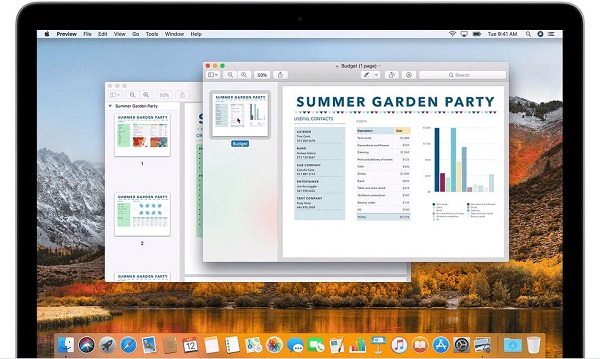
You may also need to combine PDFs created from scanned documents.
For example, suppose you scanned a six-page form but your scanner saved each page as a separate PDF:
- Page1.pdf
- Page2.pdf
- Page3.pdf
- Page4.pdf
- Page5.pdf
- Page6.pdf
You can merge the six files into one document.
Before combining them, check that:
- Every page is readable.
- The pages are facing the correct direction.
- No page is missing.
- There are no unnecessary blank pages.
- The pages are in the correct order.
This prevents you from submitting an incomplete or incorrectly arranged document.
How to Arrange Pages After Combining PDFs
Sometimes you combine several PDFs and then realise that a few pages are in the wrong position.
Adobe Acrobat provides tools for rearranging pages after files have been combined.
Open the combined PDF and select Organize pages.
You can then drag page thumbnails to change their positions, delete unwanted pages or move groups of pages.
This is particularly useful for large documents.
For example, if your final PDF contains 40 pages but the table of contents should appear before the supporting documents, you can move the relevant pages into the correct position.
How to Reduce the Size of a Combined PDF
Combining files can make the resulting PDF quite large, especially when the original documents contain high-resolution photographs or scanned pages.
📖 Related Reads
A large PDF can be difficult to upload to websites or send through email.
If the file is too large, use a PDF compression tool after merging the documents.
Before compressing it, however, make sure the text and images remain readable.
This is particularly important for:
- Certificates
- Identification documents
- Scanned forms
- Receipts
- Official letters
Do not compress a document so aggressively that important information becomes difficult to read.
How to Check a Combined PDF Before Sending It
Always inspect your final PDF before submitting or sharing it.
Open the document and check the following:
1. Check the page count
Make sure all the expected pages are present.
2. Check the order
Confirm that the pages appear in the correct sequence.
3. Check readability
Zoom into text, signatures, photographs and scanned documents to ensure they are clear.
4. Check for blank pages
Remove accidental blank pages where necessary.
5. Check the file name
Use a professional and descriptive filename.
For example:
Temitope_Falana_Job_Application.pdf
is better than:
merged123.pdf
6. Check the file size
If you are uploading the PDF to a website, make sure it meets the website’s maximum file-size requirement.
Can You Combine PDF Files on a Phone?
Yes. Many PDF applications available for Android and iPhone provide tools for organising, combining or managing PDF documents.
The exact steps depend on the application you use.
The general process is usually:
- Open the PDF application.
- Select the merge or combine option.
- Choose the PDF files.
- Arrange them in the correct order.
- Merge the files.
- Save the new PDF.
If you frequently work with PDFs on your phone, keeping a reputable PDF application installed can make this process much easier.
Can Microsoft Word Combine PDF Files?
Microsoft Word can open PDF files and convert their contents into an editable Word document, but this is not the same as directly merging several PDFs.
Microsoft explains that when you open a PDF in Word, Word creates a copy and converts the PDF into a format it can display and edit. The resulting layout may not exactly match the original PDF.
Therefore, if your goal is simply to combine existing PDF files without changing their content, a dedicated PDF merging tool is generally the better option.
What Happens to the Quality After Merging PDFs?
Simply combining PDF files does not necessarily mean that the original documents have to be converted into images.
A proper PDF merging tool can combine the existing pages into one document while preserving their content.
However, quality can change if you subsequently use compression, image conversion or other processing tools.
For important documents, always open the final PDF and check the quality before sending it.
Tips for Combining PDF Files Successfully
Here are some useful tips:
Rename your files first: Give your PDFs meaningful names so you can identify them easily.
Put them in the correct order: Decide how you want the final document organised before merging.
Remove unnecessary pages: Delete blank or duplicate pages.
Check the final document: Never submit a merged PDF without opening it first.
Keep a backup: Save the original PDF files until you are certain the combined document is correct.
Watch the file size: Compress the final document if a website has a strict upload limit.
Protect sensitive information: Avoid uploading confidential documents to unknown online PDF services.
Frequently Asked Questions
What is the easiest way to combine multiple PDF files?
Using a dedicated PDF merger is usually the simplest method. Adobe Acrobat provides a Combine Files tool that allows you to add files, arrange them and create a single PDF.
Can I combine more than two PDF files?
Yes. PDF merging tools can combine multiple documents into one PDF. The exact number of files supported may depend on the software or service you use.
Can I combine PDFs without installing software?
Yes. Online PDF merger tools allow you to combine documents through a web browser.
Can I change the order of pages after merging?
Yes. Tools such as Adobe Acrobat allow you to rearrange pages after combining documents.
Does combining PDFs reduce quality?
Not necessarily. A proper PDF merge normally combines the existing PDF pages rather than requiring them to be converted into low-quality images. Compression or other processing performed afterward can affect quality.
Can I merge PDF files on Android?
Yes. PDF applications for Android can provide merging and document-management features, although the exact options depend on the app.
What should I do if my merged PDF is too large?
Try compressing the PDF after merging. However, check the resulting document carefully to make sure text, images and scanned documents remain readable.
Conclusion
Combining multiple PDF files into one document is a simple way to organise documents and make them easier to share.
Whether you are preparing a job application, submitting school documents, organising business records or putting several scanned pages together, a PDF merger can save time and reduce the number of separate files you need to manage.
For desktop users, Adobe Acrobat provides a straightforward workflow: add the files, arrange them, remove unwanted pages, combine them and save the finished PDF.
Before sharing the final document, always check the page order, file size, readability and completeness.
With the right tool, what could have been several separate attachments can become one clean, professional PDF document.