Smartphones have become an essential part of everyday life. From making calls and sending messages to browsing the internet, watching videos, using social media and handling business activities, many people depend on their phones throughout the day.
However, one common problem smartphone users face is battery drain. You may charge your phone to 100% in the morning only to discover that the battery has dropped significantly before the day ends.
Although some battery drain is normal, certain phone settings, background applications and usage habits can consume more power than necessary.
The good news is that you do not always need to replace your battery or purchase a new smartphone to improve battery life. A few practical adjustments can help reduce unnecessary power consumption and make your existing battery last longer.
In this guide, TechFalz explains battery-saving tips that actually work, including Android and iPhone settings you can adjust to reduce battery drain and improve everyday smartphone usage.
1. Reduce Your Screen Brightness
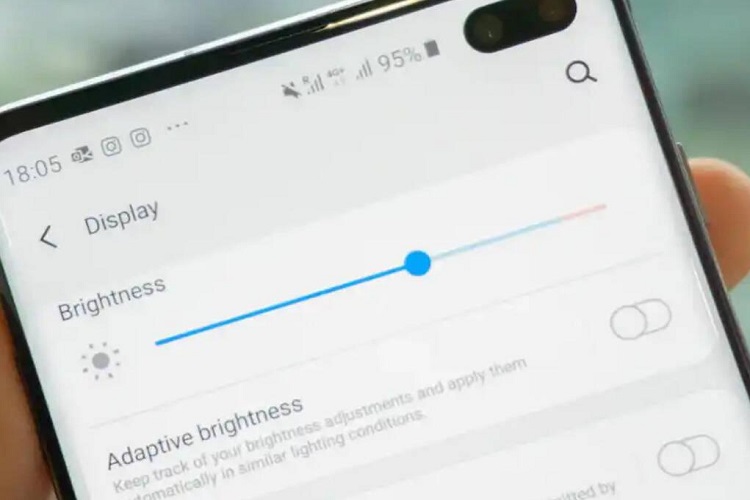
Your smartphone display is one of the major consumers of battery power, especially when the screen is frequently used at high brightness.
Keeping your brightness at maximum throughout the day can cause your battery to drain faster than necessary.
One simple way to improve battery life is to reduce screen brightness to a comfortable level.
How to reduce screen brightness:
-
On Android, swipe down from the top of the screen and adjust the brightness slider.
-
On iPhone, open Control Centre and move the brightness slider down.
-
Alternatively, visit your phone’s Display settings to configure brightness preferences.
You can also enable Adaptive Brightness on Android or Auto-Brightness on iPhone, allowing your device to adjust screen brightness based on surrounding lighting conditions.
Why it works: Lower screen brightness reduces the amount of power required to illuminate the display.
2. Reduce Your Screen Timeout
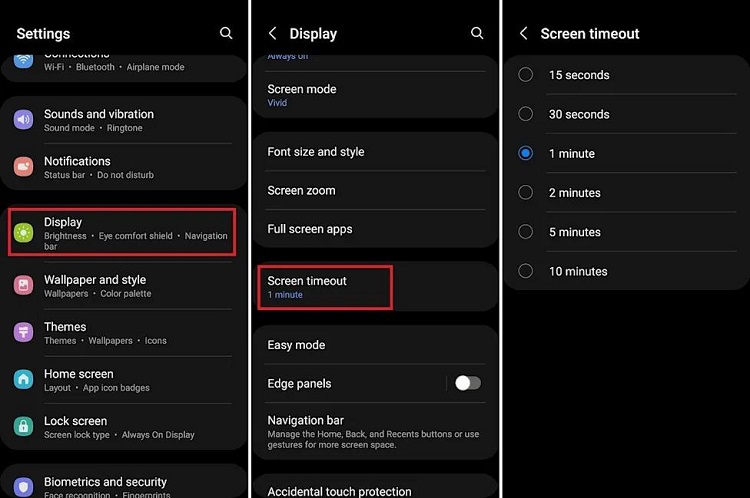
How long does your phone remain active after you stop using it?
If your screen stays on for two or five minutes after you put your phone down, it may consume unnecessary battery power.
Reducing screen timeout ensures that your display switches off sooner when you are not interacting with the device.
How to change screen timeout:
On Android:
-
Open Settings.
-
Select Display.
-
Find Screen timeout or Screen sleep.
-
Choose a shorter duration, such as 15 or 30 seconds.
On iPhone:
-
Open Settings.
-
Select Display & Brightness.
-
Tap Auto-Lock.
-
Choose a shorter period.
The available durations depend on your phone model and settings.
Why it works: The display consumes less energy when it switches off sooner after inactivity.
3. Enable Battery Saver or Low Power Mode
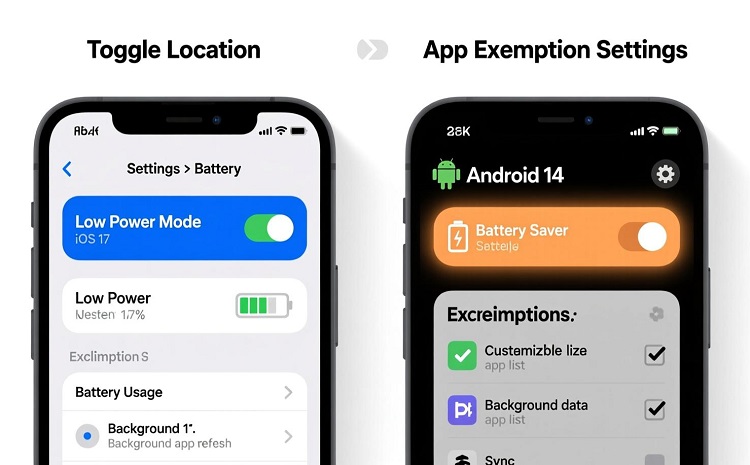
Battery Saver and Low Power Mode are among the most effective built-in tools for reducing smartphone power consumption.
These features limit certain background activities and system operations to help your phone remain powered for longer.
On Android, the feature may be called Battery Saver, Power Saving Mode or Power Saver, depending on the manufacturer.
On iPhone, it is known as Low Power Mode.
How to enable Battery Saver on Android:
-
Open Settings.
-
Select Battery.
-
Tap Battery Saver or Power Saving Mode.
-
Switch it on.
How to enable Low Power Mode on iPhone:
-
Open Settings.
-
Select Battery.
-
Find Power Mode or Low Power Mode, depending on your iOS version.
-
Enable Low Power Mode.
You can also add Battery Saver to Quick Settings on supported Android phones for faster access.
Why it works: These modes reduce selected background activities, visual effects and other power-consuming operations.
4. Identify and Restrict Battery-Hungry Applications
Some applications consume more battery power than others, even when you are not actively using them.
Social media applications, video streaming services, navigation apps and games can use significant amounts of power through background activity, location access, network connections and frequent screen usage.
Instead of guessing which application is responsible for excessive battery drain, check your phone’s battery usage report.
How to check battery usage on Android:
-
Open Settings.
-
Select Battery.
-
Tap Battery usage or App battery usage.
-
Review the applications consuming the most power.
-
Restrict unnecessary background activity where appropriate.
On iPhone:
-
Open Settings.
-
Select Battery.
-
Review the battery usage information.
-
Check which applications consume the most power.
If an application is consuming excessive power in the background, consider limiting its background activity or changing its permissions.
However, avoid restricting essential applications that need to receive notifications or perform important background tasks.
Why it works: Identifying and controlling unnecessary background activity can reduce avoidable battery consumption.
5. Turn Off Unnecessary Background App Refresh
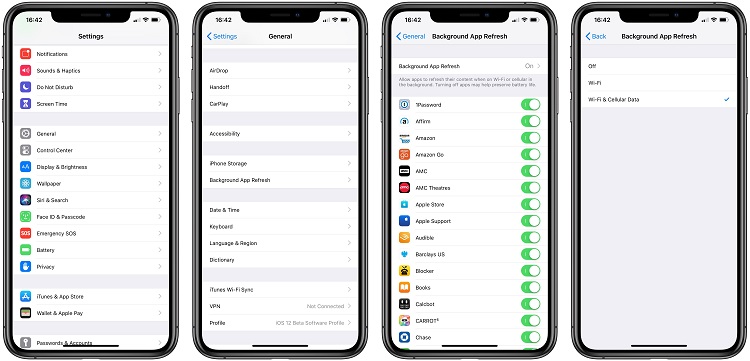
Many smartphone applications continue performing tasks even when you are not actively using them.
For example, some apps refresh their content, synchronise information and retrieve updates in the background. Although these activities can be useful, allowing too many applications to run continuously may contribute to battery drain.
You can reduce unnecessary background activity by adjusting your phone’s settings.
On iPhone:
-
Open Settings.
-
Select General.
-
Tap Background App Refresh.
-
Choose which applications can refresh in the background.
-
Disable the feature for applications that do not need it.
On Android:
-
Open Settings.
-
Select Apps.
-
Choose an application.
-
Open its Battery settings.
-
Select a restricted or optimised background usage option where appropriate.
The exact menu names differ across Android manufacturers.
Why it works: Limiting unnecessary background tasks reduces the amount of processing and network activity performed when you are not using certain applications.
6. Switch Off Bluetooth, GPS and Wi-Fi When Not Needed
Wireless connections allow smartphones to communicate with other devices, access the internet and determine their locations. However, keeping connections active when they are not needed may contribute to battery consumption.
Bluetooth, GPS-related location services and Wi-Fi are particularly worth reviewing.
For example, if you are not connecting to wireless headphones, a smartwatch or another Bluetooth device, you may switch off Bluetooth temporarily.
Similarly, applications that do not require your location should not have unrestricted access to location services.
How to manage wireless connections:
-
Open Quick Settings on Android or Control Centre on iPhone.
-
Disable Bluetooth when you are not using connected accessories.
-
Turn off Wi-Fi when you do not need a wireless connection.
-
Review location permissions and restrict unnecessary access.
-
Disable location services for applications that do not need them.
One important distinction is that Wi-Fi and Bluetooth do not always consume significant power simply because they are enabled. Their actual impact depends on device activity, signal conditions and connected accessories.
Why it works: Reducing unnecessary wireless communication and location activity can help minimise avoidable power consumption.
7. Use Dark Mode on Supported Displays
Dark Mode changes the appearance of your smartphone interface by replacing bright backgrounds with darker colours.
Apart from giving your phone a different appearance, Dark Mode can also help reduce display power consumption on smartphones with OLED or AMOLED screens.
Unlike traditional LCD displays, OLED and AMOLED screens can switch off individual pixels when displaying true black. This means darker interfaces can consume less power, particularly when a significant portion of the screen is black.
How to enable Dark Mode on Android:
-
Open Settings.
-
Select Display.
-
Tap Dark Theme or Dark Mode.
-
Enable the feature.
On iPhone:
-
Open Settings.
-
Select Display & Brightness.
-
Choose Dark.
You can also configure Dark Mode to activate automatically at night.
Why it works: On OLED and AMOLED displays, displaying darker colours can reduce the energy required by the screen. The benefit is generally smaller on LCD displays.
8. Reduce Screen Refresh Rate
Many modern smartphones support high screen refresh rates such as 90Hz, 120Hz or even higher.
📖 Related Reads
These displays provide smoother scrolling, animations and gaming experiences. However, maintaining a high refresh rate can increase power consumption, depending on the display technology and how the phone manages its refresh rate.
If your phone supports a refresh-rate setting, switching to a standard or adaptive option may help improve battery life.
How to change refresh rate on Android:
-
Open Settings.
-
Select Display.
-
Look for Motion Smoothness, Screen Refresh Rate or a similar option.
-
Choose Standard or a lower refresh rate if available.
On some devices, an adaptive refresh-rate option automatically adjusts the display depending on what you are doing.
iPhones with ProMotion displays also support adaptive refresh rates, although the available controls vary by model.
Why it works: Lowering the refresh rate can reduce the work required to update the display, particularly during activities that do not require very smooth animations.
9. Disable Unnecessary Notifications
Every notification does not deserve your immediate attention.
Applications that frequently send notifications may repeatedly wake your screen, activate system processes and use network resources.
Although individual notifications generally consume little power, receiving large numbers throughout the day can contribute to unnecessary battery usage.
How to manage notifications:
On Android:
-
Open Settings.
-
Select Notifications.
-
Choose App notifications.
-
Review applications sending frequent alerts.
-
Disable notifications you do not need.
On iPhone:
-
Open Settings.
-
Select Notifications.
-
Choose an application.
-
Disable Allow Notifications if the alerts are unnecessary.
You can also use Do Not Disturb or Focus modes to reduce interruptions.
Why it works: Reducing unnecessary notifications can limit screen activations and other background activity.
10. Avoid Excessive Heat
Heat is one of the major factors that can negatively affect smartphone battery health.
Using your phone under direct sunlight, playing demanding games for extended periods or charging it in a hot environment can cause its temperature to rise.
Excessive heat can accelerate battery ageing and reduce its long-term capacity.
Practical ways to keep your phone cool:
-
Avoid leaving your smartphone inside a hot vehicle.
-
Keep it away from direct sunlight for extended periods.
-
Avoid intensive gaming while charging if the phone becomes excessively hot.
-
Remove a thick protective case temporarily if it traps heat during charging.
-
Use compatible, quality chargers and charging accessories.
-
Stop using the phone for demanding tasks if it becomes unusually hot.
Why it works: Keeping your phone within its recommended operating temperature helps protect battery health and reduces heat-related battery degradation.
11. Use Airplane Mode in Areas With Poor Network Coverage
Have you noticed that your smartphone battery sometimes drains faster in areas with poor mobile network coverage?
This happens because your phone may increase its efforts to search for an available network or maintain a connection.
If you are in an area with very weak or unavailable mobile coverage and do not need calls or mobile data, enabling Airplane Mode can help reduce this activity.
How to activate Airplane Mode:
-
Open your phone’s Quick Settings or Control Centre.
-
Locate the Airplane Mode icon.
-
Tap it to activate the feature.
Remember that Airplane Mode disables cellular connections, so you may not receive ordinary calls or SMS messages while it is active. You can usually turn Wi-Fi and Bluetooth back on separately if needed.
Why it works: It stops your phone from continuously searching for or maintaining a cellular network connection.
12. Keep Your Phone’s Software Updated
Software updates do more than introduce new features and change the appearance of your phone.
They can also include bug fixes, security improvements and system optimisations that improve power management.
Sometimes, excessive battery drain is caused by software bugs or applications that do not work properly with the current operating system.
Installing official updates can help resolve certain issues.
How to check for updates:
On Android:
-
Open Settings.
-
Select System or Software Update.
-
Tap System Update or Check for Updates.
-
Install available official updates.
On iPhone:
-
Open Settings.
-
Select General.
-
Tap Software Update.
-
Check for available updates.
-
Follow the instructions to install.
It is advisable to install updates over a reliable Wi-Fi connection and ensure your phone has sufficient battery power before starting.
Why it works: Updates may fix software problems and improve how your device manages background activities and power consumption.
13. Reduce Always-On Display Usage
Some modern smartphones include an Always-On Display feature that keeps information such as the time, date and notifications visible even when the main screen is locked.
Although this feature is convenient, it can consume additional power.
The impact depends on the phone’s display technology and how the manufacturer implements the feature.
If you do not regularly need to see information on your locked screen, disabling Always-On Display may help extend battery life.
How to disable Always-On Display:
-
Open Settings.
-
Select Display or Lock Screen.
-
Find Always-On Display.
-
Switch it off or configure a schedule.
Some smartphones also offer options to display the feature only when you tap the screen or during selected hours.
Why it works: Disabling an unnecessary always-visible display feature reduces additional screen activity.
14. Use Battery Health and Charging Protection Features
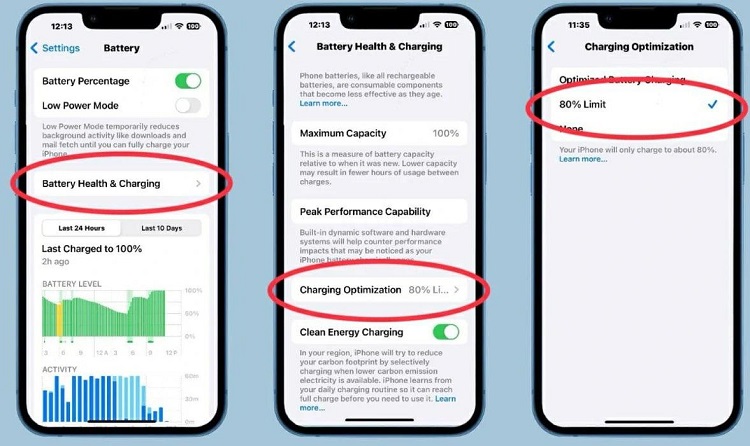
Saving battery power is important, but maintaining battery health is equally essential.
Smartphone batteries gradually lose their ability to hold a charge as they age. However, certain charging habits and excessive heat can accelerate this process.
Many modern smartphones now include battery protection features designed to reduce unnecessary battery wear.
Examples include Optimised Battery Charging on iPhone and charging protection features on supported Android devices.
On iPhone:
-
Open Settings.
-
Select Battery.
-
Find Charging.
-
Review available charging optimisation or charge limit options.
On Android:
-
Open Settings.
-
Select Battery.
-
Look for Battery Protection, Charging Optimisation or a similar feature.
-
Enable the available protection option.
The exact options depend on your smartphone manufacturer and model.
Why it works: Charging optimisation can reduce the time a battery spends at a very high charge level, helping to slow long-term battery ageing.
Battery-Saving Myths You Should Stop Believing
Not every popular battery-saving trick actually works. Some habits can even make your smartphone less convenient to use.
Here are a few common misconceptions worth avoiding.
1. Closing every application does not always save battery.
Frequently force-closing applications can sometimes use more power because they must reload when opened again. Modern Android and iOS systems manage background applications automatically. Only force-close an app when it is malfunctioning or behaving unusually.
2. You do not need to charge your battery only when it reaches 0%.
Modern smartphones use lithium-ion batteries. Regularly allowing the battery to become completely empty is unnecessary and may contribute to battery wear over time.
3. Charging overnight does not automatically destroy your battery.
Modern smartphones have charging management systems designed to control charging. However, excessive heat and spending prolonged periods at a very high charge level can contribute to battery ageing. Use charging optimisation features where available.
4. Turning off Wi-Fi and Bluetooth all the time is not necessary.
Modern smartphones are designed to manage wireless connections efficiently. Disabling them when they are genuinely unnecessary can help, but switching them off constantly may provide little noticeable improvement.
Final Thoughts
Improving smartphone battery life does not always require purchasing a new battery or changing your phone.
Simple adjustments such as reducing screen brightness, limiting unnecessary background activity, enabling Battery Saver, managing notifications and keeping your device cool can make a noticeable difference.
You should also monitor battery usage regularly to identify applications responsible for excessive power consumption.
Remember that battery performance depends on your smartphone model, battery age, network conditions and usage habits. There is no single setting that will dramatically improve battery life on every device.
By combining these practical battery-saving techniques, you can reduce unnecessary power consumption, spend less time looking for a charger and get more usage out of your smartphone every day.