If you have ever received a PDF file that you needed to edit, you probably know how inconvenient it can be. PDFs are designed to preserve the appearance of a document, but editing them directly is not always easy.
The good news is that you do not need to install Microsoft Word, Adobe Acrobat, or another desktop program just to convert a PDF into an editable Word document. Several browser-based tools can convert PDF files into Word documents in just a few steps.
In this guide, you will learn how to turn a PDF into a Word document without installing software, including methods using Microsoft Word for the web and popular online PDF converters.
Why Convert a PDF to Word?
PDF files are useful for sharing documents because their formatting generally stays the same across different devices. However, editing a PDF can be difficult, particularly when you need to change paragraphs, correct errors, add information, or rearrange sections.
Converting the PDF to Word can make the document easier to edit.
Some common reasons to convert a PDF include:
- Editing the text in an existing document
- Correcting spelling or formatting errors
- Adding new information
- Copying and reorganising sections
- Updating an old document
- Reusing information from a PDF
- Preparing a document for further editing
The conversion process is usually quick, but the result can depend on how the original PDF was created.
ALSO READ: Google Docs Voice Typing: How to Dictate Emails Faster With Your Voice
How to Turn a PDF Into Word Without Installing Software
There are several ways to do this online. The exact steps may vary slightly depending on the service you use, but the general process is similar.
Method 1: Convert PDF to Word Using Microsoft Word Online
If you already have access to Microsoft 365, you can use Word through your web browser.
Microsoft Word can open some PDF documents and convert their contents into an editable Word format.
Step 1: Open Word Online
Open your web browser and sign in to your Microsoft account.
Go to Microsoft Word on the web and create or open a document.
Step 2: Upload or Open the PDF
Depending on the available options in your Microsoft account, open the PDF file through the browser.
Word may display a message indicating that it will convert the PDF into an editable Word document.
Select the option to continue with the conversion.
Step 3: Review the Converted Document
Once Word processes the PDF, review the document carefully.
The text may be editable, but some elements can change during conversion. Tables, images, columns, headers, footers and unusual fonts may not appear exactly as they did in the original PDF.
Step 4: Save the Document as Word
After checking the document, save or download it in Word format, usually as a .DOCX file.
You can then edit the document normally.
Method 2: Use an Online PDF-to-Word Converter
Another simple option is to use a web-based PDF converter.
Many online services provide PDF-to-Word conversion directly from a browser. You normally upload the PDF, select Word as the output format, wait for the conversion to finish and then download the resulting document.
The advantage is that you do not have to install any application on your computer or phone.
Step 1: Open a PDF Conversion Website
Open a reputable online PDF-to-Word conversion service in your browser.
Look for an option such as PDF to Word, Convert PDF to Word or PDF to DOCX.
Step 2: Upload Your PDF
Click the upload button and select the PDF file from your computer or phone.
Some services also allow you to drag and drop the document into the browser window.
Step 3: Start the Conversion
After uploading the document, select Word or DOCX as the output format if the website provides multiple choices.
Click the conversion button and wait for the process to finish.
Step 4: Download the Word File
When the conversion is complete, download the resulting Word document.
Open the file in Microsoft Word, Google Docs or another compatible word processor to check the formatting.
Method 3: Convert a PDF Using Google Docs
Google Docs can also be useful when you need to extract editable text from a PDF without installing software.
This method works particularly well for PDFs that primarily contain text.
Step 1: Open Google Drive
Sign in to your Google account and open Google Drive.
Upload the PDF document to your Drive.
Step 2: Open the PDF With Google Docs
Right-click the uploaded PDF and choose the option to open it with Google Docs.
Google Docs will attempt to extract the text and other elements from the PDF.
Step 3: Check the Document
Review the converted content.
The text may be editable, but the original layout may not be preserved perfectly. Images, tables and complex formatting can sometimes move or disappear.
Step 4: Download as Microsoft Word
When you are satisfied with the document, use the Google Docs download option and choose:
Microsoft Word (.docx)
The converted file will then be saved as a Word document.
What If the PDF Is a Scanned Document?
This is an important point.
📖 Related Reads
Not every PDF contains actual selectable text.
Some PDFs are essentially photographs or scanned images of paper documents. If you cannot highlight or select the words in the PDF, it may be a scanned document.
In this situation, a normal PDF-to-Word conversion may not produce an editable document.
You may need a technology called Optical Character Recognition (OCR).
OCR analyses the characters in an image and attempts to convert them into actual text.
For example, if you scan a printed letter and save it as a PDF, OCR can recognise the words on the scanned pages and turn them into editable text.
However, OCR is not perfect. Always check the converted document for errors, especially when the original contains names, numbers, addresses, tables or unusual characters.
How to Convert PDF to Word on a Phone
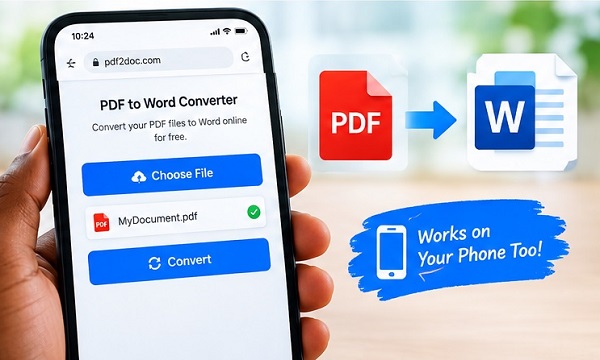
You can also convert a PDF to Word without installing an application on your smartphone.
Open your preferred online PDF conversion service using Chrome, Safari or another mobile browser.
The general process is:
- Open the PDF converter website.
- Select PDF to Word.
- Tap the upload button.
- Select your PDF from your phone.
- Start the conversion.
- Wait for the process to finish.
- Download the Word document.
- Open the downloaded DOCX file using a compatible app or web-based word processor.
The exact buttons can differ between services.
How to Get Better Results When Converting PDF to Word
PDF conversion does not always produce a perfect copy of the original document. You can improve the result by following a few simple steps.
Use a Clear Original PDF
A high-quality PDF generally produces better results than a blurry or poorly scanned document.
Check the Formatting
After conversion, compare the Word document with the original PDF.
Look for:
- Missing text
- Incorrect spacing
- Changed fonts
- Moved images
- Broken tables
- Incorrect page breaks
- Missing headers or footers
Check Numbers and Names
Pay particular attention to dates, phone numbers, prices, account numbers and names.
OCR and automatic conversion can occasionally mistake one character for another.
Use OCR for Scanned PDFs
If the PDF contains scanned pages rather than selectable text, choose a conversion service that supports OCR.
Is It Safe to Upload a PDF Online?
This depends on the service and the document.
Before uploading a PDF containing confidential information, check the website’s privacy and security policies.
Avoid uploading sensitive documents to an unknown website simply because it offers free conversion.
For documents containing personal, financial, employment or other confidential information, consider whether an online conversion service is appropriate.
If the document is highly sensitive, using software or a trusted service that processes the file locally may be safer than uploading it to an unfamiliar website.
PDF to Word Conversion: What Works Best?
The best method depends on the type of PDF you have.
For normal text-based PDFs: an online PDF-to-Word converter can be the quickest option.
For documents already stored in Google Drive: Google Docs can be convenient.
For Microsoft 365 users: Word on the web may be a practical option.
For scanned documents: choose a service with OCR capabilities.
For confidential documents: be more cautious about uploading the file to third-party websites.
Frequently Asked Questions
Can I convert PDF to Word for free?
Yes. Several browser-based services offer free PDF-to-Word conversion, although some may impose limits on file size, number of conversions or available features.
Can I convert PDF to Word without Microsoft Word?
Yes. You do not need Microsoft Word installed on your computer. You can use browser-based conversion services or tools such as Google Docs.
Can I convert a PDF to Word on Android?
Yes. You can use your Android phone’s web browser to access an online PDF-to-Word converter and download the resulting DOCX file.
Can I convert a scanned PDF to Word?
Yes, but scanned PDFs usually require OCR. The quality of the conversion depends on the quality of the scan and the OCR technology being used.
Will the Word document look exactly like the PDF?
Not always. Simple text documents usually convert better, while documents containing tables, columns, graphics and complex layouts may require manual formatting after conversion.
Do I need to install an app to convert PDF to Word?
No. If you use a browser-based conversion service, you can upload the PDF, convert it and download the Word file without installing dedicated software.
Final Thoughts
Converting a PDF into an editable Word document does not have to involve installing special software. With browser-based tools, you can upload a PDF, convert it to DOCX and download the editable document directly from your computer or smartphone.
For the best results, always check the converted file before using it. Simple text-based PDFs generally convert well, while scanned documents and PDFs with complicated layouts may require OCR or additional formatting.
Most importantly, be careful when uploading confidential documents to online conversion services. Use reputable services and review their privacy policies before submitting sensitive files.