Changing to a new smartphone can be exciting, but one thing you don’t want to lose in the process is your WhatsApp chat history.
Important conversations, family photos, videos, school documents, receipts, voice messages and other files may be stored inside your WhatsApp chats. If you change phones without properly backing up your data, you could have difficulty recovering some of that information.
The good news is that WhatsApp provides built-in backup options for both Android and iPhone users.
In this guide, you’ll learn how to back up WhatsApp chats before changing phones, how to check whether your backup is successful, what happens to your photos and videos, and what to do before resetting or selling your old phone.
Important: Do not factory-reset, sell or give away your old phone until you’ve confirmed that your WhatsApp chats and important media have successfully transferred to your new device.
Why Should You Back Up WhatsApp Before Changing Phones?
A WhatsApp backup gives you a recovery option if something goes wrong while changing devices.
Your WhatsApp account and your WhatsApp backup are not exactly the same thing.
Your account is associated with your phone number, while your chat history can be backed up so that it can be restored when setting up WhatsApp on a compatible device.
A backup can help preserve information such as:
- Text messages
- Group conversations
- Photos
- Videos
- Voice messages
- Documents
- Other supported WhatsApp data
The exact content available during restoration depends on the platform and backup method you use.
How to Back Up WhatsApp on Android
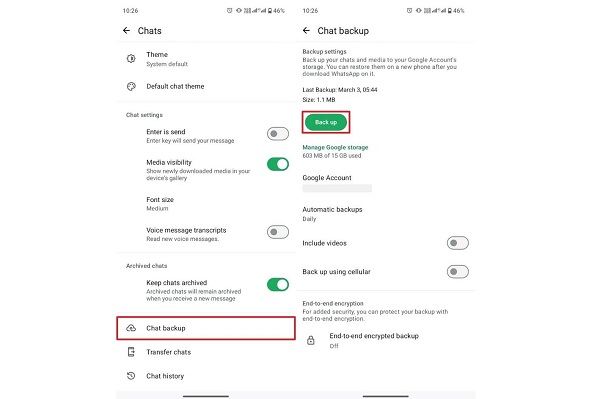
Android users can back up WhatsApp chats using their Google Account and other supported backup options.
Before starting, make sure you are using the Google Account you intend to use for the backup.
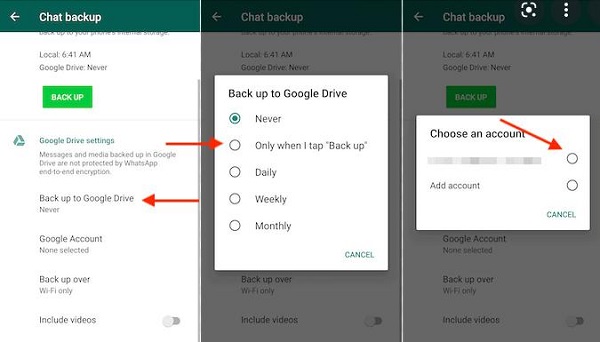
Step 1: Open WhatsApp
Launch WhatsApp on your old Android phone.
Tap the three-dot menu in the upper-right corner.
Select:
Settings → Chats → Chat backup
Depending on your WhatsApp version, the appearance of the menus may be slightly different.
Step 2: Select Your Google Account
Under the backup settings, check the Google Account associated with your WhatsApp backup.
Make sure it is an account you can access on your new phone.
If necessary, select the appropriate Google Account.
This is important because using a different Google Account on your new phone may prevent WhatsApp from finding the backup you expect.
Step 3: Choose Whether to Include Videos
WhatsApp provides an option to include videos in backups.
Videos can consume considerably more storage than text messages and photos.
If you have many important videos, you may want to enable the video backup option.
However, remember that including videos can make your backup significantly larger and may take longer to complete.
Step 4: Tap “Back Up”
Tap:
Back Up
WhatsApp will begin creating your backup.
Keep your phone connected to a reliable internet connection and preferably connect it to a charger if you have a large amount of data.
Don’t interrupt the process unnecessarily.
How to Check if Your WhatsApp Backup Was Successful
Don’t assume that your backup worked simply because you pressed the button.
Return to:
WhatsApp → Settings → Chats → Chat backup
Look at the information showing the most recent backup.
You should be able to see when the latest backup was created.
Check:
- The backup date
- The backup size
- The Google Account being used
- Whether videos are included, if required
If the backup date has been updated to the time you just performed the backup, that’s a good indication that the process completed.
How to Back Up WhatsApp on iPhone
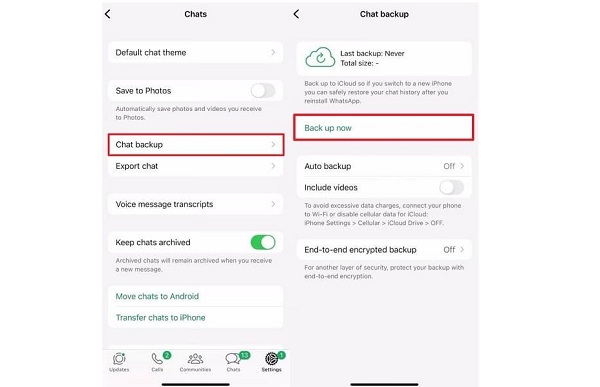
iPhone users can use iCloud for WhatsApp chat backups.
Before creating the backup, make sure you are signed into the Apple Account you intend to use on your new iPhone.
Step 1: Open WhatsApp
Open WhatsApp on your old iPhone.
Go to:
Settings → Chats → Chat Backup
Step 2: Check Your iCloud Settings
Make sure iCloud is properly configured and that you have sufficient available iCloud storage for the backup.
If you have a large amount of WhatsApp media, the backup may require considerable storage.
Step 3: Tap “Back Up Now”
Tap:
Back Up Now
Wait until the backup finishes.
Don’t immediately erase the old iPhone after starting the backup.
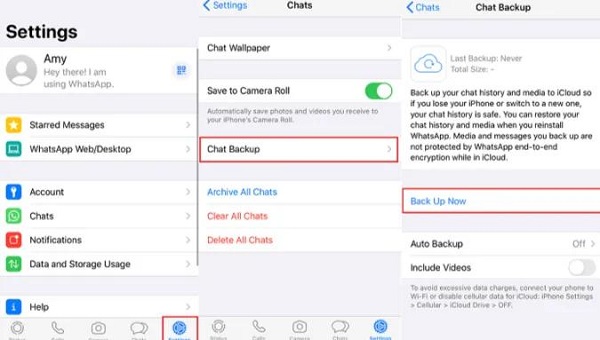
How to Know Your iPhone Backup Is Ready
Return to:
WhatsApp → Settings → Chats → Chat Backup
Check the date and time of the most recent backup.
Make sure it reflects the backup you just created.
If the backup is unusually large or your phone has limited available cloud storage, resolve the storage issue before changing phones.
What About WhatsApp’s End-to-End Encrypted Backups?
WhatsApp provides an optional end-to-end encrypted backup feature.
When enabled, your backup receives an additional layer of protection.
WhatsApp explains that end-to-end encrypted backups can be protected using a password or a 64-digit encryption key.
Important
If you enable an encrypted backup, don’t forget the password or key.
If you lose the password or encryption key, you may not be able to restore the encrypted backup.
Therefore, store the recovery information somewhere secure that you can access when setting up your new phone.
Should You Include Videos in Your WhatsApp Backup?
It depends on how important your videos are and how much storage you have available.
Include videos if:
- You have important family videos.
- You have school or work-related recordings.
- You have important WhatsApp documents or demonstrations.
- You don’t have another copy of the videos.
You may leave videos out if:
- You have another backup of them.
- Your cloud storage is nearly full.
- Your WhatsApp account contains many unnecessary videos.
- You want a smaller and faster backup.
Before changing phones, review your WhatsApp media and remove files you no longer need.
Check Your Phone’s Storage Before Backing Up
A large WhatsApp account can contain several gigabytes of data.
Before starting the backup, check your phone’s available storage.
You may want to remove:
- Duplicate videos
- Old forwarded media
- Unnecessary documents
- Large files
- Unwanted photos
- Old voice recordings
This can reduce the size of your WhatsApp data and make the migration easier.
Check Your Cloud Storage
Your backup may require cloud storage.
For Android, check the available storage associated with your Google Account.
For iPhone, check your available iCloud storage.
If there isn’t enough space, your backup may fail or may not contain everything you expect.
📖 Related Reads
Don’t wait until moving day
Check your cloud storage before you start changing phones.
If you discover that your storage is full, you’ll have time to clean up unnecessary files or make another appropriate storage arrangement.
Use the Same Phone Number
When restoring a WhatsApp backup on your new phone, you generally need to verify the same phone number associated with the account and backup.
If you’re also changing your phone number, don’t simply switch to the new number during setup without planning the migration.
WhatsApp provides a Change Number feature designed for users who are changing numbers.
If you’re changing both your phone and your phone number, deal with the number change properly before completing the migration.
Use the Same Google Account or Apple Account
This is particularly important when restoring cloud backups.
Android
Use the Google Account associated with your WhatsApp backup.
iPhone
Use the Apple Account/iCloud setup associated with the backup.
If WhatsApp can’t find your backup, check that you’ve signed into the correct account.
Don’t Delete WhatsApp From Your Old Phone Yet
This is one of the most important rules.
After creating your backup, keep your old phone intact.
Don’t:
- Factory-reset it
- Sell it
- Give it away
- Delete your important WhatsApp data
- Throw away the SIM you need for verification
until you have successfully set up WhatsApp on the new phone and checked your chats.
The old phone can serve as an additional safety net if something goes wrong.
How to Restore WhatsApp on Your New Phone
After backing up your old phone, you can set up WhatsApp on your new device.
On Android
- Install WhatsApp.
- Open WhatsApp.
- Enter your phone number.
- Verify the number.
- Sign into the Google Account containing your backup.
- Wait for WhatsApp to detect the backup.
- Select Restore when prompted.
- Wait for your chats and media to restore.
On iPhone
- Install WhatsApp from the App Store.
- Open WhatsApp.
- Verify your phone number.
- Make sure you’re using the appropriate Apple Account/iCloud setup.
- Follow the restoration instructions.
- Allow the restoration process to complete.
The exact screens can change as WhatsApp updates its application.
Can You Transfer WhatsApp Without a Cloud Backup?
Yes, in supported cases.
WhatsApp provides a direct Chat Transfer feature that can allow users to move chat history between compatible phones.
This can be useful if you don’t want to rely solely on a cloud backup.
For example, if you’re moving from one Android phone to another supported Android phone, you may be able to transfer your chats directly between the devices.
The availability and exact process depend on your devices, operating systems and WhatsApp version.
Best practice
Even when using direct Chat Transfer, creating a backup before beginning the migration can provide an additional safety option where supported.
What If Your WhatsApp Backup Is Very Large?
If your WhatsApp backup is several gigabytes, don’t panic.
You can reduce its size by reviewing your WhatsApp media before creating the final backup.
Look for:
- Large videos
- Duplicate files
- Old group media
- Unnecessary documents
- Frequently forwarded files
You can use WhatsApp’s storage management tools to identify large files.
After cleaning up unnecessary content, create a fresh backup.
What If WhatsApp Cannot Find Your Backup?
If WhatsApp doesn’t detect your backup on the new phone, check the following.
1. Verify your phone number
Make sure you’re using the number associated with the backup.
2. Check your Google Account
On Android, confirm that the correct Google Account is signed into the new device.
3. Check your Apple Account
On iPhone, make sure you’re using the Apple Account associated with the backup.
4. Check your internet connection
Make sure you have a reliable connection.
5. Confirm that a backup exists
Go back to your old phone if you still have it and check the WhatsApp backup settings.
6. Check available storage
Your new phone needs enough space to restore the data.
What If the Backup Fails?
If your WhatsApp backup doesn’t complete, try these steps:
First: Check your internet connection.
Second: Check your available cloud storage.
Third: Check your phone’s available storage.
Fourth: Remove unnecessary large WhatsApp files.
Fifth: Try the backup again.
If the problem continues, check WhatsApp’s current help documentation for troubleshooting information specific to your device and version.
Should You Back Up WhatsApp Every Day?
If your WhatsApp conversations are important, regular backups are sensible.
WhatsApp allows users to configure automatic backup schedules, depending on their platform and settings.
You can choose a frequency that suits you.
For example:
- Daily
- Weekly
- Monthly
If you frequently exchange important messages and files, a more frequent backup schedule may be preferable.
However, automatic backups shouldn’t replace good storage management.
WhatsApp Backup Checklist Before Changing Phones
Before you switch to your new phone, go through this checklist:
☑ Confirm your WhatsApp phone number
☑ Open WhatsApp’s Chat Backup settings
☑ Check the most recent backup date
☑ Create a fresh backup
☑ Confirm the backup completed
☑ Check your Google Account or Apple Account
☑ Check cloud storage
☑ Review important WhatsApp photos and videos
☑ Keep your old phone available
☑ Keep your SIM/phone number accessible for verification
☑ Don’t factory-reset your old phone
☑ Restore WhatsApp on the new phone
☑ Check important chats
☑ Check photos and videos
☑ Check documents and voice messages
☑ Only then erase the old phone
What Should You Do Before Selling Your Old Phone?
If you’re selling or giving away your old smartphone, don’t simply delete WhatsApp and hand over the device.
First:
1. Back up WhatsApp
Create a fresh backup.
2. Transfer your WhatsApp account
Set up WhatsApp on your new phone.
3. Verify your important data
Check your conversations and media.
4. Remove your accounts
Sign out or remove your personal accounts from the old device where appropriate.
5. Factory-reset the phone
Only after you’ve confirmed that your important information is safe should you erase the old phone.
Final Thoughts
Backing up WhatsApp before changing phones is one of the simplest ways to protect your conversations and important media.
Whether you’re moving from Android to Android, iPhone to iPhone or switching between Android and iPhone, preparation is important.
Before changing phones, create a fresh WhatsApp backup, confirm that it completed successfully, make sure you know which account and phone number are associated with it, and keep your old phone until you’ve verified the new device.
If you follow those steps, changing phones becomes much less stressful—and you greatly reduce the risk of discovering that your important WhatsApp conversations disappeared after the switch.
Frequently Asked Questions
How do I back up WhatsApp before changing phones?
On Android, go to WhatsApp → Settings → Chats → Chat backup and create a backup using your configured Google Account. On iPhone, go to WhatsApp → Settings → Chats → Chat Backup and select Back Up Now.
Will my WhatsApp chats be deleted when I change phones?
Changing phones doesn’t automatically mean your chats will be lost. However, you should create a backup or use a supported transfer method before switching devices.
Do I need to back up WhatsApp before changing phones?
It is strongly recommended. A current backup gives you an additional way to recover your chat history if the direct transfer or migration doesn’t go as expected.
Will WhatsApp backup include photos and videos?
Supported WhatsApp backups can include media. On Android, you can choose whether to include videos. The exact backup and restoration behaviour can depend on your platform and settings.
Can I transfer WhatsApp without Google Drive?
On supported devices, WhatsApp’s direct Chat Transfer feature can allow chat history to be moved directly between phones without relying solely on a cloud backup.
Can I restore WhatsApp on a new phone with a different number?
A WhatsApp backup is generally associated with the phone number used to create it. If you’re changing numbers, use WhatsApp’s Change Number process rather than simply registering the new number and expecting the old backup to appear automatically.
What happens if I forget my encrypted backup password?
If you enabled end-to-end encrypted backups and forget the password or lose the encryption key, you may not be able to access that encrypted backup. Store your recovery information securely.
Should I keep my old phone after backing up WhatsApp?
Yes. Keep it until you’ve successfully restored or transferred WhatsApp to the new phone and confirmed that your important chats and media are available.