Android smartphones can sometimes behave strangely because of malicious apps, adware, malware or other unwanted software. Your phone may suddenly display pop-up advertisements, install unfamiliar apps, become unusually slow, use excessive mobile data or drain the battery faster than normal.
Although Android devices have built-in security protections, installing apps from unofficial sources or clicking suspicious links can increase the risk of malware infections.
The good news is that you can often remove malicious software yourself without immediately performing a factory reset.
In this guide, you will learn how to remove a virus from an Android phone, how to identify possible malware, how to use Google Play Protect, uninstall suspicious apps and protect your phone from future infections.
ALSO READ: Best Budget Android Phones to Buy in Nigeria in 2026
Does Your Android Phone Really Have a Virus?
The term “Android virus” is commonly used to describe different types of malicious software. Your phone may actually be affected by malware, adware, spyware or a potentially unwanted application rather than a traditional computer virus.
Some warning signs include:
- Frequent pop-up advertisements.
- Your browser opening unfamiliar websites.
- Apps appearing that you did not install.
- Your phone becoming unusually slow.
- Battery draining much faster than normal.
- Mobile data usage suddenly increasing.
- Your device overheating when you are not using it heavily.
- Strange notifications appearing repeatedly.
- Your browser homepage or search engine changing without permission.
- Applications repeatedly crashing.
- Being redirected to suspicious websites.
One symptom alone does not necessarily mean your phone has malware. For example, battery drain can also be caused by an aging battery or an app running heavily in the background.
Step 1: Disconnect From the Internet
If you strongly suspect that your phone is infected, temporarily disconnect it from the internet.
Turn off:
- Mobile data
- Wi-Fi
- Bluetooth if it is not needed
This can reduce the ability of some malicious applications to communicate with external servers while you investigate the problem.
You can turn off mobile data by opening your Android Quick Settings panel and tapping the mobile-data icon.
Step 2: Restart Your Android Phone in Safe Mode
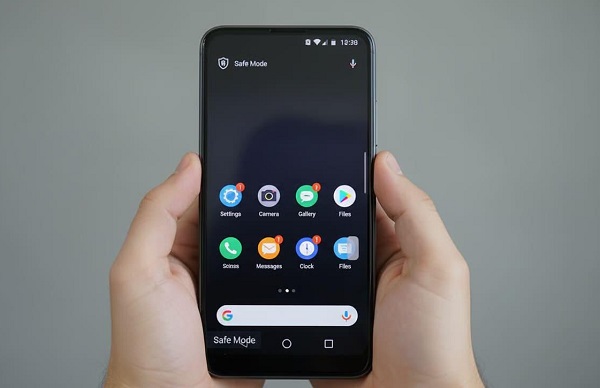
Safe Mode is useful for troubleshooting because it temporarily prevents most third-party applications from running.
The exact method for entering Safe Mode varies between Android manufacturers.
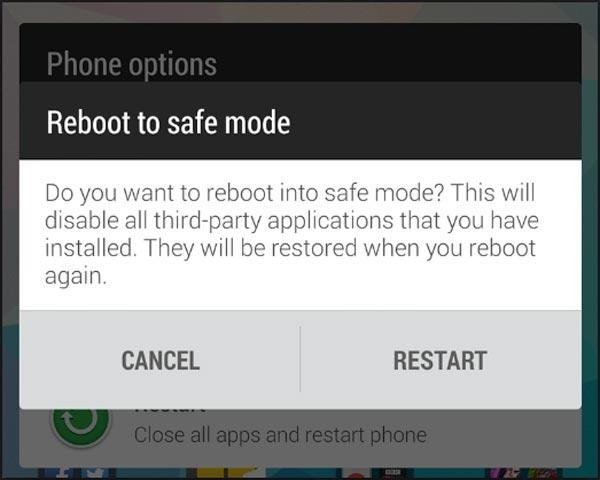
On many Android phones, you can:
- Press and hold the power button.
- Press and hold Power off on the screen.
- Select or confirm Safe mode when the option appears.
If that method does not work, check your phone manufacturer’s instructions because the procedure can differ between Samsung, Xiaomi, Tecno, Infinix, Google Pixel and other devices.
If the suspicious behaviour disappears while the phone is in Safe Mode, a recently installed third-party application may be responsible.
Step 3: Uninstall Suspicious Apps
Look through the apps installed on your phone and remove applications you do not recognise or no longer need.
Go to:
Settings → Apps → See all apps
The exact menu names may differ depending on your Android version and phone manufacturer.
Look particularly for apps that:
- You do not remember installing.
- Were installed shortly before the problem started.
- Display excessive advertisements.
- Have suspicious names or icons.
- Request permissions that do not match their purpose.
- Came from an unofficial website rather than Google Play.
Select the suspicious application and tap Uninstall.
Do not uninstall an important system application simply because you do not recognise its name. Some Android system components have technical names that may look unfamiliar.
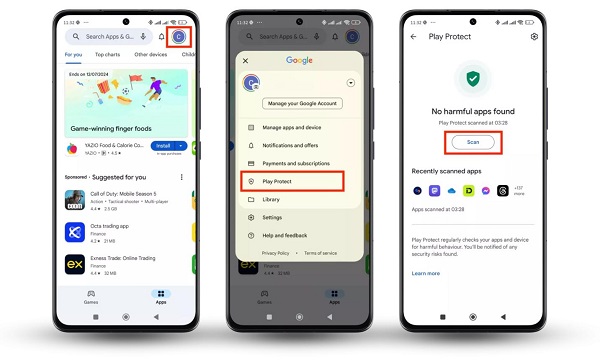
Step 4: Use Google Play Protect
Google Play Protect is Android’s built-in security system for checking applications and helping protect users from potentially harmful apps.
To run a scan:
- Open the Google Play Store.
- Tap your profile picture.
- Select Play Protect.
- Tap Scan.
Google Play Protect automatically scans apps and can warn you about potentially harmful applications. Google also recommends keeping Play Protect enabled. (support.google.com)
If Play Protect identifies a harmful application, follow the instructions provided to remove or disable it.
Step 5: Remove Apps Installed From Unknown Sources
Installing Android applications from outside Google Play can increase security risks, particularly when the source is unreliable.
If you recently downloaded an APK from a website and your phone started behaving strangely afterward, consider uninstalling the application.
You can also review which apps are allowed to install unknown applications.
Depending on your Android version, look under:
Settings → Apps → Special app access → Install unknown apps
Check which applications have permission to install other apps.
If an app does not need this permission, consider turning it off.
Step 6: Check Your App Permissions
Some malicious applications attempt to obtain access to sensitive information or device functions.
Review the permissions granted to your installed applications.
Go to:
Settings → Security & privacy → Privacy → Permission manager
The exact menu can vary by Android manufacturer.
Pay particular attention to permissions such as:
- Camera
- Microphone
- Location
- Contacts
- SMS
- Phone
- Files and photos
For example, a simple calculator application should generally not need access to your SMS messages or microphone.
Remove permissions that an application does not legitimately need.
Step 7: Remove Suspicious Device Administrator Access
Some malicious applications attempt to make themselves difficult to uninstall by obtaining elevated device-management privileges.
If you cannot uninstall a suspicious application normally, check your phone’s security settings for Device admin apps or a similar option.
The location varies between Android versions and manufacturers.
If a suspicious app has administrator privileges, disable its access first and then try uninstalling it.
Be careful not to disable legitimate security or management applications that you intentionally installed.
Step 8: Clear Your Browser’s Suspicious Data
Sometimes what appears to be a virus is actually caused by unwanted browser notifications or website permissions.
If you are seeing advertisements whenever you browse the internet, check your browser settings.
📖 Related Reads
For Chrome on Android, you can review website notifications and permissions through the browser’s settings.
Remove permissions for websites you do not recognise.
You can also clear browsing data if unwanted redirects or pop-ups continue.
However, clearing browser data alone will not remove an actual malicious application installed on your phone.
Step 9: Update Android and Your Apps
Keeping your operating system and applications updated is an important part of Android security.
Check for available Android updates under:
Settings → System → Software update
The exact location may differ by manufacturer.
You should also update applications through the Google Play Store.
Software updates can contain security fixes and improvements that protect against known vulnerabilities.
Step 10: Run Another Security Check
After removing suspicious applications, restart your phone normally and check whether the unusual behaviour continues.
Run another Google Play Protect scan and monitor:
- Battery usage
- Mobile data usage
- Pop-up advertisements
- Installed applications
- Browser behaviour
- Device performance
If the problem has disappeared, the suspicious application was likely responsible.
What If You Cannot Uninstall the Virus?
If an application refuses to uninstall, try entering Safe Mode and removing it there.
You should also check whether the application has special permissions such as device administrator access or accessibility access.
If you still cannot remove the malicious software, back up important personal files and consider performing a factory reset.
How to Factory Reset an Android Phone
A factory reset should generally be considered a last resort.
It removes apps and personal data from the device and returns the phone to its factory state.
Before resetting your phone, make sure important information such as:
- Photos
- Contacts
- Documents
- WhatsApp backups
- Important files
- Two-factor authentication information
has been backed up appropriately.
The reset option is usually found under:
Settings → System → Reset options → Erase all data
The wording and location may differ depending on your phone manufacturer.
Important: A factory reset permanently removes data stored on the device. Make sure you understand what will be erased before proceeding.
Don’t Immediately Restore Every App After a Factory Reset
If you eventually reset your Android phone because of malware, avoid automatically reinstalling every application you previously had.
An application that caused the problem could be installed again.
Instead, reinstall applications selectively from trusted sources, preferably Google Play, and review their permissions before using them.
How to Prevent Android Viruses in the Future
Removing malware is only part of the solution. You should also take steps to reduce the possibility of another infection.
Download Apps From Trusted Sources
Use Google Play whenever possible. Be particularly careful with APK files downloaded from unknown websites.
Keep Google Play Protect Enabled
Google recommends keeping Play Protect enabled because it helps detect potentially harmful applications. (support.google.com)
Don’t Click Suspicious Links
Be careful with links received through SMS, WhatsApp, email and social media.
A message claiming that you have won a prize, received a package or must urgently verify your bank account could be a phishing attempt.
Review App Permissions
Don’t automatically grant every permission an application requests. Consider whether each permission is necessary for the app’s functionality.
Keep Android Updated
Install security and software updates when they become available for your device.
Avoid Pirated Applications
Cracked or modified applications can contain malicious code. Downloading an application simply because it is offered for free can expose your phone and personal information to unnecessary risks.
Can an Android Phone Get a Virus From a Website?
Simply visiting a website does not automatically mean that your phone has a virus.
However, malicious websites can attempt to trick users into downloading harmful applications, entering passwords or granting permissions.
If a website tells you that “Your Android phone has a virus” and immediately asks you to install an application to clean it, do not automatically trust the warning.
Close the website and use trusted Android security tools such as Google Play Protect to check your device.
Can a Virus Steal Your Banking Information?
Some forms of Android malware are specifically designed to steal sensitive information.
Depending on the type of malware, criminals may attempt to obtain passwords, SMS verification codes, financial information or other personal data.
If you suspect that a malicious application has accessed your banking or financial information, contact your bank through its official customer-service channels and secure your affected accounts immediately.
Change important passwords from a device you trust and enable two-factor authentication where available.
Final Thoughts
If your Android phone suddenly displays excessive advertisements, installs unfamiliar applications, redirects your browser or behaves unusually, malware could be responsible.
Start by disconnecting from the internet, entering Safe Mode if necessary, uninstalling suspicious applications and running a Google Play Protect scan.
You should also review app permissions, remove unnecessary special access, update Android and your applications, and avoid downloading APK files from untrusted websites.
If the problem persists after troubleshooting, back up your important information and consider a factory reset as a last resort.
Most importantly, don’t panic when a random website claims that your phone has a virus. Use trusted security tools and investigate the problem before installing any “virus removal” application.