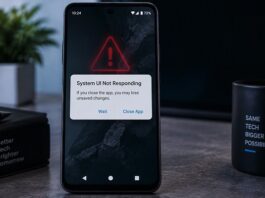
If your Android phone keeps restarting by itself, you are not alone. A phone that randomly reboots can be frustrating, especially when it happens while you are making a call, browsing the internet, using WhatsApp, watching videos or working on an important document.
The good news is that frequent restarting does not always mean your phone is permanently damaged. In many cases, the problem can be caused by a problematic app, insufficient storage, an outdated Android version, overheating, a faulty accessory or a temporary software problem.
Google recommends several troubleshooting steps for Android devices that randomly restart or crash.
Here are the most common reasons your Android phone keeps restarting and what you can do about them.
ALSO READ: How to Recover Deleted WhatsApp Photos on Android and iPhone
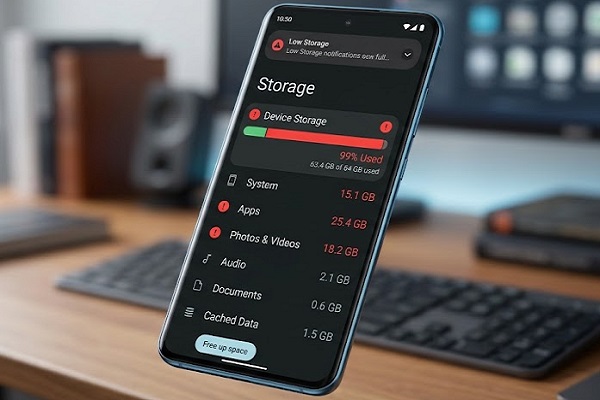
1. Your Phone Is Running Out of Storage
One of the first things you should check is your phone’s available storage.
When internal storage becomes extremely low, Android may begin experiencing performance problems. Google specifically warns that an Android phone can start having issues when less than 10% of its storage is available.
To check your storage:
- Open Settings.
- Tap Storage.
- Check how much space is available.
- Delete unnecessary videos, photos, downloads and unused apps.
You can also move important photos and videos to cloud storage or another storage device.
Try to maintain a reasonable amount of free space rather than allowing your phone’s storage to remain completely full.
2. A Recently Installed App May Be Causing the Problem
A newly installed or poorly coded app can sometimes cause Android to crash or restart.
This is particularly worth checking if the restarting problem began shortly after you installed an app.
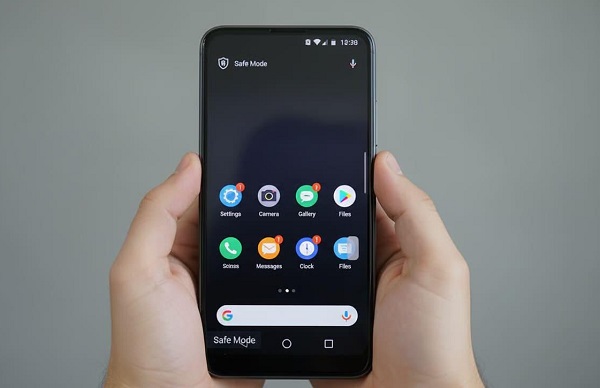
Google recommends using Safe Mode to determine whether a downloaded app is responsible. Safe Mode temporarily disables downloaded apps. If the phone stops restarting while in Safe Mode, an installed app is likely causing the problem.
Remove recently installed apps one at a time and restart the phone after each removal.
Pay particular attention to apps installed shortly before the problem began.
3. Your Android Software Is Outdated
Software updates often contain bug fixes, security improvements and performance improvements.
An outdated Android version can sometimes contribute to system instability.
To check for an update:
Settings → System → Software update
The exact menu can vary depending on the phone manufacturer.
If an update is available, connect your phone to a reliable Wi-Fi network, make sure the battery has sufficient charge and install the update.
Google recommends checking for Android system updates when troubleshooting random restarts.
4. Your Apps Need to Be Updated
The Android operating system may be updated while some of your installed apps remain outdated.
An incompatible or malfunctioning app can cause crashes and other system problems.
Open the Google Play Store, tap your profile picture and select Manage apps & devices. Check for available updates and update your apps.
Google also recommends updating apps when troubleshooting Android devices that are restarting or crashing.
5. Your Phone May Be Overheating
Excessive heat can cause a smartphone to behave abnormally.
Your phone may become hot when you:
- Play demanding games for long periods
- Use navigation continuously
- Record high-resolution video
- Charge while performing demanding tasks
- Use the phone in very hot environments
- Run several resource-intensive applications
If your phone becomes unusually hot before restarting, stop using it for a while and allow it to cool down.
Avoid placing a hot phone under a pillow or in another enclosed space. If overheating happens frequently even during light use, the device may require professional inspection.
6. A Faulty Charger, Cable or Accessory Could Be Involved
Sometimes the phone itself is not the only thing that needs checking.
A damaged charging cable, faulty charger, external battery pack or poorly fitting accessory can contribute to problems.
Google recommends removing cases, external batteries and other accessories while troubleshooting a phone that restarts or crashes. It also advises checking that accessories are not pressing buttons or interfering with sensors.
Try using a reliable charger and cable that are compatible with your device.
If the phone only restarts while charging, pay particular attention to the charger, cable, charging port and battery.
7. The Power Button May Be Getting Pressed
A damaged or stuck power button can cause unexpected restarts.
Remove your phone case and inspect the power button. Make sure the case is not pressing against it.
Press the button several times gently and check whether it feels normal.
If the button feels stuck, unusually loose or difficult to press, professional repair may be necessary.
8. Your Phone’s Battery May Be Failing
An aging or damaged battery can also cause unexpected shutdowns and restarts.
You may notice other symptoms such as:
📖 Related Reads
- Battery percentage dropping unusually quickly
- Phone shutting down when the battery still shows charge
- Phone restarting when opening demanding apps
- Excessive battery heating
- Battery swelling
- Poor charging performance
If the battery appears swollen or the phone becomes dangerously hot, stop using it and seek professional assistance. Do not attempt to puncture, open or repair a swollen lithium-ion battery yourself.
9. Check the Phone in Safe Mode
Safe Mode is one of the most useful ways to determine whether a third-party app is responsible.
The exact method for entering Safe Mode differs between manufacturers. Google also notes that the process varies by phone.
Once Safe Mode is enabled, use the phone normally for a while.
If the phone stops restarting, a downloaded application is probably responsible.
Exit Safe Mode and uninstall recently downloaded applications one at a time until you identify the problematic app.
If the phone continues restarting in Safe Mode, the problem is less likely to be caused by a downloaded app.
10. Free Up Space and Remove Unnecessary Apps
If your phone is almost full, start by removing things you no longer need.
Check:
- Large videos
- Duplicate photos
- WhatsApp media
- Downloaded files
- Offline videos
- Old APK files
- Unused applications
- Large app caches
Google recommends freeing up storage when an Android device is experiencing problems, particularly when available storage is very low.
Be careful when deleting files. Back up important photos, documents and other personal data before removing them.
11. Check Whether One App Is Crashing
If your phone usually restarts when you open a particular application, that app deserves special attention.
Try updating the application first.
If the problem continues, you can force stop the app and, where appropriate, clear its cache.
Depending on your Android version and manufacturer, the options may be under:
Settings → Apps → See all apps → [App name]
Google notes that Android settings can differ between devices.
If the problem continues, uninstall and reinstall the application if possible.
12. Remove Recently Installed Apps
Think about when the restarting problem started.
If you installed a new application shortly before the problem appeared, uninstall it temporarily.
Do not reinstall several recently removed apps at once. Remove them individually and observe whether the phone becomes stable.
This makes it easier to identify the application responsible.
13. Restart the Phone Manually
If the phone is experiencing a temporary software problem, a normal restart may resolve it.
Press and hold the power button and select Restart when the option appears.
If the screen is frozen, some Android devices allow you to force a restart by holding the power button for around 30 seconds. The exact procedure varies by device.
14. Consider a Factory Reset as a Last Resort
If none of the troubleshooting methods work, you may eventually need to consider a factory reset.
However, do not perform a factory reset before backing up your important information.
A factory data reset removes data from the phone, including installed apps and their associated data. Google recommends backing up the device before performing this step.
A factory reset should therefore be considered a last resort rather than the first solution.
15. When Should You Take the Phone to a Technician?
You should consider professional assistance if your Android phone continues restarting after you have:
- Updated Android
- Updated your apps
- Freed up storage
- Removed suspicious apps
- Tested Safe Mode
- Removed external accessories
- Checked the charger and cable
- Backed up your data
Hardware problems involving the battery, motherboard, charging system, power button or other internal components may require professional diagnosis.
If the phone has been dropped, exposed to water or is showing signs of battery swelling, seek professional assistance rather than repeatedly attempting software fixes.
Quick Fix Checklist
If your Android phone keeps restarting, work through this checklist:
1. Check available storage.
2. Install Android system updates.
3. Update your apps through Google Play Store.
4. Remove recently installed or suspicious apps.
5. Test the phone in Safe Mode.
6. Remove the phone case and external accessories temporarily.
7. Check the charger and charging cable.
8. Allow an overheating phone to cool down.
9. Back up your important data.
10. Consider a factory reset only as a last resort.
Final Thoughts
An Android phone that keeps restarting can be caused by something as simple as insufficient storage or a problematic application, but persistent restarting can also indicate a battery or other hardware problem.
Start with the safest and simplest solutions. Check storage, update Android and your apps, remove recently installed applications and test the device in Safe Mode. If the problem continues even after these steps, back up your data and consider contacting the phone manufacturer or a qualified technician.
Most importantly, do not immediately factory-reset your phone without backing up your important data first.
Sources
This guide follows Google’s current Android troubleshooting recommendations for devices that restart or crash.