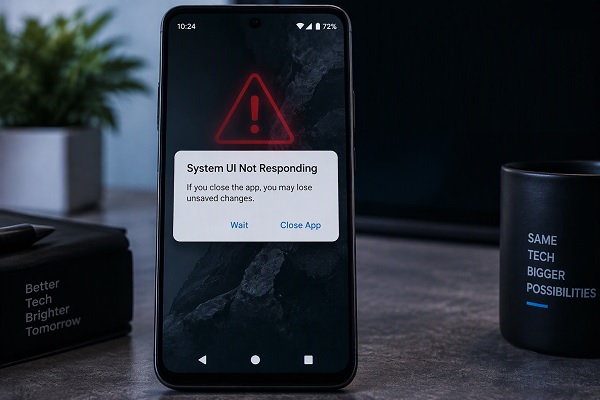
If your Android phone suddenly displays the message “System UI isn’t responding” or “System UI has stopped working,” you may find that parts of the phone become difficult or impossible to use.
The System UI is responsible for many of the visual and interactive elements you use every day, including the notification panel, status bar, navigation controls, lock screen and other parts of the Android interface.
When System UI stops responding, your phone may freeze, display a blank screen, show missing icons or repeatedly ask whether you want to close the System UI.
Fortunately, the problem does not always mean that your phone is damaged. It can be caused by insufficient storage, a temporary software glitch, problematic apps, outdated software, corrupted cached data or excessive system resource usage.
Here are practical ways to troubleshoot the Android System UI Not Responding error.
What Does “System UI Not Responding” Mean?
System UI refers to the part of Android that controls the phone’s interface outside individual applications.
For example, System UI is involved in displaying elements such as:
- Status bar
- Notification panel
- Navigation buttons
- Quick Settings
- Lock screen
- System dialogs
- Navigation gestures
- On-screen system controls
When Android cannot properly run these components, it may display a message saying that System UI is not responding.
The problem can be temporary, or it can keep returning until the underlying cause is fixed.
1. Restart Your Android Phone
The simplest solution is often to restart the phone.
A temporary Android process or software glitch may cause System UI to become unresponsive. Restarting the device closes active processes and reloads the Android interface.
If you can use the screen normally:
- Press and hold the power button.
- Tap Restart.
- Wait for the phone to boot completely.
After restarting, check whether the error appears again.
If the phone is frozen and does not respond to normal controls, the procedure for forcing a restart depends on the manufacturer and model.
2. Free Up Storage Space
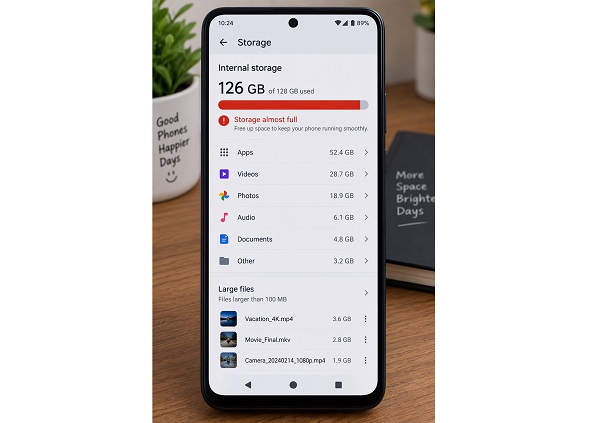
Low storage can contribute to Android performance problems.
If your phone is almost completely full, Android may struggle to perform normal operations.
Check your available storage by opening:
Settings → Storage
The exact menu may differ depending on your phone manufacturer and Android version.
Remove unnecessary:
- Videos
- Screenshots
- Downloads
- Duplicate photos
- Unused applications
- Large files
- Old documents
Be particularly careful with WhatsApp media because videos and images can consume a significant amount of storage over time.
Before deleting important files, make sure they are backed up.
3. Update Android
An outdated Android version can contain bugs that have already been fixed in a newer software update.
Go to:
Settings → System → Software update
On some smartphones, the option may be located under:
Settings → About phone → Software update
If an update is available, install it according to the manufacturer’s instructions.
Software updates can contain bug fixes, security improvements and system stability improvements.
4. Update Your Apps
A third-party application can sometimes cause instability if it contains a bug or is incompatible with the current Android version.
Open the Google Play Store, tap your profile picture and look for available app updates.
Update applications, particularly those that were recently installed or updated around the time the System UI problem started.
If the problem began after installing a particular application, consider uninstalling it temporarily to determine whether it is responsible.
5. Check Recently Installed Apps
Think about when the problem first appeared.
If your phone worked normally until you installed a particular application, that app may be contributing to the problem.
This can happen with applications that:
- Modify the Android interface
- Replace launchers
- Add floating controls
- Display overlays
- Manage notifications
- Change wallpapers
- Modify navigation gestures
- Control screen appearance
Remove suspicious or recently installed applications and restart your phone.
If System UI becomes stable afterwards, you may have identified the source of the problem.
6. Clear the System UI Cache
Temporary cached data can occasionally become corrupted.
On Android phones that provide the option, you can check the System UI application settings.
Go to:
Settings → Apps → See all apps → Show system apps → System UI
The exact steps and available options differ between manufacturers.
If you see a Storage & cache option, you may be able to select Clear cache.
Be careful not to randomly clear data for system applications. Clearing application data can have consequences depending on the application and device.
If you are unsure about an option, leave it unchanged and try the other troubleshooting methods first.
7. Check Your Launcher
Your Android launcher controls the home screen and app interface.
Some third-party launchers can conflict with system components, particularly after an Android update.
If you recently installed or changed your launcher, switch back to the phone manufacturer’s default launcher temporarily.
For example, look under:
Settings → Apps → Default apps → Home app
The exact location varies between Android devices.
Use the default launcher for a while and check whether the System UI error returns.
8. Remove Problematic Widgets
Widgets can also contribute to unusual home-screen behaviour.
If the problem started after adding a particular widget, remove it temporarily.
Press and hold the widget on your home screen and select the option to remove it.
Restart the phone and check whether the System UI error continues.
This is especially useful when the phone becomes unresponsive shortly after returning to the home screen.
9. Check for Overheating
An Android phone can become unstable when it gets excessively hot.
High temperatures may occur when you:
- Play demanding games for long periods
- Use GPS continuously
- Record high-resolution video
- Charge while performing demanding tasks
- Use the phone in a very hot environment
- Run multiple demanding applications simultaneously
If your phone feels unusually hot, stop intensive activities and allow it to cool naturally.
Avoid putting a hot phone under a pillow, blanket or other enclosed area.
📖 Related Reads
If overheating happens regularly even during normal use, consider having the device inspected.
10. Boot Your Phone Into Safe Mode
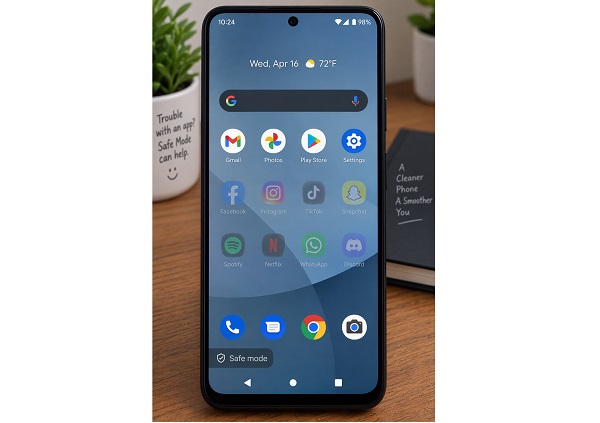
Safe Mode is one of the most useful troubleshooting methods when you suspect a third-party application.
In Safe Mode, downloaded applications are temporarily disabled while the phone runs with essential system software.
The procedure for entering Safe Mode differs between manufacturers.
Once you successfully enter Safe Mode, use the phone for some time.
If the System UI Not Responding message disappears, a downloaded application may be responsible.
Start removing recently installed applications one at a time.
After removing each suspicious application, restart the phone normally and see whether the problem has been resolved.
11. Check Your SD Card
If your Android phone uses a microSD card, the card may also be worth checking.
A damaged or malfunctioning memory card can cause unusual behaviour, particularly when the phone is trying to access files stored on it.
If the System UI problem started after inserting an SD card, turn the phone off and remove the card if your device permits this.
Restart the phone and see whether the problem continues.
If the phone becomes stable without the SD card, back up its contents and consider replacing the card.
12. Check Battery and Power Problems
A failing battery can cause broader stability problems.
Watch for symptoms such as:
- Unexpected shutdowns
- Rapid battery drain
- Excessive heating
- Phone restarting randomly
- Battery percentage changing unusually quickly
- Phone switching off even when the battery appears charged
If the battery is swollen, damaged or extremely hot, stop using the phone and seek professional assistance.
Do not attempt to puncture or open a swollen lithium-ion battery.
13. Remove Recently Applied Themes or System Customizations
Some Android phones allow users to heavily customize the interface.
Themes, icon packs, fonts, launchers and other modifications can sometimes cause problems after an Android system update.
If the System UI error began after changing the phone’s appearance, temporarily restore the default theme and system settings.
Then restart the device and monitor its behaviour.
14. Make Sure Your Phone Is Not Overloaded
Too many demanding processes running simultaneously can make a phone feel slow or unresponsive.
Close applications you are not using and restart the device.
If the phone has limited RAM, avoid keeping numerous resource-intensive applications open at the same time.
You should also remove applications you no longer use.
However, avoid installing third-party “RAM booster” or “phone cleaner” applications simply because the phone is slow. Some of these apps can consume additional resources rather than solving the underlying problem.
15. Install Available Security and System Updates
Apart from the main Android version, your manufacturer may release security updates and other system patches.
Check your phone’s software update section regularly.
If your manufacturer provides separate updates for system components, install them when appropriate.
Keeping the operating system current can reduce the likelihood of encountering problems that have already been corrected by the manufacturer.
16. Back Up Your Important Data
If the System UI problem keeps returning, back up your important information before attempting more advanced troubleshooting.
Important information may include:
- Contacts
- Photos
- Videos
- Documents
- WhatsApp data
- Text messages
- Important files
- Authentication or recovery information
Having a current backup is particularly important if you eventually need to reset the phone.
17. Consider a Factory Reset as a Last Resort
If every other troubleshooting method fails, a factory reset may be an option.
A factory reset removes personal data and installed applications from the phone and restores it to its factory state.
Do not perform a factory reset without first backing up important information.
You should also make sure you know the Google account credentials associated with the device before resetting it.
A factory reset should be considered a last resort because it does not simply restart the phone—it removes your personal data and settings.
18. When Should You Contact a Technician?
If the System UI error continues after software troubleshooting, professional diagnosis may be necessary.
Consider getting help if:
- The phone repeatedly freezes.
- The phone keeps restarting.
- The screen becomes unresponsive.
- The device overheats frequently.
- The phone has been dropped.
- The phone has suffered water damage.
- The battery is swollen.
- The problem continues after a factory reset.
A technician may need to investigate hardware components such as the battery, storage, motherboard or display.
Quick Fixes for Android System UI Not Responding
If you need a quick checklist, try these steps in order:
1. Restart your phone.
2. Free up storage space.
3. Update Android.
4. Update your apps.
5. Remove recently installed apps.
6. Switch back to the default launcher.
7. Remove recently added widgets.
8. Clear the System UI cache if the option is available.
9. Test the phone in Safe Mode.
10. Check for overheating or battery problems.
11. Back up your important data.
12. Consider a factory reset only as a last resort.
Final Thoughts
The “System UI Not Responding” message can make an Android phone appear seriously broken, but the problem is often related to software, storage, an incompatible application or another temporary issue.
Start with simple solutions such as restarting the phone, freeing up storage, updating Android and your applications. If the problem continues, Safe Mode can help determine whether a third-party app is responsible.
If the phone remains unstable after software troubleshooting, particularly if it is overheating, restarting or showing signs of physical damage, professional assistance may be necessary.
Most importantly, back up your important data before attempting a factory reset or other major troubleshooting procedure.