Google Search is much more powerful than simply typing a question into the search box and scrolling through the results.
With the right search techniques, you can find a specific website, locate a PDF document, search within a particular website, exclude unwanted results, find information from a particular date range and even search for an exact phrase.
Google itself provides several search operators and Advanced Search tools for narrowing results. These include quotation marks, site:, the minus sign, filetype:, before: and after:.
Whether you are a student, researcher, blogger, teacher, job seeker or everyday internet user, these 25 Google Search tricks can help you find information faster and with less scrolling.
ALSO READ: How to Check if Someone Has Signed Into Your Google Account
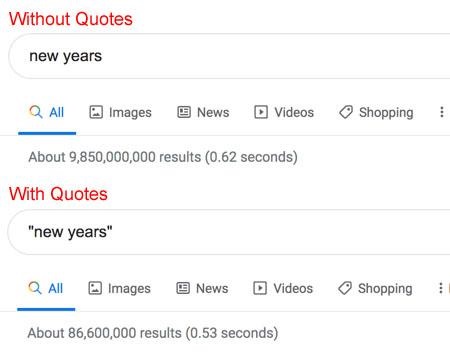
1. Use Quotation Marks for an Exact Phrase
Put quotation marks around a phrase when you want Google to search for that exact wording.
Example:
"how to create a professional CV"
This is useful when searching for:
- A specific sentence
- A book title
- A person’s name
- A product model
- A specific error message
- A quotation
Google officially supports quotation marks for exact-match searches.
2. Search a Specific Website With site:
The site: operator lets you search for information within a particular website or domain.
Example:
site:techfalz.com Android
This tells Google to return relevant pages from TechFalz rather than the entire internet.
You can also use it with government, educational and official websites.
Examples:
site:gov.ng passport
site:edu.ng admission
site:google.com Gmail
Google documents site: as an official search operator.
3. Exclude a Word With the Minus Sign
If your search produces too many irrelevant results, place a minus sign directly before a word you want Google to exclude.
Example:
apple iphone -fruit
This tells Google that you are interested in Apple iPhones rather than the fruit.
Another example:
jaguar speed -car
The minus operator can help remove an unwanted meaning from your search.
4. Find PDF Documents With filetype:
Looking for a PDF can be much faster when you tell Google the file type.
Example:
WAEC mathematics questions filetype:pdf
You can also search for:
digital literacy notes filetype:pdf
business plan Nigeria filetype:pdf
Google officially supports the filetype: operator for finding specific file formats.
5. Search Between Specific Dates With after: and before:
When researching an older or recent topic, you can limit results by date.
Example:
Nigeria technology after:2025-01-01
You can combine both operators:
Nigeria technology after:2025-01-01 before:2026-01-01
This is particularly useful when researching news, historical events or changes to technology.
Google officially documents both after: and before: for date-based searches.
6. Search for Two Possible Terms With OR
When either of two terms could describe what you are looking for, use OR.
Example:
Android OR iPhone security tips
This can help you find results relating to either term.
Keep in mind that not every search operator found on third-party websites is officially documented by Google. Google currently documents the operators described above, while some others may change or behave differently over time.
7. Search for a Definition
If you need a quick definition, you can search:
define:phishing
or simply:
what is phishing
For everyday searches, Google’s normal results may provide definitions directly, so you do not always need a special operator.
8. Search for a Specific Website and Exclude Another
You can combine site: with the minus sign.
For example:
Android security site:google.com -support.google.com
This can help when you want information from a particular Google domain but want to exclude a specific section.
9. Search for Information From Government Websites
When researching government-related information, restricting your search to official domains can make it easier to locate primary sources.
For example:
Nigeria passport requirements site:gov.ng
You can also search:
student loan Nigeria site:gov.ng
tax information Nigeria site:gov.ng
Always check that the result actually belongs to the relevant government organisation before relying on it.
10. Search for University Information
Students can use Google’s site: operator to narrow searches to educational websites.
For example:
computer science admission site:edu.ng
or:
scholarship site:edu.ng
This can reduce the number of unrelated commercial results.
11. Search for a Specific File Type
You are not limited to PDF files.
You can search for other document types when appropriate.
Examples:
lesson plan filetype:doc
school timetable filetype:xls
presentation skills filetype:ppt
The filetype: operator can be particularly useful when searching for documents rather than ordinary webpages.
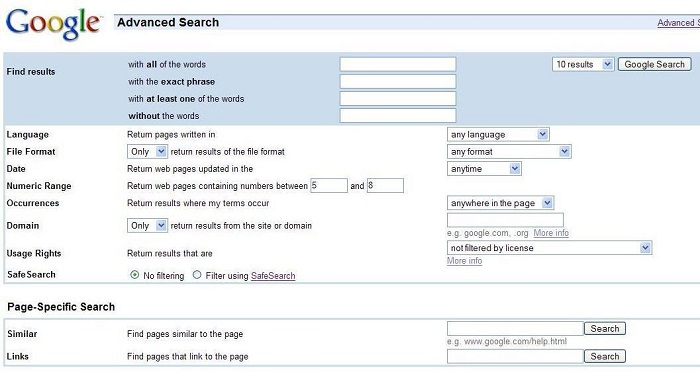
12. Use Google Advanced Search
If you don’t want to remember search operators, Google provides Advanced Search.
You can specify:
- Words to include
- Exact phrases
- Words to exclude
- Language
- Region
- Last update
- Website or domain
- Where terms appear
- File type
- SafeSearch settings
Google says Advanced Search can be accessed from the Search tools and provides different fields for narrowing results.
13. Search Only Recent Information
If you are researching a topic that changes frequently, add a date restriction or use Google’s date filters.
For example:
Android updates after:2026-01-01
You can also use Google’s Search tools to narrow results based on available date filters. Google notes that available filters can vary depending on the search.
📖 Related Reads
14. Search for a Specific Product Model
If you know the exact model number of a device, include it in your search.
Instead of searching:
Samsung phone
try:
Samsung Galaxy A56 SM-A566 specifications
This gives Google more precise information about what you are looking for.
Google recommends using descriptive words that are likely to appear on the websites containing the information you need.
15. Search for an Error Message Exactly
When an app or computer displays an error message, copy part of the message and put it inside quotation marks.
For example:
"Google Play Services keeps stopping"
This can help you find troubleshooting pages discussing the same error.
Exact-phrase searching is especially useful for technical problems because error messages can contain unique wording.
16. Search for a Specific Location
Add a city, state or country to your search when location matters.
Instead of:
best restaurants
try:
best restaurants in Lagos
Or:
computer repair shops in Ilorin
Google says adding a location can help produce locally relevant results.
17. Search for Images Directly
If you are looking for pictures rather than articles, use Google Images.
You can search for:
Android smartphone PNG
Nigeria map
computer motherboard diagram
Google also provides Advanced Image Search, where you can filter images by factors such as size, aspect ratio, type, region and usage rights.
Important: Finding an image through Google does not automatically mean you have permission to reuse it. Check the image’s copyright and licensing conditions before publishing it.
18. Search for Videos Directly
If you want a demonstration rather than written instructions, add words such as:
video
tutorial
or how to
For example:
how to replace Android battery video
Google Search provides content-type filters, including Videos, Images, News and other formats when relevant to a search.
19. Search for News
When researching current events, select the News filter after performing your search.
For example:
Nigeria technology news
Then select News to focus on news results.
Google says available search filters can vary depending on the query and what its systems determine to be useful.
20. Search Using Better Keywords
You do not always need to type a complete sentence.
Instead of:
I want to know how I can make my Android phone battery last longer
try:
Android battery life tips
Google recommends choosing words that are likely to appear on the websites containing the information you need.
This can make your searches shorter and more focused.
21. Search for an Exact Website
If you remember the website but not the page you need, use site:.
For example:
site:youtube.com Google Sheets tutorial
or:
site:wikipedia.org Nigerian history
This is often faster than opening the website and manually searching through its pages.
22. Combine Search Operators
One of the most powerful techniques is combining multiple search operators.
For example:
Android security filetype:pdf site:edu.ng
This asks Google to find PDF documents related to Android security on educational websites.
Another example:
"Google Account" site:support.google.com
This searches for an exact phrase within Google’s support domain.
Combining operators can significantly narrow the search results. Google’s documentation confirms that operators can be used to refine and target searches.
23. Search for Information Within a Particular Region
If you need information relevant to a particular country or region, include the location in your search.
For example:
best online courses Nigeria
or:
Android phone prices Nigeria
This is particularly useful when researching products, services, education, jobs and government information.
Google also provides region settings and Advanced Search options for narrowing results geographically.
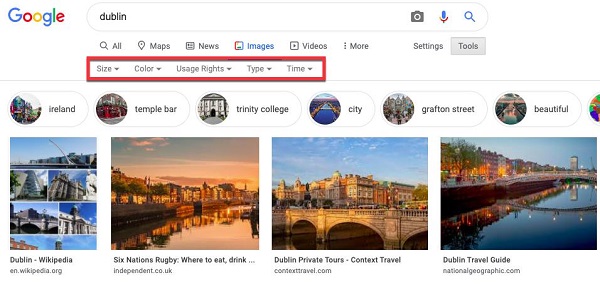
24. Use Search Filters Instead of Rewriting Your Query
You don’t always need to keep changing your search phrase.
After searching, check the available filters below the search box.
Depending on your query, you may see options such as:
- Images
- News
- Videos
- Maps
- Shopping
- Books
- Web
Selecting the appropriate filter can get you closer to the type of information you need without creating a completely new search.
25. Use Advanced Search When Your Search Is Complex
For complicated research tasks, Google’s Advanced Search page can save considerable time.
Instead of manually constructing a long search query, you can specify exactly what you want to include and exclude.
For example, you can search for pages containing:
- All your selected words
- An exact phrase
- Any of several words
- None of certain words
- A particular website
- A particular file type
- A particular language
- A specific region
- A particular update period
Google’s Advanced Search supports these types of filters for webpages and files.
Quick Google Search Tricks Cheat Sheet
| What you want | What to type |
|---|---|
| Exact phrase | "your phrase" |
| Specific website | site:example.com topic |
| Exclude a word | topic -word |
| PDF files | topic filetype:pdf |
| Results after a date | topic after:2026-01-01 |
| Results before a date | topic before:2026-01-01 |
| Date range | topic after:2026-01-01 before:2026-06-01 |
| Either term | Android OR iPhone |
| Government information | topic site:gov.ng |
| University information | topic site:edu.ng |
| Exact error message | "exact error message" |
Final Thoughts
You don’t need to be an advanced internet user to get better results from Google Search.
Simple techniques such as putting phrases in quotation marks, using site:, excluding unwanted words with -, searching for PDFs with filetype: and limiting results with before: and after: can make everyday research much faster.
For more complicated searches, Google’s Advanced Search tools provide additional filters for websites, dates, languages, regions, file types and other criteria.
The most important trick is to search with specific words rather than long, vague questions. Once you become comfortable combining a few of these techniques, finding useful information on Google becomes considerably easier.