Changing the phone number linked to your Google Account is important if you have changed your SIM, lost your old number, or want to use a new number for account recovery.
Your Google phone number can be used for account recovery, sign-in, verification and certain Google services. Google allows you to add, update or remove phone numbers from your account settings.
In this guide, you will learn how to change your Google Account phone number on Android, iPhone and a computer, how to update your recovery number, and what to do if Google does not allow you to change it immediately.
ALSO READ: Google Drive Storage Full? What to Do and How to Free Space
Why You May Need to Change Your Google Account Phone Number
There are several reasons you may want to update the phone number connected to your Google Account.
You may have:
- Changed your mobile network or SIM card.
- Lost access to your old phone number.
- Got a new phone number.
- Stopped using the number currently linked to your Google Account.
- Discovered that your recovery number is outdated.
- Moved to a different country and obtained a new local number.
Keeping your recovery information up to date can make it easier to regain access to your Google Account if you forget your password or become locked out.
How to Change Your Google Account Phone Number on a Computer
You can change your Google Account phone number directly from your browser.
Step 1: Open your Google Account
Go to your Google Account and sign in if required.
You can also open the Google Account settings from Gmail by clicking your profile picture and selecting Manage your Google Account.
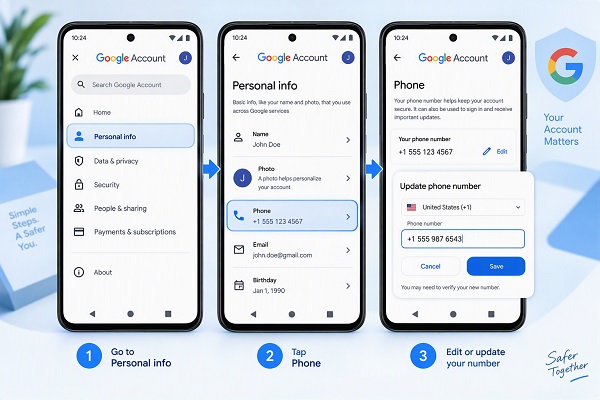
Step 2: Open Personal info
From the Google Account dashboard, select Personal info.
Step 3: Select Phone
Scroll to the Contact info section and select Phone.
You should see the phone number or numbers associated with your Google Account.
Step 4: Select your existing number
Click the phone number you want to change.
Step 5: Choose Edit
Select the Edit option next to your phone number.
Google will provide an option to Update number.
Step 6: Enter your new phone number
Enter the new mobile number you want to associate with your Google Account and follow the verification instructions.
Google may ask you to verify the new number before completing the change.
How to Change Your Google Account Phone Number on Android
Android users can change the number from the Google Account settings on their phone.
Step 1: Open Settings
Open the Settings app on your Android phone.
Step 2: Open Google settings
Tap Google, then select your profile or account and tap Manage your Google Account.
Step 3: Go to Personal info
At the top of the Google Account page, tap Personal info.
Step 4: Open Phone
Under your contact information, tap Phone.
Step 5: Select your phone number
Tap the number you want to change.
Step 6: Update the number
Tap Edit, then choose Update number.
Enter your new phone number and follow the instructions displayed on the screen.
Google recommends using a number that belongs to you, can receive text messages and is regularly accessible.
How to Change Your Google Account Phone Number on iPhone
You can also change your Google Account phone number using an iPhone or iPad.
Step 1: Open Gmail
Open the Gmail app on your iPhone.
Step 2: Open your Google Account
Tap your profile picture or initial in the top-right corner and select Manage your Google Account.
If you don’t use Gmail, you can access your Google Account through your browser.
Step 3: Select Personal info
Tap Personal info.
Step 4: Tap Phone
Under your contact information, select Phone and then choose the number you want to update.
Step 5: Update your number
Tap Edit phone number and select Update number.
📖 Related Reads
Enter your new number and complete Google’s verification process.
How to Change Your Google Recovery Phone Number
Your Google Account phone number and recovery phone number can serve different purposes.
If your main goal is to replace the number Google uses for account recovery, check the recovery-phone setting specifically.
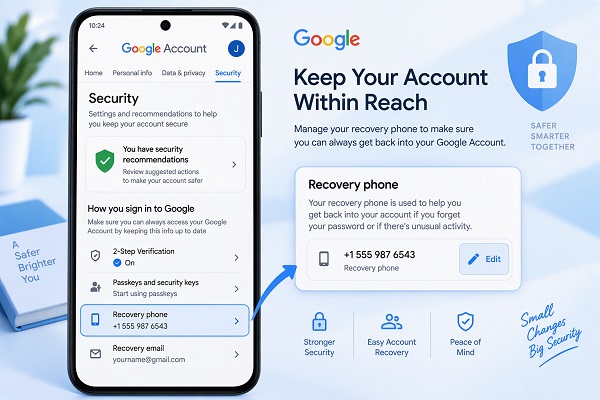
- Open your Google Account.
- Select Security & sign-in.
- Under How you sign in to Google, select Recovery phone.
- Sign in if Google asks you to.
- Tap or click Edit next to the existing recovery number.
- Follow the instructions to enter and verify the new number.
Google says a recovery phone can help you get back into your account if you forget your password, someone else uses your account, or you are locked out for another reason.
What Number Should You Use as Your Recovery Phone?
Your recovery phone should be a mobile number that:
- Belongs to you.
- Can receive SMS messages.
- You use regularly.
- You can access when you need to recover your account.
Google specifically advises against using a Google Voice number as a recovery phone because it could create problems if you need a verification code while you are unable to access your account.
For users in Nigeria, this means your new Nigerian mobile number should be active and capable of receiving Google’s verification SMS before you remove your old number.
What Happens After You Change Your Google Phone Number?
Changing the number in your Google Account does not necessarily change the phone number used by every Google service.
Google states that changing the number in your main Google Account settings affects only some Google services. Services such as 2-Step Verification, Google Pay, Calendar and other products may have separate phone-number settings.
Therefore, after changing your number, check important security settings separately.
For example, if you use your old number for 2-Step Verification, make sure the new number is also updated in the relevant 2-Step Verification settings.
How to Remove Your Old Phone Number
If you no longer want your old number connected to your Google Account:
- Open your Google Account.
- Go to Personal info.
- Select Phone.
- Select the old number.
- Choose Remove phone number.
- Confirm the removal.
However, Google notes that removing a phone number from one location does not necessarily remove it from every Google service where the number is being used.
Why Can’t I Change My Google Account Phone Number?
Sometimes Google may temporarily restrict changes to recovery information.
If Google does not allow you to change the number, try the following:
Use a familiar device
Try changing your recovery information from a phone, tablet or computer that you normally use to sign in.
Use your normal location
Google may have additional security checks when account activity appears unusual.
Try again later
Google says that if you cannot change your recovery information, you can try again the following week from a device you currently use, or from a device and location where you normally sign in.
Make sure you can receive SMS
The new number should be active and capable of receiving Google’s verification messages.
How Long Does It Take for the New Number to Work?
Changing your phone number may not immediately affect every security function.
Google says it can take up to seven days for changes to recovery information to take effect. Google may also continue sending codes to previous recovery information for up to seven days after a recovery-information change.
Google also warns that it may take up to a week before a new phone number can be used to verify that it is you for certain sensitive actions, such as changing your password.
What If You No Longer Have Your Old Phone Number?
You don’t necessarily need your old number to change your Google Account phone number if you can still sign in and Google allows the security change.
However, Google may request additional verification depending on your account’s security settings and recent activity.
If you cannot sign in at all, use Google’s official account-recovery process rather than relying on third-party services. Google recommends answering the recovery questions as accurately as possible and warns users not to give passwords or verification codes to services claiming to provide account-recovery assistance.
Final Tips for Keeping Your Google Account Secure
After changing your phone number, take a few minutes to review your account security.
Check that:
- Your new phone number is correct.
- Your recovery email is still accessible.
- Your recovery phone is verified.
- 2-Step Verification is configured correctly.
- You recognize the devices signed into your Google Account.
- Your password is strong and unique.
- Your old phone number is removed where it is no longer needed.
Keeping your recovery information current is especially important because it can help you regain access to your account if you forget your password or experience a suspicious sign-in.
Conclusion
Changing your Google Account phone number is straightforward. On a computer, go to Google Account → Personal info → Phone, select your existing number and choose Edit → Update number. On Android and iPhone, you can access the same settings through Manage your Google Account.
Remember that changing your main Google Account phone number may not automatically update every Google service. Check your recovery settings and other services that use your old number to make sure your account remains secure.