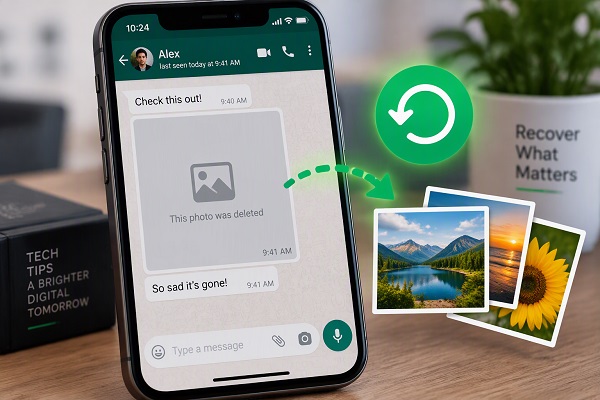
Accidentally deleting an important WhatsApp photo can be frustrating, especially when the picture contains an important document, family memory, school material or business information.
The good news is that a deleted WhatsApp photo is not always permanently lost. Depending on how the photo was deleted and whether you have a WhatsApp backup, the image may still be available in your phone’s storage, gallery, cloud backup or the original WhatsApp chat.
However, there is an important limitation: WhatsApp cannot restore individual deleted photos directly from its servers because WhatsApp does not store your chat history on its servers for this purpose. Recovery normally depends on a copy of the photo that still exists somewhere on your device or in a backup.
This guide explains the practical ways to recover deleted WhatsApp photos on Android and iPhone.
ALSO READ: Why WhatsApp Is Not Sending Messages and How to Fix It
Can You Recover a Deleted WhatsApp Photo?
Yes, sometimes.
Your chances are better if:
- The photo is still in your phone’s Gallery or Photos app.
- The image is in your device’s WhatsApp media folder.
- You have a recent WhatsApp backup.
- The person who sent the photo still has it and can resend it.
- You transferred your WhatsApp data from an old phone.
- The image was automatically saved to Google Photos or iCloud Photos.
If the photo has been deleted from WhatsApp, your phone and all available backups, recovery may not be possible.
Therefore, the first step should be checking whether another copy of the image still exists.
Method 1: Check Your Phone’s Gallery or Photos App
Before attempting a WhatsApp backup restore, check your phone’s photo application.
On Android, open Google Photos or your phone’s Gallery app and search for the approximate date when you received the picture.
You should also check albums such as:
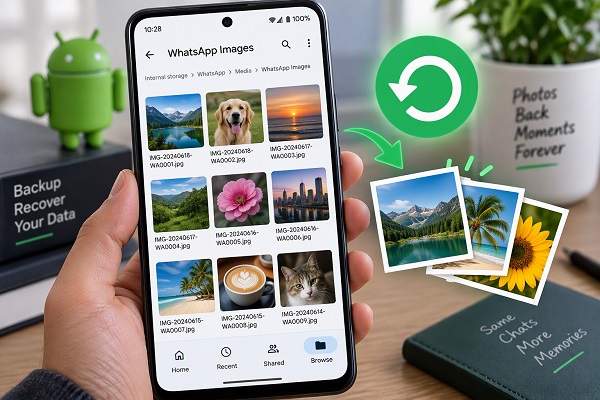
- WhatsApp Images
- Recently Deleted
- Trash
- Downloads
- Camera
- Other device folders
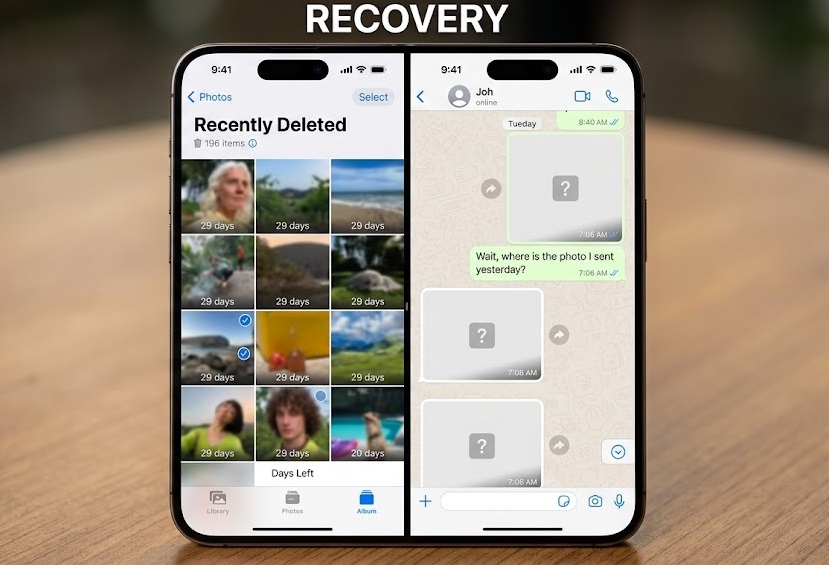
On iPhone, open the Photos app and check Recently Deleted.
If you find the photo there, restore it directly instead of reinstalling WhatsApp.
This is the safest recovery method because it does not require you to alter your WhatsApp installation or restore an older chat backup.
Method 2: Check the WhatsApp Images Folder on Android
Android users may still have a copy of a WhatsApp image in the device’s storage even when the image no longer appears in the WhatsApp conversation.
Open your phone’s Files or File Manager application.
Depending on your Android version and device manufacturer, WhatsApp media may be located under a path similar to:
Internal Storage > Android > media > com.whatsapp > WhatsApp > Media > WhatsApp Images
Look through the folder for the missing photograph.
You may also find separate folders for:
- WhatsApp Video
- WhatsApp Documents
- WhatsApp Audio
- WhatsApp Stickers
- WhatsApp Images
The exact folder structure can differ between Android versions and manufacturers.
If you find the picture, copy it to another folder or back it up immediately.
Important
Do not delete or modify WhatsApp folders unnecessarily while looking for a missing photo. If the file still exists, you want to preserve it.
Method 3: Check the Recently Deleted or Trash Folder
Many modern Android phones and photo applications have a Recently Deleted, Trash or similar folder.
Open your Gallery or Google Photos application and look for this section.
If the deleted WhatsApp photo is there, select it and choose Restore.
On iPhone, open:
Photos > Albums > Recently Deleted
Select the photo and tap Recover.
The availability and retention period of deleted items can vary depending on the device and application, so check as soon as you notice that the photo is missing.
Method 4: Restore WhatsApp Photos from an Android Backup
If the image is missing from your phone but was included in a WhatsApp backup, restoring the backup may bring the chat and its associated media back.
WhatsApp says Android backups can be associated with a Google Account, and the backup is tied to the phone number and Google Account used to create it.
Before attempting a restore, check whether a backup exists.
Open:
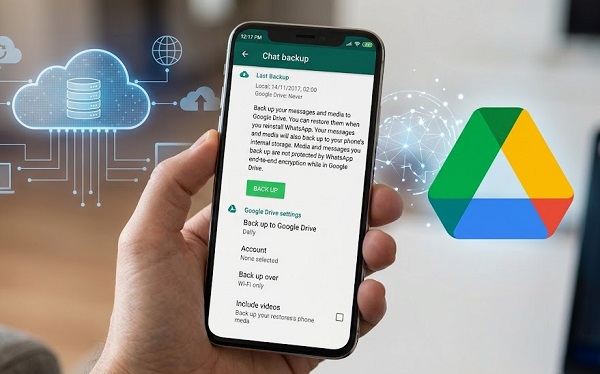
WhatsApp > Settings > Chats > Chat backup
Check the date and size of the latest backup.
If the backup was created before you deleted the photo, there is a possibility that the image is contained in that backup.
How to restore the backup
WhatsApp’s current restoration process requires reinstalling WhatsApp and choosing the restore option during setup.
The general process is:
- Confirm that a suitable backup exists.
- Make sure you are using the same phone number associated with the backup.
- Make sure the relevant Google Account is available on the phone.
- Uninstall WhatsApp.
- Reinstall WhatsApp from Google Play.
- Verify your phone number.
- Follow the on-screen instructions to restore the available backup.
- Allow the restoration process to complete.
- Check the original conversation and media.
WhatsApp notes that only data contained in the available backup can be restored.
Be Careful Before Restoring
Restoring an old backup can cause you to lose access to newer chat data that was created after that backup.
For example, suppose your last backup was created on September 20 and you deleted a photo on September 25. Restoring the September 20 backup will not recover a photo that did not exist in that backup.
WhatsApp also says that a Google Account backup is overwritten when a new backup is created, meaning you generally cannot choose an older version of the same Google Account backup.
For this reason, do not rush to uninstall WhatsApp before checking the date of your existing backup.
Method 5: Recover Deleted Photos on iPhone Using iCloud Backup
iPhone users can recover WhatsApp chat history and associated media from an available iCloud backup.
First check whether a WhatsApp backup exists:
WhatsApp > Settings > Chats > Chat Backup
WhatsApp says the backup screen shows the time and size of the most recent iCloud backup.
If the backup predates the deletion, you may be able to restore it.
The general process is:
📖 Related Reads
- Confirm that the appropriate iCloud backup exists.
- Make sure you have sufficient free storage.
- Uninstall WhatsApp.
- Reinstall WhatsApp from the App Store.
- Verify your phone number and Apple ID.
- Select Restore Chat History when prompted.
- Wait for the restoration to finish.
- Open the original conversation and check the media.
WhatsApp states that the phone number used for the backup must be the same number used for restoration.
Method 6: Ask the Sender to Resend the Photo
Sometimes the easiest recovery method is also the most reliable.
If someone sent you the deleted picture, contact that person and ask them to send it again.
This is particularly useful when:
- You don’t have a WhatsApp backup.
- Your backup was created after the photo disappeared.
- The photo is no longer in your Gallery.
- The phone storage has been cleaned.
- You changed phones.
If the sender still has the original image, they can simply resend it.
Method 7: Transfer WhatsApp Data From Your Old Phone
If you recently switched phones and still have access to your old device, WhatsApp provides a Chat Transfer feature for moving chat and media history between compatible devices.
WhatsApp says Chat Transfer can move account information, personal messages, photos, videos and documents between supported phones.
For Android-to-Android transfers, WhatsApp’s current instructions require the old and new phones to be close together, with Wi-Fi enabled, and the same phone number used on the new phone.
On the old phone:
WhatsApp > Settings > Chats > Transfer chats > Start
You then follow the instructions shown on both phones to complete the transfer.
Do Not Erase Your Old Phone Too Quickly
If your old phone still contains the missing photos, do not factory-reset it or uninstall WhatsApp until you have confirmed that your important chats and media have successfully moved to the new phone.
WhatsApp specifically recommends keeping the old phone’s data intact until the transfer has been confirmed successful.
What If the WhatsApp Photo Was Deleted Without a Backup?
This is where recovery becomes more difficult.
If the photo has been removed from:
- Your Gallery
- Recently Deleted/Trash
- Your phone’s storage
- Google Photos or iCloud Photos
- WhatsApp backups
then there may be no reliable way to recover it through WhatsApp.
WhatsApp does not provide a server-based method for retrieving an individual deleted photo from your chat history.
Before paying for third-party recovery applications, check every possible copy first.
Be Careful With WhatsApp Recovery Apps
You may find websites and applications claiming that they can recover every deleted WhatsApp photo.
Be cautious.
Some recovery applications request extensive permissions, access to your files or other sensitive information.
Never give an unknown application your WhatsApp verification code, two-step verification PIN, Google password or Apple ID password.
Also avoid websites that ask you to install suspicious APK files or disable your phone’s security protections.
If the photo is extremely important, professional data-recovery services may sometimes help with certain storage failures, but there is no guarantee that they can recover a permanently deleted WhatsApp file.
Why Can’t WhatsApp Simply Restore My Deleted Photo?
WhatsApp’s architecture is important here.
Your personal WhatsApp chat history is not simply stored on WhatsApp’s servers waiting to be downloaded whenever you delete something.
Instead, recovery depends largely on copies stored on your device or in backups.
WhatsApp therefore states that it cannot restore your chats, contacts or media files for you when they are no longer available in your device or backup.
This is why maintaining regular backups is important.
How to Prevent Losing WhatsApp Photos in the Future
The easiest way to recover a deleted WhatsApp photo is to make sure another copy exists before anything goes wrong.
Turn on WhatsApp Backups
On Android:
WhatsApp > Settings > Chats > Chat backup
Choose an appropriate backup frequency and select the Google Account you want to use.
WhatsApp also provides an option to include videos in backups.
On iPhone, check:
WhatsApp > Settings > Chats > Chat Backup
and configure your iCloud backup settings.
Keep Important Photos Somewhere Else
For particularly important images, consider saving another copy to:
- Google Photos
- iCloud Photos
- Google Drive
- OneDrive
- A computer
- An external storage device
Having multiple copies dramatically reduces the risk of permanent loss.
Frequently Asked Questions
Can I recover a WhatsApp photo deleted for everyone?
Not necessarily. If the photo is no longer available on your device, in the sender’s copy or in a backup, WhatsApp does not provide a server-based recovery option for it.
Can I recover deleted WhatsApp photos without a backup?
Sometimes. Check your Gallery, Google Photos, Recently Deleted/Trash folders and WhatsApp media folders first. You can also ask the sender to resend the photo.
Will reinstalling WhatsApp recover deleted photos?
Only if the relevant backup contains the photo. Reinstalling WhatsApp by itself does not magically recover permanently deleted media.
Can I recover photos from an old WhatsApp backup?
Potentially, provided that the photo was included in the available backup and the backup can be restored. Be careful because restoring an older backup may not preserve newer data.
Does WhatsApp keep deleted photos on its servers?
WhatsApp states that your chat history is not stored on its servers in a way that allows WhatsApp to restore your deleted chats or media for you.
Final Thoughts
Recovering a deleted WhatsApp photo is possible in some situations, but there is no guaranteed method for every case.
Start with the simplest options: check your Gallery or Photos app, Recently Deleted/Trash folders and WhatsApp’s media folder. If the image is not there, check whether you have a WhatsApp backup from before the photo was deleted.
Android users should check their Google Account WhatsApp backup, while iPhone users should check their iCloud backup. If you still have your old phone, WhatsApp’s Chat Transfer feature may also help move your chats and media to a new device.
Most importantly, avoid rushing into a reinstall before checking your backup date. And once you recover your important photos, keep another copy somewhere safe so you do not have to go through the recovery process again.