Running out of storage space on your Android phone can be frustrating. You may see notifications such as “Storage space running out”, while apps may become difficult to update and your phone may struggle to save new photos, videos or downloaded files.
The good news is that you usually don’t need to delete your important files or perform a factory reset to solve the problem.
Android phones provide several ways to identify what is consuming your storage and safely remove unnecessary files.
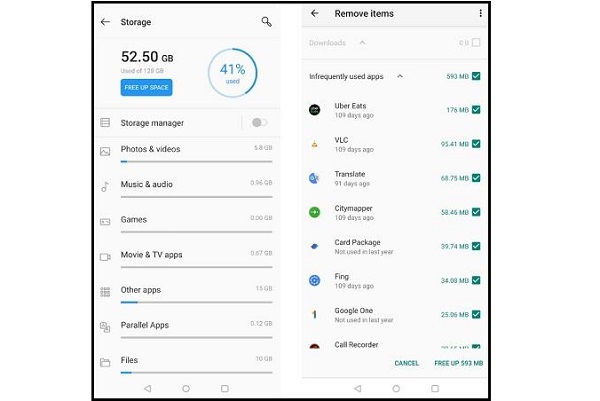
In this guide, you’ll learn how to free up storage on Android by removing unused apps, clearing unnecessary files, managing photos and videos, clearing app caches and using built-in storage management tools.
Important: Menu names can vary depending on your phone manufacturer and Android version. Samsung, Tecno, Infinix, Xiaomi, Redmi, Google Pixel and other Android phones may use slightly different names.
Why Is My Android Phone Storage Full?
Before deleting anything, it’s useful to understand what’s taking up space.
Android storage is commonly occupied by:
- Apps and games
- Photos
- Videos
- Music
- Downloaded files
- WhatsApp media
- Telegram media
- Cached files
- Offline videos and music
- Documents
- Screen recordings
- Duplicate files
- System files
Large videos are often among the biggest storage consumers, especially if you regularly record videos or receive them through messaging apps.
1. Check What Is Using Your Storage
The first thing you should do is find out what’s consuming your phone’s storage.
On many Android phones, you can check this by opening:
Settings → Storage
Depending on your device, it may appear as:
Settings → Battery and device care → Storage
or:
Settings → About phone → Storage
You should see a breakdown showing categories such as apps, images, videos, documents and system files.
Why this matters
Don’t start deleting files randomly.
If videos are using 30GB of your 64GB storage, deleting a few small documents won’t make much difference.
Instead, concentrate on the categories consuming the most space.
2. Delete Apps You No Longer Use
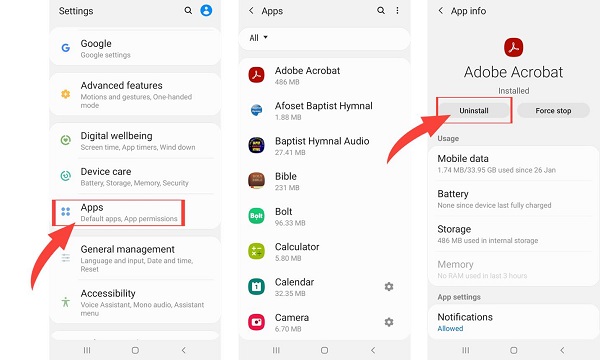
One of the easiest ways to free up storage is to remove applications you no longer use.
You may have installed games, shopping apps, editing apps or other applications months ago and forgotten about them.
Go to:
Settings → Apps → See all apps
Select an app you no longer need and tap:
Uninstall
You can also uninstall many apps directly from your app drawer by pressing and holding the app icon.
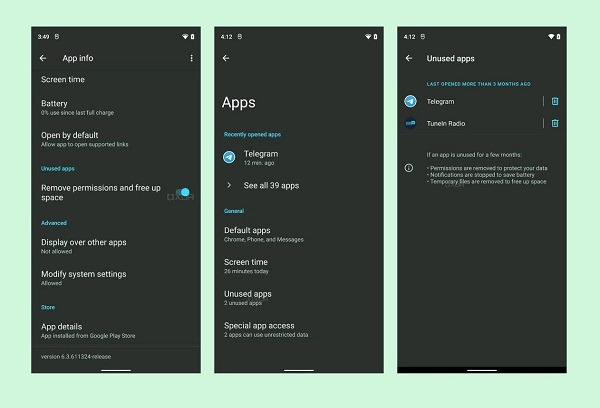
Look for large apps
Pay particular attention to:
- Games
- Video editors
- Social media apps
- Streaming apps
- Photo editing applications
- Offline navigation apps
Some games can occupy several gigabytes after additional files have been downloaded.
Tip: If you haven’t used an app for several months and don’t need it, consider uninstalling it.
You can always reinstall an app later if necessary.
3. Delete Large Videos and Old Screen Recordings
Videos can consume enormous amounts of storage.
Open your phone’s Gallery or Google Photos app and review your videos.
Look for:
- Old recordings
- Duplicate videos
- Screen recordings
- Failed recordings
- Downloaded videos
- Videos received through messaging apps
- Videos you no longer need
If you have important videos, back them up before deleting them.
Don’t forget the Trash folder
Some gallery apps don’t immediately remove deleted photos and videos permanently.
Instead, they move them to a Trash, Bin or Recently Deleted folder.
If you’re certain you don’t need those files, emptying the trash can recover additional storage.
4. Back Up Photos to the Cloud
If photos and videos are taking up most of your storage, cloud backup can help.
For example, Google Photos can back up your photos and videos to your Google Account.
After confirming that your important files have been backed up, you can use the app’s storage management features to remove backed-up copies from your device.
Before deleting anything
Make sure:
- The photos have finished uploading.
- You can see them in your Google Photos library.
- You are signed into the correct Google Account.
- You have enough cloud storage.
- You actually want the local copies removed.
Cloud storage isn’t unlimited, so you should also periodically review your online storage.
5. Clear App Cache
Another way to free up some Android storage is by clearing cached data.
Apps create temporary files called cache to help them load content faster.
Over time, some applications can accumulate a significant amount of cached data.
To clear an app’s cache, go to something similar to:
Settings → Apps → [Select App] → Storage → Clear Cache
The exact menu varies by phone.
Clear Cache vs Clear Storage
This distinction is extremely important.
Clear Cache:
Removes temporary cached files. It generally does not remove your account or app data.
Clear Storage / Clear Data:
Resets the app and can remove locally stored information, settings and login information.
Therefore, if your goal is simply to remove temporary files, choose Clear Cache, not Clear Storage, unless you understand exactly what will be deleted.
6. Check Your Downloads Folder
Your Downloads folder can become a storage dump without you realizing it.
Open your phone’s Files, File Manager or Files by Google application and check:
Downloads
You may find:
- Old PDFs
- APK files
- Images
- ZIP files
- Videos
- Documents
- Installation files
- Duplicate downloads
Delete files you no longer need.
Be careful with APK files
An APK is an Android application installation package.
If you downloaded an APK months ago and the application is already installed through another method, you may not need the old APK file.
However, don’t delete files simply because you don’t recognize them. If you’re unsure, leave them alone until you determine what they are.
7. Manage WhatsApp Storage
WhatsApp can quietly consume several gigabytes of storage, especially if you’re active in multiple groups.
Videos, photos, GIFs, voice messages and documents can accumulate quickly.
Open WhatsApp and go to:
Settings → Storage and data → Manage storage
Depending on your WhatsApp version, you can review large files and media that have been forwarded frequently.
You can then delete unnecessary items.
Pay special attention to:
- Large videos
- Duplicate media
- Old group-media files
- Frequently forwarded files
- Documents you no longer need
This can make a surprisingly large difference.
8. Check Telegram and Other Messaging Apps
WhatsApp isn’t the only messaging application that can consume storage.
Telegram and other apps may store downloaded photos, videos and documents locally.
📖 Related Reads
For Telegram, you can review:
Settings → Data and Storage → Storage Usage
Telegram provides options for managing cached media and automatic media retention.
You can also reduce how long downloaded media remains stored on your device.
This is especially useful if you’re in channels or groups that frequently share large videos.
9. Delete Offline Downloads
Streaming services can use significant storage when you download content for offline viewing.
Check applications such as:
- YouTube
- Netflix
- Spotify
- YouTube Music
- Podcast apps
- Music players
- Navigation apps
Look for content downloaded for offline use.
If you’ve already watched or listened to something, delete the offline copy.
For example, a few downloaded movies can consume several gigabytes.
10. Use Android’s Built-in Storage Recommendations
Many modern Android phones include storage management tools that can identify unnecessary files.
Depending on your device, you may see options such as:
Free up space
Clean
Storage manager
Remove unused apps
Junk files
These tools can identify things such as:
- Temporary files
- Unused applications
- Duplicate files
- Old downloads
- Large files
If your phone provides a built-in cleaning tool, review its recommendations before confirming deletion.
11. Find and Delete Duplicate Files
Duplicate files are another potential source of wasted storage.
For example, you may have the same:
- Photo
- Video
- Document
- Download
stored several times.
A file manager with duplicate-file detection can help identify these files.
However, don’t automatically delete every file marked as a duplicate.
Some files may have similar names but serve different purposes.
Always review duplicates before deleting them.
12. Move Large Files to a Computer or External Storage
If you don’t want to delete your files, you can move them somewhere else.
For example, you can transfer photos and videos to:
- A computer
- External storage
- A USB flash drive compatible with your phone
- Cloud storage
After verifying that the transfer was successful, you can remove the original files from your phone.
This is particularly useful if you have years of photos and videos that you want to keep.
13. Remove Unnecessary Music and Podcasts
Downloaded music and podcasts can also take up significant storage.
Open your music or podcast application and review your offline downloads.
Remove episodes and songs you no longer listen to.
If you use several streaming services, check each one because downloaded content is usually stored separately.Z14. Restart Your Phone After Cleaning
Once you’ve removed unnecessary files, restart your Android phone.
This isn’t a magical storage booster, but restarting can help the system refresh its storage information and clear certain temporary processes.
Then return to:
Settings → Storage
and check how much space you’ve recovered.
What You Should NOT Delete
When trying to free up Android storage, don’t delete files simply because their names look unfamiliar.
Avoid manually deleting:
- Android system files
- Files inside folders you don’t understand
- App data
- System applications
- Important documents
- Photos that haven’t been backed up
- Work or school files
- Database files
- Files required by applications
If you’re unsure about a file, research what it is before deleting it.
How Much Free Storage Should an Android Phone Have?
There isn’t one universal number that works for every Android phone.
However, it’s a good idea to avoid running your device extremely close to its maximum capacity.
If your phone has 64GB of storage, for example, you don’t want to continually operate with only a few hundred megabytes remaining.
Keeping reasonable free space gives Android and your applications room to work and makes it easier to install updates and save new files.
Quick Way to Free Up Android Storage
If you need storage space immediately, follow this order:
Step 1
Go to Settings → Storage and identify what’s using the most space.
Step 2
Delete unnecessary large videos.
Step 3
Remove apps and games you no longer use.
Step 4
Clean your Downloads folder.
Step 5
Review WhatsApp and Telegram media.
Step 6
Delete unnecessary offline downloads.
Step 7
Clear caches from particularly large apps.
Step 8
Empty the Gallery/Files Trash or Bin, if appropriate.
Step 9
Back up important files and move large files to another location.
Step 10
Restart your phone and check your available storage again.
Final Thoughts
You don’t necessarily need a new phone when your Android storage is full.
In many cases, the problem is caused by accumulated videos, unused apps, downloads, messaging-app media and temporary files.
Start by checking Settings → Storage to identify the biggest storage consumers. Then remove unnecessary files, uninstall apps you don’t use, manage WhatsApp media, review downloads and back up important photos and videos.
Most importantly, don’t delete system files or important personal data just to create free space.
A few minutes of regular storage management can prevent the dreaded “Storage space running out” notification from appearing when you need your phone the most.
Frequently Asked Questions
How do I free up storage on Android without deleting apps?
Start by removing large videos, old downloads, duplicate files, WhatsApp media and offline content. You can also clear app caches and move important photos and videos to cloud or external storage.
Why is my Android storage full when I don’t have many apps?
Apps aren’t always the main cause. Photos, videos, WhatsApp media, Telegram downloads, offline streaming content, downloads and cached files can consume much more storage than the apps themselves.
Does clearing cache free up storage?
Yes. Clearing an app’s cache removes temporary files and can recover some storage. The amount depends on the particular application.
Is it safe to use an Android cleaner app?
Be cautious. Many Android phones already include built-in storage-management features. You generally don’t need an aggressive third-party cleaner to manage ordinary storage problems.
How can I free up storage without deleting my photos?
Back up your photos and videos to cloud storage or transfer them to a computer or external storage. After confirming the backup or transfer, you can remove the local copies.
Will clearing app data delete my account?
Clearing app data can reset the application and remove locally stored information. It may also sign you out. Clear Cache is generally the safer option when you only want to remove temporary files.