Getting a new smartphone is exciting, but moving your WhatsApp account from your old phone can be stressful—especially when you have years of conversations, photos, videos and important documents stored in your chats.
Fortunately, transferring WhatsApp to a new phone is relatively straightforward when you prepare your old phone correctly.
WhatsApp provides different methods for moving your chat history, depending on whether you’re moving between Android phones, between iPhones, or switching between Android and iPhone.
In this guide, we’ll explain how to transfer WhatsApp from an old phone to a new phone, including how to use WhatsApp’s built-in chat transfer feature, Google Drive backups, iCloud and the official Android-to-iPhone migration process.
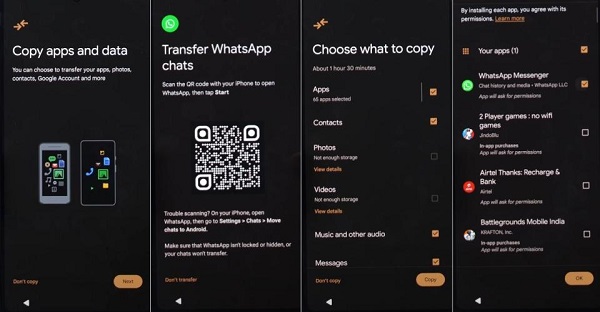
Important: Before starting, keep your old phone available and make sure you have access to the same phone number associated with your WhatsApp account.
What You Need Before Transferring WhatsApp
Before moving WhatsApp to your new phone, prepare both devices.
You’ll generally need:
- Your old phone
- Your new phone
- The same WhatsApp phone number
- WhatsApp installed on the new phone
- A stable Wi-Fi connection
- Sufficient battery on both phones
- Enough storage space on the new phone
- Your Google Account or Apple Account, depending on your backup method
If possible, don’t erase or factory-reset your old phone until you’ve confirmed that your WhatsApp chats are available on the new device.
Method 1: Transfer WhatsApp Directly From Old Phone to New Phone
WhatsApp has a built-in Chat Transfer feature that can allow you to move your chat history directly from one phone to another.
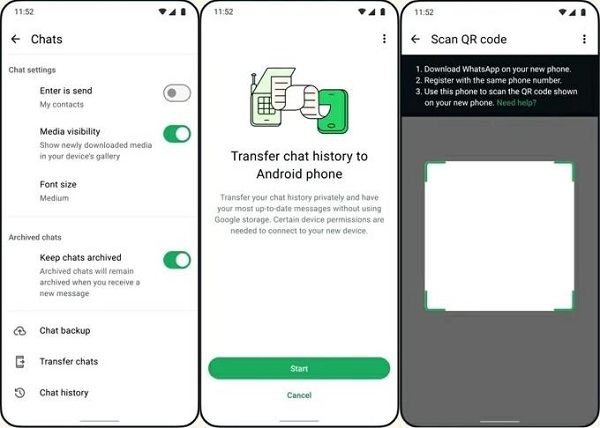
This can be particularly convenient because you don’t necessarily need to upload your entire chat history to cloud storage first.
The exact screens can vary depending on your phone and WhatsApp version.
On your old phone
Open WhatsApp and go to:
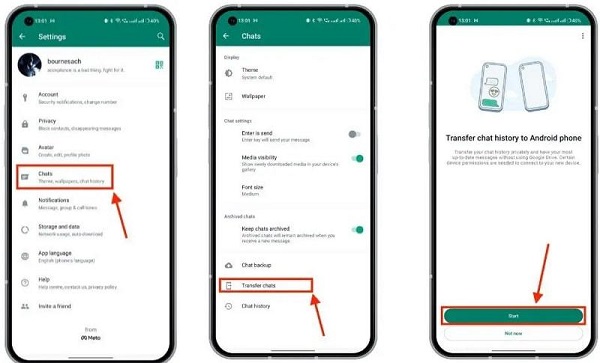
Settings → Chats → Transfer Chats
You may see an option such as Start.
WhatsApp will then provide instructions for connecting the old phone with the new phone.
On your new phone
- Install WhatsApp from the official app store.
- Open WhatsApp.
- Register using the same phone number.
- Follow the instructions for transferring your chats.
- A QR code may be displayed on the new phone.
- Use your old phone to scan the QR code when prompted.
- Keep both phones unlocked and close together while the transfer takes place.
The transfer process may take some time depending on how much WhatsApp data you have.
During the transfer
Don’t:
- Turn off either phone.
- Close WhatsApp unnecessarily.
- Disconnect Wi-Fi.
- Move the phones far apart.
- Factory-reset the old phone.
Wait until the transfer has finished.
Method 2: Transfer WhatsApp Using Google Drive on Android
If you’re moving from one Android phone to another, you can also use a WhatsApp backup stored in your Google Account.
Before switching phones, create a fresh backup.
Open WhatsApp on your old Android phone and go to:
Settings → Chats → Chat backup
Then select your Google Account and tap:
Back up
Wait for the backup to finish.
On the new Android phone
- Install WhatsApp from Google Play.
- Open WhatsApp.
- Enter the same phone number.
- Verify your number.
- Sign into the Google Account containing your WhatsApp backup.
- When WhatsApp finds the backup, select Restore.
- Wait for your chats to restore.
- Allow your media to finish restoring.
Your text conversations should begin appearing after restoration, while photos and videos may continue restoring afterward.
Important
The phone number and Google Account need to correspond with the backup you’re trying to restore.
If WhatsApp cannot find your backup, check that you’re using:
- The correct Google Account
- The correct phone number
- The correct backup
- A stable internet connection
Method 3: Transfer WhatsApp Using iCloud on iPhone
For users moving from one iPhone to another, WhatsApp can use an iCloud backup.
On your old iPhone, open:
WhatsApp → Settings → Chats → Chat Backup
Check when the last backup was created.
If necessary, tap:
Back Up Now
Wait for the backup to complete.
On your new iPhone
- Install WhatsApp from the App Store.
- Open WhatsApp.
- Verify the same phone number.
- Make sure you’re signed into the Apple Account used for the backup.
- Follow the WhatsApp restoration instructions.
- Select the option to restore your chat history.
Keep the iPhone connected to Wi-Fi while the restoration is taking place.
Method 4: Move WhatsApp From Android to iPhone
Switching from Android to iPhone is slightly different because Android and iPhone use different ecosystems.
Apple provides Move to iOS, which is designed to help users transfer information from an Android phone to an iPhone.
WhatsApp also supports transferring chat history as part of supported Android-to-iPhone migrations.
General process
On the Android phone:
- Install Apple’s Move to iOS app.
- Begin setting up the new iPhone.
- Select the option to move data from Android when prompted.
- Follow the instructions shown on both devices.
- Select WhatsApp when the transfer options appear.
- Allow the transfer to complete.
- Install WhatsApp on the iPhone.
- Open WhatsApp and verify your phone number.
- Follow the instructions to import your transferred WhatsApp data.
The exact requirements can change with newer versions of Android, iOS and WhatsApp, so always check the current official WhatsApp and Apple instructions before starting a major migration.
Method 5: Move WhatsApp From iPhone to Android
You can also move WhatsApp in the opposite direction—from an iPhone to a compatible Android phone.
The process can involve a cable connection between the devices and may depend on the Android manufacturer and device model.
During the setup of the new Android phone, look for the option to transfer data from an iPhone.
Follow the device’s instructions and select WhatsApp when it is offered as a transferable data type.
After the migration:
- Install WhatsApp on the Android phone if necessary.
- Use the same phone number.
- Follow the WhatsApp setup instructions.
- Allow the transferred chat history to be imported.
Some Android manufacturers provide their own migration tools, so the exact process may differ between Samsung, Google Pixel and other Android devices.
Does WhatsApp Transfer Your Photos and Videos?
In supported transfers, WhatsApp can transfer more than just text messages.
Your transferred data may include:
- Individual chats
- Group chats
- Photos
- Videos
- Voice messages
- Documents
- Other supported media
However, the exact data transferred can depend on the migration method and the platforms involved.
This is why you should check your important chats and media after completing the transfer.
📖 Related Reads
What Happens to WhatsApp on the Old Phone?
Your old WhatsApp installation does not need to be deleted immediately.
Once you’ve successfully registered your WhatsApp account on the new phone, the account will generally become active on the new primary phone.
However, don’t immediately wipe the old phone.
Keep it until you’ve confirmed that:
- Your important chats are present.
- Your photos and videos are available.
- Your groups are still there.
- Important documents are accessible.
- Your account works correctly on the new device.
Only after you’ve verified everything should you consider resetting or selling the old phone.
What If I Lost My Old Phone?
If your old phone is lost, damaged or stolen, direct phone-to-phone transfer may not be possible.
However, you may still be able to restore your WhatsApp history if you previously created a compatible backup.
Install WhatsApp on your replacement phone and use the same phone number.
Then follow the restoration process for your platform.
For Android, this can involve your Google Account backup.
For iPhone, it can involve your iCloud backup.
If your phone was stolen
Your priority should be securing your accounts.
Contact your mobile network provider to block or replace the SIM associated with your number if necessary, then regain control of your phone number before setting up WhatsApp on another device.
What If WhatsApp Cannot Find My Backup?
This is one of the most common problems people encounter when moving WhatsApp.
Try these checks:
1. Check your phone number
Make sure you’re using the same phone number associated with the backup.
2. Check your Google Account or Apple Account
Make sure the new phone is signed into the account used to create the backup.
3. Check your internet connection
A weak connection can interfere with backup detection or restoration.
4. Check whether a backup actually exists
Open the relevant backup settings on your old phone before switching devices.
5. Update WhatsApp
Install the latest available WhatsApp version supported by your device.
How to Avoid Losing WhatsApp Chats
The best way to prevent problems is to prepare before changing phones.
Create a fresh backup
Go to WhatsApp’s Chat Backup settings and create a new backup before beginning the migration.
Don’t erase your old phone
Keep your old device until you’ve verified the transfer.
Keep both phones charged
A transfer can take a while, particularly when you have a large amount of media.
Use reliable Wi-Fi
A stable connection can make cloud backup and restoration easier.
Check your storage
Make sure your new phone has enough available space for the WhatsApp data you’re transferring.
Can I Transfer WhatsApp Without a Backup?
Yes, in supported cases.
WhatsApp’s direct Chat Transfer feature can allow users to move their chat history directly between compatible phones without first relying on a cloud backup.
However, availability and the exact transfer process depend on the devices, operating systems and WhatsApp versions involved.
If direct transfer isn’t available, a compatible cloud backup may be the alternative.
Can I Transfer WhatsApp to a New Phone With a Different Number?
If you’re changing both your phone and your phone number, don’t simply install WhatsApp with the new number and expect your old account to automatically appear.
WhatsApp provides a Change Number feature that allows you to migrate your account information to a new number.
A safer approach is generally to change your WhatsApp number on the old phone first, then transfer or restore your account on the new phone.
This helps ensure your account information and groups are associated with the new number.
Common Mistakes to Avoid
When transferring WhatsApp, avoid these mistakes:
❌ Resetting the old phone too early
Always verify the new phone first.
❌ Using a different phone number
Your backup may not be detected if you’re using the wrong number.
❌ Using the wrong Google Account
On Android, make sure you’re using the account containing the WhatsApp backup.
❌ Ignoring storage requirements
A phone with insufficient storage may not be able to restore all your media.
❌ Using unofficial WhatsApp apps
Avoid modified or unofficial WhatsApp applications when transferring sensitive conversations.
❌ Forgetting two-step verification
If you enabled WhatsApp two-step verification, make sure you remember your PIN.
Quick WhatsApp Transfer Checklist
Before you start:
☑ Charge both phones
☑ Connect to reliable Wi-Fi
☑ Confirm your WhatsApp phone number
☑ Create a fresh backup if applicable
☑ Check available storage on the new phone
☑ Keep the old phone available
☑ Install the latest supported WhatsApp version
☑ Don’t factory-reset the old phone yet
After the transfer:
☑ Check important chats
☑ Check photos and videos
☑ Check documents
☑ Check group chats
☑ Test sending and receiving messages
☑ Confirm your account settings
☑ Only then wipe the old phone
Final Thoughts
Moving WhatsApp from an old phone to a new phone doesn’t have to mean losing your conversations.
The safest approach is to prepare your old phone, create a current backup when appropriate, use WhatsApp’s official transfer or restoration process, and verify everything before erasing the old device.
If you’re moving between similar devices, WhatsApp’s built-in Chat Transfer option can be convenient. Android users can also use Google Account backups, while iPhone users can use iCloud. Cross-platform migrations require additional steps and may depend on the specific devices involved.
Most importantly, never reset, sell or give away your old phone until you’ve confirmed that your WhatsApp chats and important media are safely available on the new device.