A fast website is essential for providing a good user experience, improving search visibility, and keeping visitors engaged. When a WordPress website takes too long to load, visitors may leave before reading an article, viewing a product, or completing an action. Slow loading can also affect conversions and make a website feel unreliable.
Fortunately, you do not need to be a professional developer to improve your website’s performance. By choosing reliable hosting, optimizing images, configuring caching, and removing unnecessary plugins, you can make your WordPress website load faster.
In this guide, you will learn how to optimize WordPress for speed using practical steps that website owners, bloggers, and beginners can follow.
ALSO READ: Blogger vs WordPress: Which Is Better for a New Website in 2026?
Why Website Speed Matters
Website speed affects how visitors interact with your content. A fast website allows readers to access articles quickly, navigate between pages smoothly, and enjoy a better browsing experience on mobile devices.
Speed is also important for search engine optimization (SEO). Google uses page experience signals, including Core Web Vitals, to assess aspects of user experience. These measurements include loading performance, responsiveness, and visual stability.
A faster website can help you:
- Improve the browsing experience for visitors.
- Reduce frustration caused by slow-loading pages.
- Support better engagement and conversions.
- Improve mobile usability.
- Make your website easier for search engines to crawl efficiently.
However, improving speed alone does not guarantee higher Google rankings. Content quality, relevance, website structure, and other SEO factors remain important.
1. Choose a Reliable WordPress Hosting Provider
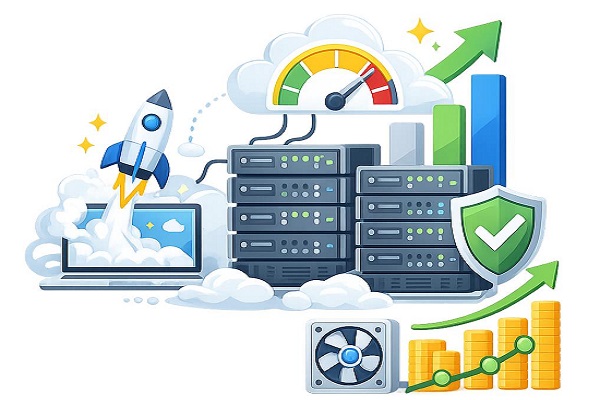
Your hosting provider plays a significant role in your website’s speed. Even with an optimized theme and lightweight images, a poorly configured server can cause slow loading times.
When choosing WordPress hosting, look for a provider that offers modern server infrastructure, SSD or NVMe storage, current PHP versions, server-side caching, reliable uptime, and adequate resources for your traffic.
If your website receives many visitors, you may eventually need a higher hosting plan with more processing power and memory.
Shared hosting can be sufficient for a new blog, but performance may become inconsistent when server resources are limited or heavily shared.
What to do: Check your hosting dashboard for PHP version, caching options, resource usage, and performance recommendations. Contact your hosting provider if your website remains slow even after optimizing its content.
2. Use a Lightweight WordPress Theme
Your WordPress theme determines much of your website’s layout, styling, and front-end code. Some themes load large scripts, animations, fonts, and design elements that are unnecessary for a simple blog.
Choose a theme that is regularly updated, mobile-friendly, well coded, and designed with performance in mind.
Popular options include Astra, GeneratePress, and Kadence. However, the actual performance of your website depends on the theme configuration, plugins, hosting, and content you use.
If you use a feature-rich newspaper or magazine theme, disable features you do not need, such as unused sliders, elaborate animations, and unnecessary social widgets.
What to do: Test your current theme before changing it. If you decide to switch themes, use a staging website where possible and check your homepage, category pages, articles, menus, and mobile layout before publishing the change.
3. Install and Configure a Caching Plugin
Caching is one of the most effective ways to improve WordPress performance.
Without caching, WordPress may need to process PHP code and query the database whenever a visitor requests a page. Page caching stores a ready-to-serve version of a page, reducing the work required to generate it again.
Popular caching solutions include:
- WP Rocket: A premium performance plugin with page caching and optimization features.
- W3 Total Cache: Provides various caching and performance configuration options.
- LiteSpeed Cache: Particularly useful on compatible LiteSpeed servers, with additional optimization features.
- WP Super Cache: Offers page caching for many WordPress installations.
Do not install several full-featured caching plugins simultaneously. Their settings may conflict and cause broken layouts or other problems.
Choose one main solution that works with your hosting environment.
After activating it, configure page caching and test your website. Enable additional features gradually, checking your homepage, articles, menus, and forms after each change.
4. Optimize Images Before Uploading Them
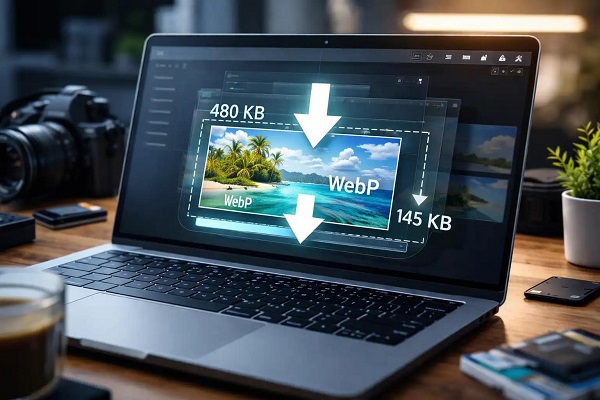
Large images are a common reason WordPress websites load slowly. A single oversized featured image can add several megabytes to a page, particularly when multiple images appear in an article.
To reduce image loading time, follow these practices:
- Resize images to the dimensions required by your theme.
- Compress images before uploading them.
- Use WebP or AVIF when supported by your workflow.
- Avoid uploading unnecessarily large photographs.
- Use descriptive file names and appropriate alternative text.
- Enable lazy loading for suitable below-the-fold images.
Tools such as TinyPNG and Squoosh can help compress images. WordPress also supports native lazy loading for many images, although themes and plugins can change how it works.
Be careful with lazy loading: the main featured image or largest above-the-fold image should not be delayed unnecessarily. Doing so can worsen your Largest Contentful Paint (LCP) score.
For a technology blog, prepare featured images at an appropriate size and compress them before uploading them to the WordPress Media Library.
5. Minify CSS, JavaScript, and HTML
WordPress themes and plugins may load CSS, JavaScript, and HTML files that contribute to page size and rendering time.
Minification removes unnecessary characters, such as comments and extra whitespace, from supported files without changing their intended functionality.
Some performance plugins also offer options to defer JavaScript, delay selected scripts, or remove unused CSS.
These features can reduce the amount of code a browser must process before displaying a page. However, aggressive optimization can break navigation menus, advertisements, analytics, forms, or interactive elements.
What to do: Enable minification or other code optimization features one at a time. Clear the cache and test your website on desktop and mobile after each change. If a feature causes problems, disable it or exclude the affected script.
Remember that minifying files does not automatically guarantee a faster website. The number of requests, amount of unused code, server response time, and rendering behavior also matter.
6. Remove Unnecessary WordPress Plugins
Plugins add useful functionality to WordPress, but poorly coded or resource-intensive plugins can increase page size, database activity, and server processing time.
Having many plugins does not automatically make a website slow. Their quality, configuration, and behavior are more important than the number alone.
Review your installed plugins and ask whether each one provides a necessary feature.
Remove plugins that are no longer needed. Replace overlapping tools with a suitable alternative where possible, and avoid using multiple plugins for the same optimization task.
📖 Related Reads
For example, if one plugin already handles caching and another duplicates the same caching features, you may not need both.
Before deleting a plugin, check whether it stores important settings or content. Back up your website and test changes carefully, especially if the plugin handles forms, SEO, security, or other essential functions.
7. Keep WordPress, Themes, and Plugins Updated
Outdated WordPress software can contain security vulnerabilities, compatibility problems, and performance issues.
Updates may introduce bug fixes, improved compatibility, and more efficient code. Keeping your website updated also helps protect it against known security weaknesses.
Before updating WordPress core, themes, or plugins:
- Create a recent backup of your website and database.
- Review the update information and compatibility requirements.
- Update on a staging website when practical.
- Test important pages and functions after updating.
- Confirm that your caching and optimization settings still work.
Enable automatic updates selectively where appropriate, and continue monitoring your website even when automatic updates are active.
Do not postpone critical security updates unnecessarily, but avoid making major changes without a recovery plan.
8. Use a Content Delivery Network (CDN)
A Content Delivery Network distributes cached copies of eligible website resources across servers in different locations. Visitors can retrieve those resources from a server closer to them, potentially reducing loading times.
A CDN can be particularly useful if your audience is spread across multiple countries or your website serves many images, stylesheets, and JavaScript files.
Popular options include Cloudflare and other CDN providers that support WordPress websites.
For a Nigerian website serving readers in Nigeria and other countries, a CDN may improve delivery of static resources. The actual benefit depends on your hosting location, audience distribution, caching configuration, and the resources being delivered.
A CDN does not automatically fix a slow database or inefficient WordPress code.
What to do: Check whether your hosting company already includes a CDN. If not, consider a suitable service, configure it according to the provider’s instructions, and test your website after enabling it.
9. Optimize Your WordPress Database
WordPress stores posts, pages, comments, settings, and other information in a database. Over time, your database may accumulate post revisions, expired transient data, spam comments, and other information that is no longer needed.
Cleaning unnecessary data can help keep database maintenance manageable, although database cleanup alone may not produce a dramatic improvement in page speed.
Before running database optimization tools, create a complete backup.
Use a reputable plugin or your hosting provider’s database tools to review unnecessary data. Remove spam comments and expired content where appropriate, and avoid deleting records whose purpose you do not understand.
Do not routinely delete all post revisions. They can be useful when you need to restore an earlier version of an article.
For websites with heavy traffic or complex functionality, database queries and server configuration may require more advanced investigation.
10. Test Your Website Speed Regularly
You cannot reliably improve performance without measuring it. Test your website before and after making changes to understand which improvements actually help.
Useful tools include:
- Google PageSpeed Insights: Provides mobile and desktop performance reports, Core Web Vitals information, and optimization suggestions.
- GTmetrix: Helps identify page-loading bottlenecks and visualize how a page loads.
- WebPageTest: Offers detailed testing options for examining website performance under different conditions.
Pay attention to these Core Web Vitals:
- Largest Contentful Paint (LCP): Measures how quickly the main content becomes visible. A good result is 2.5 seconds or less.
- Interaction to Next Paint (INP): Measures responsiveness to user interactions. A good result is 200 milliseconds or less.
- Cumulative Layout Shift (CLS): Measures unexpected layout movement. A good result is 0.1 or less.
These thresholds are assessed at the 75th percentile of real-user visits when evaluating Core Web Vitals. A single laboratory test is useful for diagnosis but does not represent every visitor’s experience.
Run a test, save the results, make one or two changes, and test again. Repeat the process until you identify the changes that deliver measurable improvements.
Common WordPress Speed Optimization Mistakes to Avoid
Some optimization techniques can do more harm than good when used incorrectly.
Avoid these mistakes:
Installing too many optimization plugins: Overlapping caching, minification, and image optimization features may conflict.
Using aggressive JavaScript settings without testing: Delaying or combining scripts can break website functionality.
Uploading full-resolution images: Large files consume bandwidth and increase page load time.
Ignoring mobile performance: Many readers visit blogs using smartphones and mobile networks.
Choosing hosting based on price alone: Very limited server resources can affect website performance as traffic increases.
Expecting a perfect PageSpeed score: A score of 100 is not a guarantee of business success. Focus on real-user performance, Core Web Vitals, functionality, and visitor experience.
Forgetting to clear caches: Visitors may continue seeing an older version of a page after you make changes.
Final Thoughts
Optimizing WordPress for speed is an ongoing process rather than a one-time task. Reliable hosting, a lightweight theme, appropriate caching, compressed images, and regular performance testing provide a strong foundation.
Start with the changes most likely to affect your website: measure its current speed, optimize large images, configure caching, and investigate slow server responses. Then review plugins, scripts, and database performance as necessary.
Make changes gradually and test after each major adjustment. This approach helps you identify what works without accidentally breaking your website.
A faster WordPress website can provide a better experience for readers, support your SEO efforts, and make your content easier to access on both desktop and mobile devices.