Instagram accounts can contain personal photos, private messages, business information and other details that you do not want falling into the wrong hands. Enabling stronger account protection can help reduce the risk of hacking, impersonation and unauthorised access.
Instagram has an Advanced Protection feature for certain accounts, alongside security options such as two-factor authentication, login alerts and Security Checkup. The exact settings available may vary by account and app version.
In this guide, you will learn how to check for Advanced Protection on Instagram, enable the security features available to you and take additional steps to keep your account safe.
What Is Advanced Account Protection on Instagram?
Advanced Protection is a security feature designed to provide stronger safeguards for eligible Instagram accounts. Meta may require some accounts to enrol in its enhanced protection measures.
Depending on the security options available to your account, protection can involve additional verification requirements and other safeguards against suspicious access. Instagram also provides tools that let you review login activity, secure your recovery information and enable two-factor authentication.
This feature is particularly relevant to:
-
Content creators and influencers.
-
Business owners and social media managers.
-
Users with large Instagram followings.
-
People who have experienced suspicious login attempts.
-
Anyone who wants stronger protection for their personal account.
Advanced Protection does not guarantee that an account can never be hacked. It should be combined with safe login practices and secure recovery details.
How to Turn On Advanced Account Protection for Instagram
Follow these steps to check whether Advanced Protection is available on your account.
Step 1: Open Instagram
Open the Instagram app on your Android phone or iPhone. Sign in to the account you want to protect and tap your profile picture in the bottom-right corner.
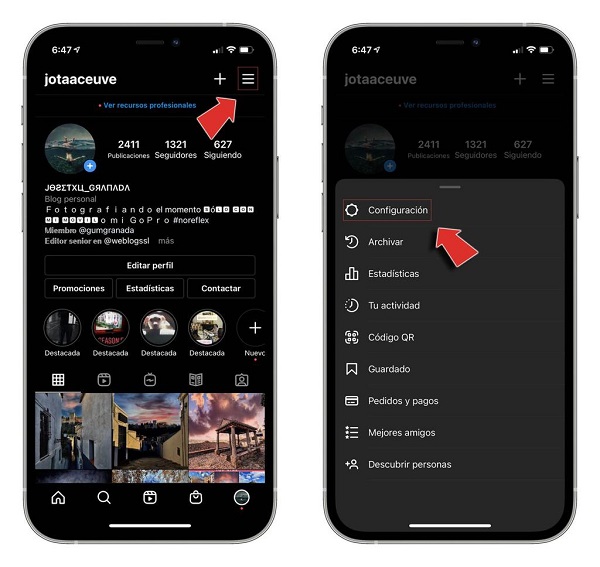
Step 2: Open Settings and activity
Tap the menu icon (three horizontal lines) at the top-right of your profile. Look for Settings and activity or the equivalent settings screen in your version of Instagram.
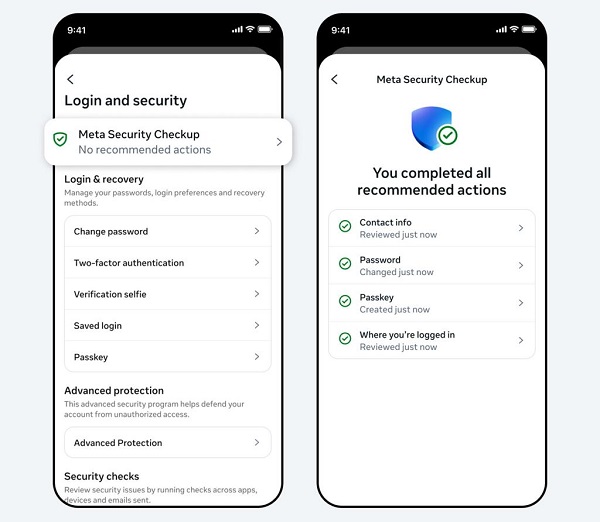
Step 3: Find the security settings
Open Accounts Center, or Meta Account if your account has the updated interface. Look for Password and security and review the available account protection options.
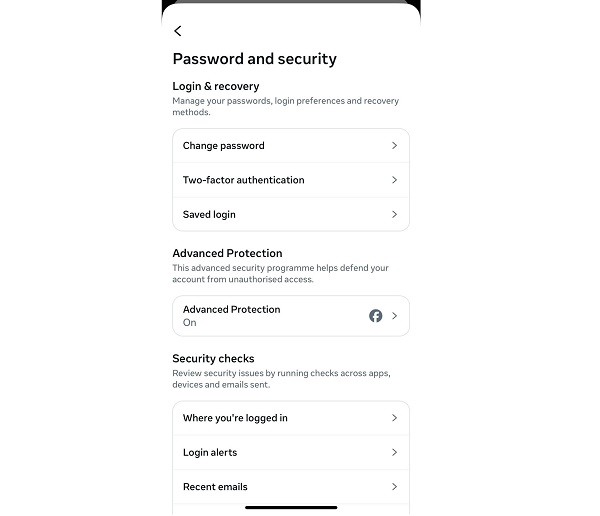
Step 4: Check for Advanced Protection
Look for an option labelled Advanced Protection or a similar security prompt. If it appears, open it and follow the instructions displayed by Instagram to enrol or complete the required security checks.
Step 5: Complete the setup
Follow all on-screen instructions. If Instagram requires you to complete additional verification by a specified deadline, do so promptly to avoid potential restrictions on account access.
Important: Menu names and availability can differ. If Advanced Protection is not visible, do not assume your account is compromised or that you have missed a setting. Instagram may not offer the option to every account through the same interface.
ALSO READ: How to Tell if an Android App Is Safe Before Installing It
What to Do If Advanced Protection Is Not Available
If you cannot find Advanced Protection in your Instagram settings, you can still strengthen your account using the following security features.
1. Enable Two-Factor Authentication
Two-factor authentication (2FA) adds another verification step when someone attempts to sign in to your account from an unrecognised device.
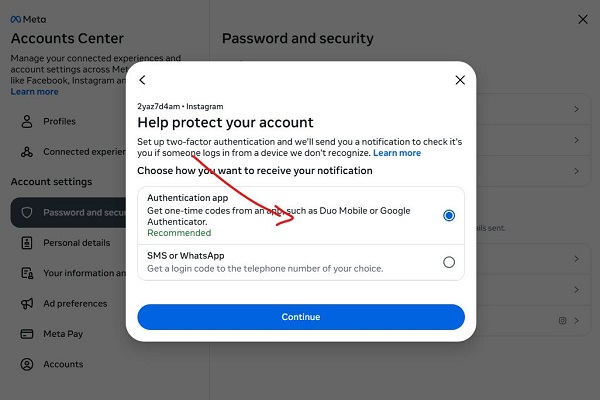
To enable it:
-
Open Instagram and go to your profile.
-
Tap the menu icon and open Accounts Center.
-
Select Password and security.
-
Tap Two-factor authentication.
-
Select your Instagram account.
-
Choose an available verification method and follow the instructions.
📖 Related Reads
An authentication app or security key is generally preferable to SMS where supported, because SMS verification can be vulnerable to SIM-swap attacks. Keep your backup codes somewhere secure if Instagram provides them.
2. Review Where You Are Logged In
Checking active sessions can help you identify devices you do not recognise.
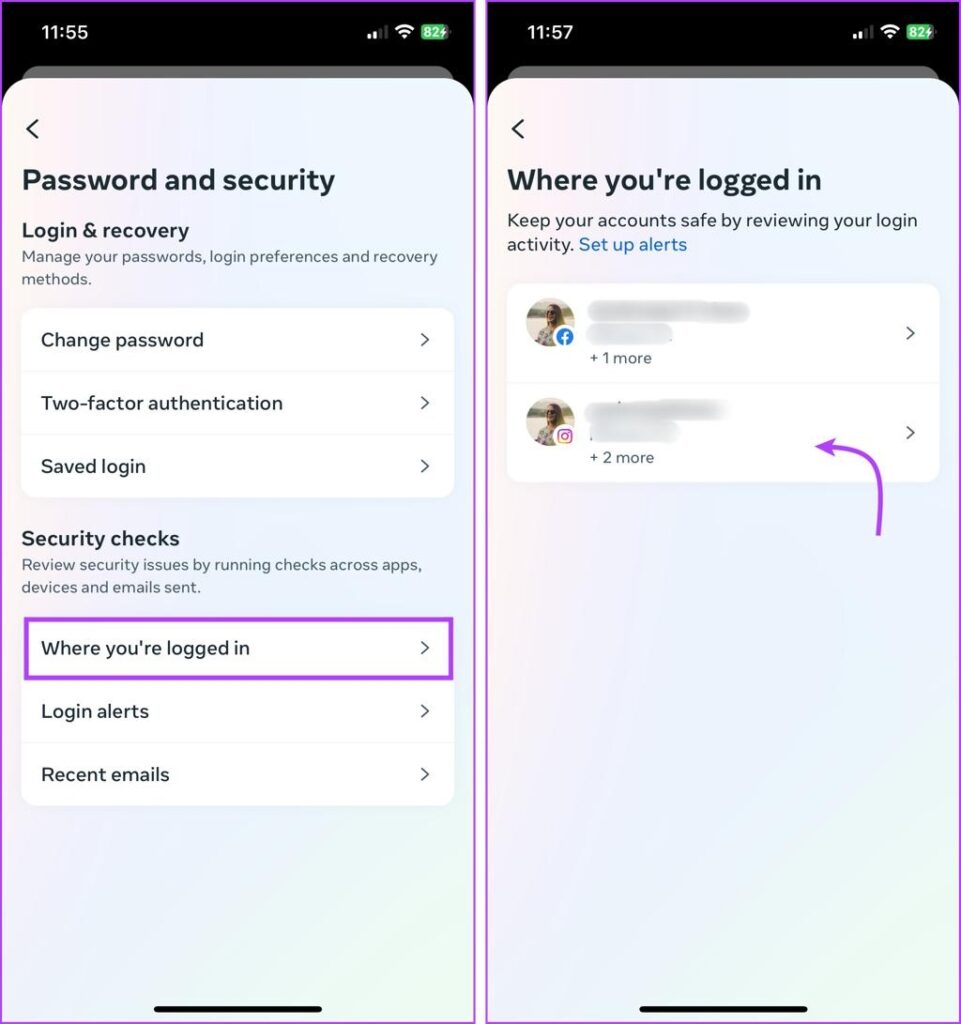
To review your sessions:
-
Go to Accounts Center.
-
Open Password and security.
-
Find Where you’re logged in or the equivalent login activity option.
-
Select your Instagram account.
-
Review the listed devices and locations.
-
Log out of any session you do not recognise.
If you notice suspicious activity, change your password immediately and secure the email account associated with your Instagram profile.
3. Turn On Login Alerts
Login alerts can help you notice when someone attempts to access your account from an unfamiliar device.
Open your account’s security settings and look for login alerts or security notifications. Enable the available alerts and review any unexpected sign-in notifications promptly.
4. Secure Your Password and Recovery Information
Your password and recovery details are essential to protecting your account.
-
Use a strong, unique password that you do not use on other websites.
-
Make sure your registered email address and phone number are current.
-
Protect your email account with two-factor authentication.
-
Never share your Instagram password or verification codes with anyone.
-
Avoid clicking suspicious links claiming that your account will be suspended or verified.
Meta recommends using strong passwords, login alerts and two-factor authentication as part of a broader account security strategy.
What Happens When You Enable Advanced Protection?
The exact protections depend on the programme and requirements applied to your account. Enhanced security measures may involve additional identity checks or stricter requirements for accessing your account.
Keep these points in mind:
-
You may need to complete extra verification steps.
-
You should keep your recovery email and phone number accessible.
-
You may receive additional security prompts.
-
If enrolment is mandatory for your account, follow Instagram’s instructions and any stated deadline.
Before accepting a security prompt, make sure it appears inside the official Instagram app or on an official Meta website. Do not follow instructions from strangers who claim they can activate protection for you.
Can You Turn Off Advanced Protection After Enabling It?
This depends on the specific protection programme applied to your account. Instagram’s Advanced Protection enrolment requirements may be mandatory for some accounts, and the feature may not have a disable option. Check the information displayed in your own account before enrolling.
If you are concerned about being locked out, first verify your recovery details and make sure you can access your email account and phone number.
Frequently Asked Questions
Is Advanced Protection available to every Instagram user?
Not necessarily. Availability and enrolment requirements can vary by account. If the option is missing, use the other security settings available to you.
Is Advanced Protection the same as two-factor authentication?
No. Two-factor authentication is a specific sign-in security feature. Advanced Protection is a broader enhanced-protection programme that may impose additional security requirements.
Does Advanced Protection prevent Instagram hacking completely?
No security feature can guarantee complete protection. Strong passwords, two-factor authentication, secure recovery information and awareness of phishing attempts all remain important.
What should I do if Instagram says I must enable Advanced Protection?
Open the notification directly in Instagram, read the instructions and complete the required steps before the stated deadline. Avoid using third-party websites that request your login details.
Where can I find official information?
Visit the Instagram Help Centre and search for “Advanced Protection on Instagram” or “two-factor authentication.”
Conclusion
Turning on Advanced Protection, when it is available for your Instagram account, can provide an additional layer of security. Start by checking your account settings, then enable two-factor authentication, review active sessions and secure your recovery information.
These steps can significantly improve your account security and reduce the risk of unauthorised access.