Typing a long email can take several minutes, especially when you have a lot of information to communicate. If you want to write faster, Google Docs Voice Typing allows you to dictate your message using your voice and automatically convert your speech into text.
This feature can be useful for students, professionals, business owners, bloggers, and anyone who regularly writes lengthy messages. Instead of typing every sentence, you can speak naturally, review the generated text, and then copy it into Gmail or another email service.
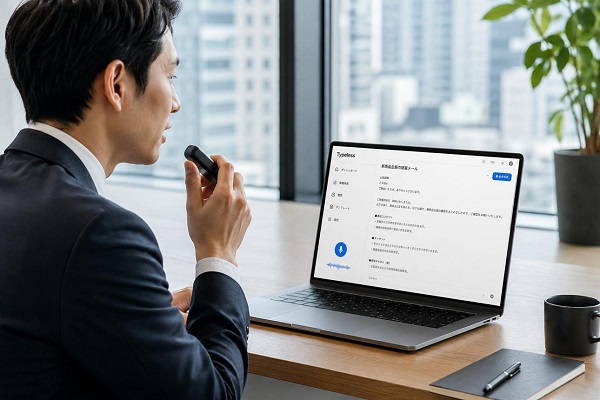
In this guide, you will learn how to use Google Docs Voice Typing to dictate emails faster, how to improve accuracy, and how to edit your message before sending it.
What Is Google Docs Voice Typing?
Google Docs Voice Typing is a speech-to-text feature available in Google Docs. It uses your computer’s microphone to capture your speech and converts what you say into written text.
For example, instead of manually typing an email such as:
Dear John, I am writing to confirm our meeting scheduled for Friday.
You can speak the sentence aloud, and Google Docs will automatically create the text in your document.
The feature is particularly useful when you have more ideas to express than you want to type manually.
Why Use Voice Typing for Emails?
There are several advantages to using voice typing when preparing emails.
It can save time: Speaking is often faster than typing, especially when composing long messages.
It reduces typing fatigue: Dictation allows you to give your hands a break when writing lengthy emails.
It helps capture ideas: Some people can explain their thoughts more naturally by speaking than typing.
It is useful for long messages: You can dictate business emails, applications, reports, proposals, and other documents before transferring them to your email application.
What You Need
Before using Google Docs Voice Typing, make sure you have:
- A Google account
- A computer with internet access
- Google Docs
- A supported web browser
- A working microphone
- Permission for your browser to access the microphone
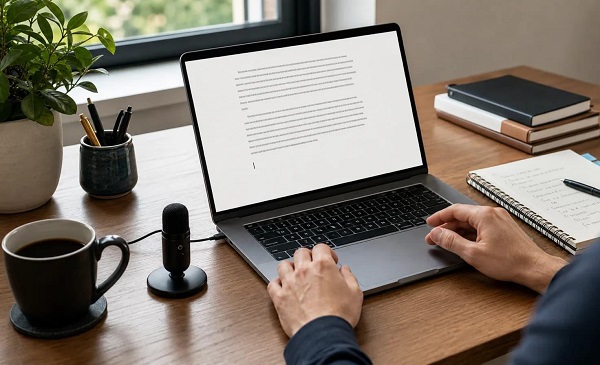
For better results, use a quiet environment and, if possible, a good headset or external microphone.
How to Enable Google Docs Voice Typing
Follow these steps to start dictating.
1. Open Google Docs
Open Google Docs in your web browser and create a new document or open an existing one.
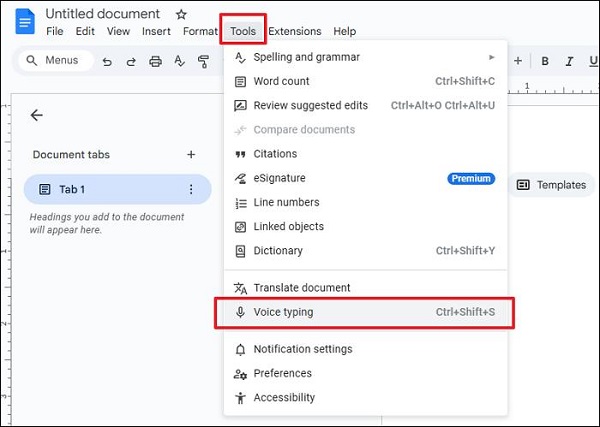
2. Select Tools
Click Tools from the menu at the top of the document.
3. Choose Voice Typing
Select Voice typing from the Tools menu.
A microphone icon will appear on the screen.
4. Allow Microphone Access
If your browser asks for permission to use your microphone, allow access.
If microphone permission was previously blocked, you may need to change the browser’s site permissions.
5. Start Speaking
Click the microphone icon and begin speaking clearly.
Google Docs will convert your speech into text as you talk. Click the microphone again when you want to stop.
How to Dictate an Email Using Google Docs
Once Voice Typing is enabled, you can use Google Docs to prepare your email.
Step 1: Plan Your Message
Before speaking, think about what you want to communicate.
A simple email structure is:
- Greeting
- Purpose of the email
- Main information
- Required action
- Closing
Having a basic structure prevents you from losing track of your message.
Step 2: Start Voice Typing
Click the microphone and begin dictating your email.
Speak naturally and clearly. You do not need to pronounce every word unnaturally or speak extremely slowly.
Step 3: Review the Text
When you finish dictating, stop Voice Typing and read through the document.
Look for incorrectly recognized words, missing punctuation, spelling errors, names, dates, and numbers.
📖 Related Reads
Step 4: Copy the Email
After editing the document, copy the finished message and paste it into Gmail or another email application.
You can then add the recipient, subject, attachments, and other necessary information.
How to Add Punctuation With Voice Typing
Punctuation is important when dictating an email. Depending on your language and Google Docs configuration, you can use spoken punctuation commands.
Common commands include:
- “Comma”
- “Period” or “Full stop”
- “Question mark”
- “Exclamation mark”
- “New paragraph”
For example, you could say:
“Hello David, comma. I am writing to confirm our appointment. New paragraph. Please let me know if the proposed time is convenient.”
Voice commands can vary depending on the language you are using, so always check the resulting text and correct punctuation when necessary.
Tips for Better Voice Typing Accuracy
Speak Clearly
Use a natural but clear speaking pace. Avoid mumbling or speaking too quickly.
Reduce Background Noise
Televisions, conversations, fans, music, and traffic can affect speech recognition. Dictate important emails in a quiet environment.
Use a Good Microphone
Your computer’s built-in microphone can work, but a headset or external microphone may provide better results.
Pause Between Ideas
Short pauses can make it easier to organize your thoughts and identify mistakes during editing.
Check Names and Technical Terms
Voice recognition may have difficulty with uncommon names, company names, abbreviations, and technical terminology.
Always review these carefully.
Proofread Before Sending
Never assume that the generated text is perfect. Read the entire email before sending it, especially when communicating professionally.
Can You Use Google Docs Voice Typing Directly in Gmail?
Google Docs Voice Typing is designed for Google Docs rather than as a general dictation tool for every website.
A simple workaround is to dictate your email in Google Docs, edit it, and then copy the completed message into Gmail.
This approach is particularly useful for long emails because you can comfortably review and organize the message before sending it.
For short messages, your phone’s built-in voice input may be faster.
Common Problems With Google Docs Voice Typing
Voice typing is convenient, but it is not perfect.
Incorrect words: The system may misunderstand certain words, especially when you speak quickly or there is background noise.
Missing punctuation: Some punctuation may not be recognized correctly, requiring manual editing.
Incorrect names: Personal and company names may need to be corrected manually.
Microphone problems: If Voice Typing does not work, check your browser’s microphone permissions and your computer’s microphone settings.
Frequently Asked Questions
Is Google Docs Voice Typing free?
Google Docs Voice Typing is available within Google Docs without requiring a separate voice-typing application.
Can I use Google Docs Voice Typing to write emails?
Yes. You can dictate your email in Google Docs, edit it, and copy the finished message into Gmail or another email service.
Is Google Docs Voice Typing accurate?
It can be highly useful when you speak clearly and have a good microphone, but errors can occur. Always proofread important emails.
Can I dictate long emails?
Yes. Voice typing is especially useful for lengthy emails, reports, applications, and other documents.
Do I need a microphone?
Yes. Voice Typing requires microphone input. A computer’s built-in microphone can work, although an external microphone may improve accuracy.
Final Thoughts
Google Docs Voice Typing is a convenient way to write emails faster without typing every sentence manually. You can speak your message, let Google Docs convert it into text, edit the result, and then copy it into Gmail.
For the best experience, speak clearly, reduce background noise, use a reliable microphone, and carefully proofread the final message.
If you regularly write long emails, voice dictation can become a useful productivity tool that saves time and reduces the effort involved in typing.