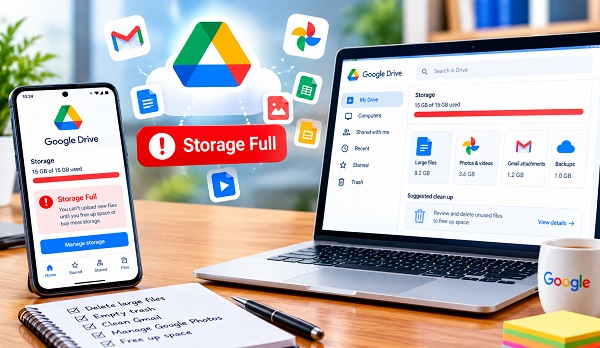
Running out of Google Drive storage can be frustrating, especially when you need to upload an important school document, receive an email attachment, or back up files from your phone. When your Google storage is full, several Google services can be affected because your storage is shared across Google Drive, Gmail and Google Photos.
The good news is that you do not necessarily need to pay for additional storage immediately. By finding and deleting large or unnecessary files, emptying your trash, managing Gmail attachments and reviewing Google Photos, you can often recover a significant amount of space.
This guide explains what to do when your Google Drive storage is full.
ALSO READ: How to Create a Digital Portfolio Without Building a Website
Why Is My Google Drive Storage Full?
Google provides a limited amount of storage with each Google Account. The storage is shared across several services, including:
- Google Drive
- Gmail
- Google Photos
- Certain device backups and other account data
This means that your Google Drive may appear to be full even when you do not have many files stored directly in Drive. Large videos, photos, email attachments and backups can consume much of the available space.
Google storage can also become difficult to manage when files accumulate over several years.
1. Check What Is Using Your Google Storage
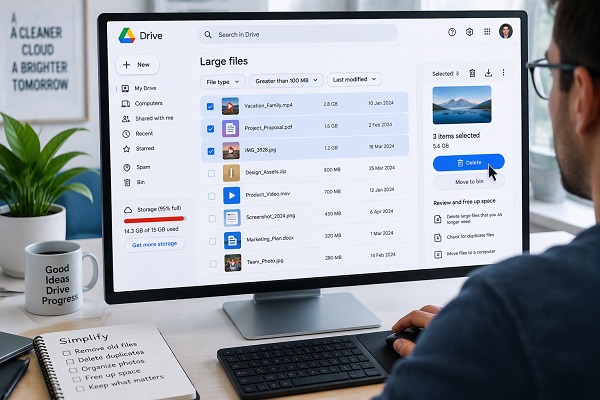
Before deleting anything, find out what is taking up the most space.
Open Google Drive and check your storage usage. You can also use Google’s storage management tools to identify large files and other items consuming space.
Look for categories such as:
- Large files
- Gmail attachments
- Google Photos
- Backups
- Items in the Drive trash
Knowing where your storage is being used makes it easier to decide what should be removed.
2. Delete Large Files From Google Drive
Large videos, ZIP files, software installers, presentations and old documents can quickly consume your storage.
Open Google Drive and go to the storage section. Files can be reviewed based on their storage usage.
Delete files you no longer need, particularly:
- Old videos
- Duplicate files
- Outdated installers
- Large ZIP archives
- Old project folders
- Unnecessary recordings
Be careful when deleting files. Make sure you no longer need an important document before removing it.
Tip
If a large file is important, consider downloading a copy to your computer or an external storage device before deleting it from Google Drive.
3. Empty the Google Drive Trash
One of the most commonly overlooked steps is emptying the Trash.
Deleting a file from Google Drive does not necessarily remove it permanently immediately. Items in the Trash can continue to occupy storage until they are permanently deleted.
After reviewing your deleted files, open the Google Drive Trash and choose the option to permanently empty it.
Important: Permanently deleted files may not be recoverable, so check the Trash carefully before emptying it.
4. Clean Up Large Gmail Attachments
Your Gmail messages and attachments can also contribute to your Google storage usage.
If you have used the same Gmail account for many years, you may have accumulated hundreds or thousands of emails containing large attachments.
You can search Gmail for messages containing large attachments.
For example, Gmail supports searches such as:
larger:10M
This can help identify emails containing relatively large files.
You can also search for messages with attachments using:
has:attachment
Review the results and delete unnecessary emails, especially messages containing large videos, PDFs, images and other files you no longer need.
After deleting unwanted messages, remember to empty the Gmail Trash and Spam folders.
5. Review Google Photos
Google Photos can consume a substantial amount of your Google storage, particularly if you automatically back up photos and videos from your smartphone.
Open Google Photos and review your library.
Pay particular attention to:
- Large videos
- Duplicate photos
- Screenshots
- Blurry pictures
- Old recordings
- Unwanted downloaded images
- Repeated photos
You can remove items you no longer need to free up storage.
However, do not delete important family photos, documents or other valuable memories without keeping another copy if necessary.
6. Check WhatsApp and Other Backups
Backups associated with your Google Account can also use storage.
If you use an Android phone, check whether there are old device or application backups that you no longer need.
For example, an old phone backup may remain in your account even though you no longer use that device.
Review your available backups carefully before deleting anything.
7. Delete Duplicate Files
Duplicate files are another common reason for unnecessary storage usage.
📖 Related Reads
You may have multiple copies of:
- CVs
- School assignments
- Photos
- Videos
- PDFs
- Business documents
- Word documents
- Presentations
Search through your Drive folders and remove unnecessary duplicates.
Instead of keeping files such as:
Assignment_Final.docx
Assignment_Final2.docx
Assignment_Final_New.docx
Assignment_Final_New2.docx
keep the correct version and remove obsolete copies.
8. Compress Large Files Before Uploading
If you regularly store large files in Google Drive, consider compressing files when appropriate.
For example, multiple documents can sometimes be placed into a ZIP archive before uploading.
However, compression does not always significantly reduce the size of already-compressed files such as videos, JPEG images and many PDF files.
The best approach is to remove unnecessary files first rather than compressing everything.
9. Download Important Files Before Deleting Them
Before performing a major cleanup, create another copy of important files.
You can download important documents to:
- Your computer
- An external hard drive
- A USB flash drive
- Another legitimate cloud storage service
This is especially important for certificates, school documents, business records, photographs and other files that would be difficult to replace.
ALSO READ: Hidden Android Features You Should Know
10. Use Google’s Storage Management Tools
Google provides tools that can help account owners identify items consuming storage.
Instead of manually opening every folder, use Google’s storage management options to identify large files and other categories that may be taking up space.
This can make the cleanup process considerably faster.
11. What Happens When Google Storage Is Full?
When your Google storage reaches its limit, you may experience problems with services connected to your account.
Depending on the service and circumstances, you may be unable to:
- Upload new files to Google Drive
- Create certain new files
- Back up additional photos
- Receive or send Gmail messages if the account remains over its storage limit
- Synchronise certain data normally
This is why it is better to address a storage warning before the account becomes completely full.
12. Should You Buy More Google Storage?
If you regularly work with large videos, photographs, documents or backups, deleting files may only provide a temporary solution.
In that situation, you may consider purchasing additional Google storage through Google’s subscription options.
However, paying for more storage is not always necessary. If most of your existing files are old or unnecessary, a proper cleanup can free considerable space without increasing your storage plan.
How to Prevent Google Drive Storage From Filling Up Again
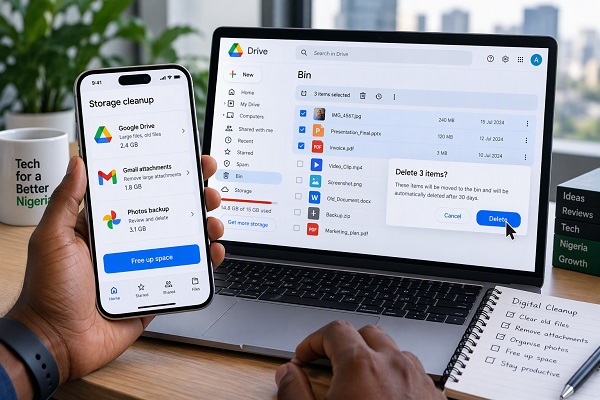
After cleaning your account, take steps to prevent the same problem from returning.
Review your storage regularly
Check your Google storage every few months and remove unnecessary files.
Avoid keeping multiple copies
Delete outdated versions of documents when you no longer need them.
Manage smartphone backups
Review which photos, videos and backups are being automatically uploaded to your Google Account.
Clean Gmail periodically
Remove emails containing very large attachments when they are no longer useful.
Store archives elsewhere
If you have large files that you rarely access, consider keeping an additional offline copy on an external drive.
Frequently Asked Questions
How do I free up Google Drive storage quickly?
Start by identifying your largest files, then delete unnecessary files and permanently empty the Drive Trash. Also check Gmail attachments, Google Photos and backups because they share Google Account storage.
Does deleting files from Google Drive free up storage immediately?
Deleted files may remain in the Trash. Permanently emptying the Trash is therefore an important part of freeing up storage.
Why is my Google Drive full when I have few files?
Your Google storage is shared across services such as Drive, Gmail and Google Photos. Large email attachments, photos, videos and backups can therefore use storage even if your Drive folders appear relatively empty.
Can I free Google storage without paying?
Yes. You can often recover space by deleting unnecessary Drive files, Gmail messages, photos, videos and old backups, then permanently removing items from the relevant trash areas.
Should I delete my Google Photos to free space?
Only delete photos and videos that you no longer need or have safely backed up elsewhere. Important photographs should be preserved before you perform a major cleanup.
Final Thoughts
A full Google Drive account does not always mean that you need to immediately purchase additional storage. Start by checking what is consuming your storage, remove large unnecessary files, clean up Gmail and Google Photos, and permanently empty your trash.
If you regularly create or receive large files, consider establishing a simple storage-management routine. A few minutes of cleanup every few months can prevent your Google Account from reaching its storage limit unexpectedly.