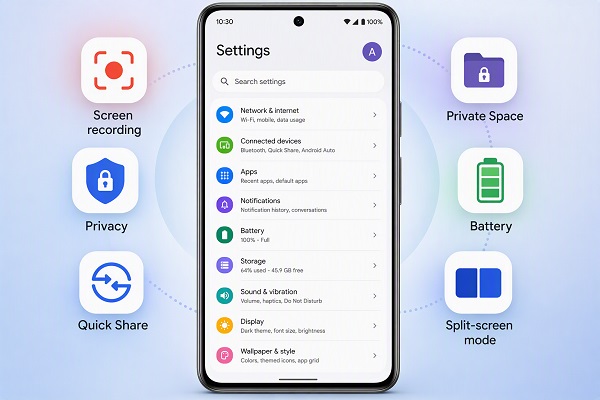
Most Android phones have far more features than users realise. While people commonly use their phones for calls, WhatsApp, social media, photography and browsing, Android also includes several useful tools hidden inside the Settings app and other menus.
Some of these features can improve your privacy, make multitasking easier, save time and even help you find a lost phone.
The exact options and menu names can vary between Samsung, Google Pixel, Xiaomi, Redmi, Tecno, Infinix, OPPO, vivo and other Android phones. However, many of these features are available on modern Android devices.
ALSO READ: 15 Android Settings You Should Change Immediately After Buying a New Phone
Here are some hidden Android features worth knowing in 2026.
1. Use the Settings Search to Find Almost Anything
One of the most overlooked Android features is the search box inside Settings.
Instead of opening different menus to find a particular option, open Settings and use the search icon or search box.
For example, search for:
- Battery
- App permissions
- Screen recording
- Notification history
- Private Space
- Backup
- Location
- One-handed mode
This is especially useful when your phone manufacturer’s version of Android places settings in different locations.
2. Check Notification History
Have you ever accidentally dismissed an important notification and then wondered what it said?
Some Android phones provide Notification history.
Depending on your device, go to:
Settings > Notifications > Notification history
Once enabled, your phone can keep a record of recent notifications.
This can be particularly useful for messages, alerts and notifications that disappear before you have time to read them.
Keep in mind that availability and the amount of notification history retained can vary between Android versions and manufacturers.
3. Record Your Screen Without Installing an App
Many modern Android phones include a built-in screen recorder.
Swipe down from the top of the screen to open Quick Settings and look for Screen Recorder or Screen Record.
Depending on the phone, you may be able to choose whether to record:
- Device audio
- Microphone audio
- Touches on the screen
- The entire screen
This can be useful when creating tutorials, demonstrating an app or showing someone how to perform a task on your phone.
4. Use Split-Screen Mode
Android can allow two compatible applications to appear on the screen at the same time.
For example, you could use a browser while taking notes in another application.
Open your recent apps, select the app’s icon and look for Split screen or a similar option.
The exact procedure depends on the Android version and manufacturer.
This feature is particularly useful on phones with larger displays.
5. Use Picture-in-Picture Mode
Picture-in-picture allows compatible apps to continue displaying a small floating video window while you use another application.
For example, you may be able to watch a supported video while browsing another app.
If the feature is available, the video can shrink into a small window that you can move around the screen.
You can manage picture-in-picture permissions through:
Settings > Apps > Special app access > Picture-in-picture
The exact location may differ between phones.
6. Pin an App to Your Screen
Android includes an App pinning feature that can prevent someone from freely navigating through your phone after you hand it to them.
For example, if someone wants to watch a video on your phone, you can pin the relevant app.
Look under:
Settings > Security & privacy > More security settings > App pinning
The menu may be different on your phone.
After enabling it, Android can require your screen lock before the person can leave the pinned application.
7. Use Private Space
Newer Android versions include Private Space, which provides a separate area for sensitive apps.
You can use it for applications you want to keep separate from the main phone environment.
Depending on your Android version and device, Private Space may be available under:
Settings > Security & privacy > Private Space
You can use a separate lock for the private area where supported.
This can be useful for separating sensitive apps from your everyday applications.
ALSO READ: How to Check App Permissions on Android
8. Check Which Apps Are Using Your Camera or Microphone
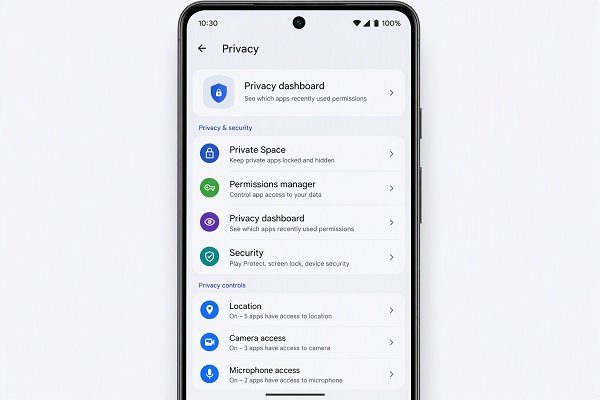
Android provides privacy controls that can help you understand when applications access sensitive features.
Go to:
Settings > Security & privacy > Privacy
Look for options related to the Privacy dashboard, camera or microphone access.
The Privacy dashboard on supported Android versions can show recent access to permissions such as location, camera and microphone.
If an unfamiliar application repeatedly accesses a sensitive permission, review its permissions.
9. Turn Off Camera or Microphone Access System-Wide
Some newer Android devices provide quick controls for disabling camera or microphone access.
Open Quick Settings and look for camera or microphone controls.
If they are not visible, edit the Quick Settings panel to see whether the controls are available.
This can provide an additional privacy control when you do not want applications to access these sensors.
10. Use One-Handed Mode
Large smartphone screens can sometimes be difficult to operate with one hand.
Many Android phones offer One-handed mode.
Search for One-handed mode in Settings.
When enabled, the usable area of the screen can be reduced or shifted downward, making controls easier to reach.
This can be especially useful when you are using your phone while carrying something with your other hand.
ALSO READ: How to Tell if an Android App Is Safe Before Installing It
11. Turn On Live Caption
Some Android devices support Live Caption, which automatically generates captions for speech in supported audio and video.
It can be useful when:
📖 Related Reads
- Watching videos
- Listening to podcasts
- Playing recorded content
- Trying to understand speech in a noisy environment
You can usually activate it by pressing a volume button and selecting the Live Caption option when supported.
Availability varies by device, language and region.
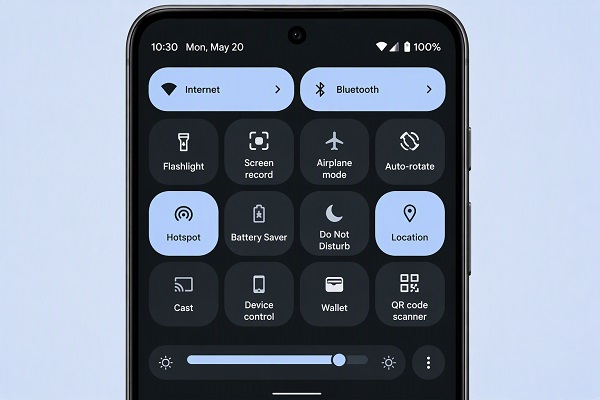
12. Use Quick Settings to Save Time
The Quick Settings panel contains shortcuts to frequently used functions.
Swipe down from the top of the screen and look through the available controls.
You may find shortcuts for:
- Wi-Fi
- Bluetooth
- Mobile data
- Flashlight
- Airplane mode
- Screen recording
- Hotspot
- Location
- Battery Saver
- Nearby Share or Quick Share
Tap the edit button to rearrange the controls and place your most-used functions where you can reach them quickly.
13. Share Files Quickly With Quick Share
Android’s Quick Share feature allows compatible devices to share files and links without relying on traditional messaging apps.
It can be useful for transferring:
- Photos
- Videos
- Documents
- Links
- Other supported files
Open the item you want to share, tap Share and look for Quick Share.
The receiving device may need to have the appropriate visibility and connectivity settings enabled.
14. Use Google Lens From Your Camera
Google Lens can identify or analyse information in images.
Depending on your phone and camera application, you may be able to use Lens to:
- Copy text from an image
- Translate text
- Identify objects
- Search for products
- Scan certain information
- Perform visual searches
For students, it can also be useful for extracting text from printed documents.
Always check important information manually rather than assuming that an image-recognition result is automatically correct.
15. Use Your Phone as a Hotspot
Your Android phone can share its mobile internet connection with another device.
Go to:
Settings > Network & internet > Hotspot & tethering
The exact menu varies by manufacturer.
You can usually configure a Wi-Fi hotspot name and password.
This can be useful when your laptop or another device needs internet access and there is no nearby Wi-Fi network.
Remember that hotspot usage can consume mobile data quickly.
16. Set a Data Usage Warning
If you use mobile data regularly, Android can help you monitor your usage.
Look under:
Settings > Network & internet > SIMs > App data usage
Depending on your phone, you may also be able to set a data warning or data limit.
This can help you identify applications consuming large amounts of mobile data in the background.
17. Restrict Background Battery Usage
Some applications continue performing tasks when you are not actively using them.
Open:
Settings > Apps > See all apps > [App] > App battery usage
Depending on your phone, you may be able to restrict background activity.
Be careful with this setting because restricting certain applications can delay notifications or affect their normal operation.
18. Use Focus Mode
Android’s Digital Wellbeing tools include features designed to help reduce distractions.
Focus Mode can temporarily pause selected applications so that you are less tempted to check them.
Look under:
Settings > Digital Wellbeing & parental controls
Select the applications you find distracting and configure a schedule if your phone supports it.
This can be useful when studying, working or trying to concentrate.
19. Set App Timers
Digital Wellbeing can also help you monitor how much time you spend in applications.
You can set daily timers for selected apps.
For example, you could create a time limit for a social media application.
Once the limit is reached, Android can restrict access until the timer resets.
20. Use Emergency and Safety Features
Many Android phones include emergency and safety tools.
Look under:
Settings > Safety & emergency
Depending on your device and location, you may find options for:
- Emergency contacts
- Medical information
- Emergency location services
- Emergency SOS
- Safety alerts
Set up the features available on your phone so that important information can be accessed when necessary.
How to Find More Hidden Android Features
Android has so many settings that it is difficult to list everything available on every phone.
A simple way to discover more features is to open Settings and search for terms such as:
Privacy
Security
Battery
Gestures
Accessibility
Digital Wellbeing
Special app access
Advanced features
Emergency
You may discover options you have never used before.
Final Thoughts
Your Android phone is capable of much more than making calls, browsing the internet and running social media applications.
Features such as Notification History, Screen Recording, App Pinning, Private Space, Split Screen, Quick Share, One-Handed Mode, Digital Wellbeing and Privacy controls can make your phone more useful and secure.
Because Android is customised by different manufacturers, your phone may use different names or locations for some features. If you cannot find one of these options, search for its name directly inside the Settings app.
Before installing another application to perform a particular task, check whether Android already has a built-in feature that can do it.