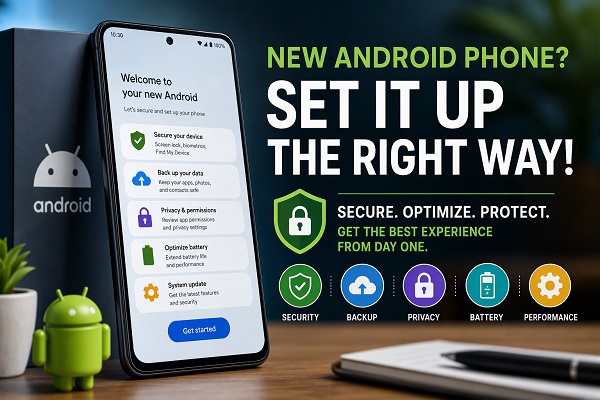
Getting a new Android phone is exciting, but simply transferring your contacts, installing apps and signing into your Google account is not enough. Several default settings can affect your phone’s security, privacy, battery life, notifications and overall experience.
Whether you have just bought a budget Android phone or a premium device, spending a few minutes adjusting the right settings can make your phone safer and more convenient to use.
ALSO READ: How to Free Up Storage Space on an Android Phone
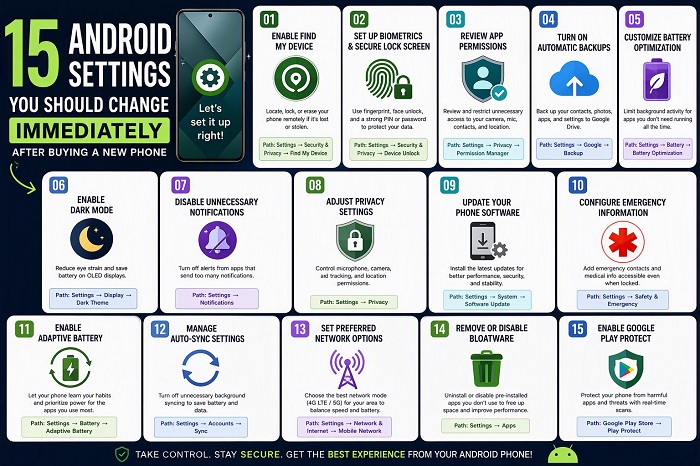
Here are 15 Android settings you should change immediately after buying a new phone.
1. Set Up a Strong Screen Lock
The first setting to change is your screen lock.
Go to Settings > Security & privacy > Device unlock or a similar option depending on your phone.
Use a strong PIN or password rather than an easy-to-guess combination such as 1234, 0000 or your date of birth.
If your phone supports fingerprint or face unlock, you can enable it for convenience while keeping a strong PIN or password as a backup.
2. Turn On Find My Device
Google’s Find My Device feature can help you locate, lock or erase a lost Android phone.
Open Settings > Google > Find My Device and make sure it is enabled.
You should also ensure that location services are available when needed. This can significantly improve your chances of recovering a misplaced phone.
3. Review App Permissions
Some apps request access to your camera, microphone, contacts, location and files even when they may not need all of them.
Go to Settings > Security & privacy > Privacy > Permission manager.
Review permissions for sensitive categories such as:
- Camera
- Microphone
- Location
- Contacts
- SMS
- Photos and videos
Remove permissions that an app does not genuinely need.
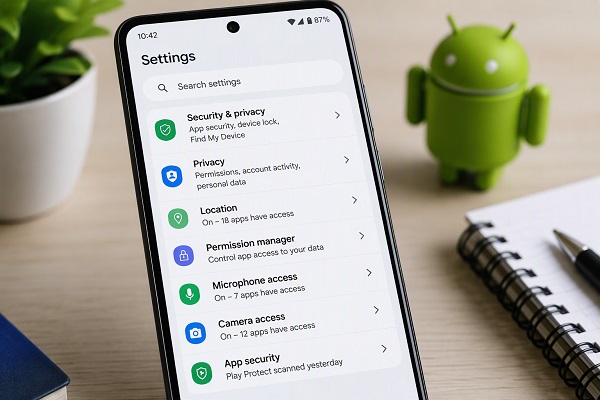
4. Turn Off Unnecessary Location Access
Location information can be useful for navigation and other services, but not every application needs continuous access to it.
Check Settings > Location > App location permissions.
For apps that do not require your location all the time, consider selecting Allow only while using the app or Don’t allow.
5. Enable Automatic System Updates
A new phone may not have the latest Android security updates installed.
Go to Settings > System > Software update or your manufacturer’s equivalent.
Install available updates and enable automatic updates where the option is available.
Keeping Android updated helps protect your device against known security vulnerabilities and can also provide bug fixes and new features.
6. Turn On Google Play Protect
Google Play Protect scans Android apps for potentially harmful behaviour.
Open the Google Play Store, tap your profile picture and select Play Protect.
Make sure app scanning is enabled.
This is particularly important if you frequently install applications from outside the Google Play Store.
7. Review Notification Settings
A new Android phone can quickly become noisy with notifications from every installed application.
Go to Settings > Notifications > App notifications.
Turn off notifications from apps that do not need to interrupt you.
Keep important alerts such as calls, messages, banking notifications and security alerts enabled.
8. Enable Automatic Backup
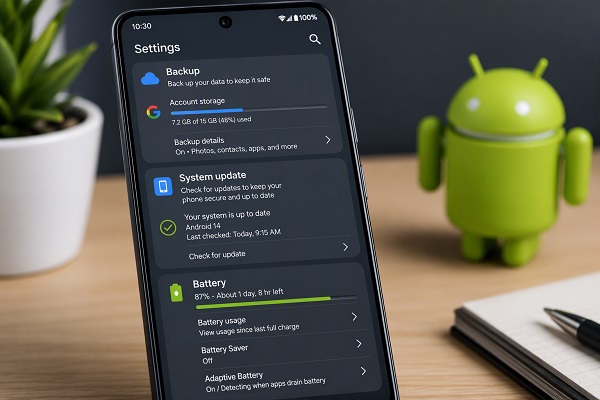
A phone can be lost, damaged or reset unexpectedly. Backing up important information can prevent a small disaster from becoming a major one.
Check Settings > Google > Backup.
Depending on your phone and Google account, you may be able to back up application data, contacts, device settings and other information.
Also check that your photos and videos are being backed up if you use Google Photos.
📖 Related Reads
9. Check Your Google Account Security
Your Google account is closely connected to your Android phone, so protecting it is important.
Visit your Google Account’s security settings and review:
- Signed-in devices
- Recent security activity
- Recovery phone number
- Recovery email
- Two-step verification
Remove devices you no longer recognise and investigate suspicious activity.
10. Enable Two-Step Verification
A strong password is useful, but adding another layer of authentication provides additional protection.
Enable two-step verification for your Google account.
Depending on your account, you may be able to use Google prompts, an authenticator app, security keys or other verification methods.
This can help protect your account if someone discovers your password.
11. Disable Unnecessary Preinstalled Apps
Many Android phones come with applications that you may never use.
Open Settings > Apps > See all apps and review the applications installed on your phone.
If an unwanted app can be uninstalled, remove it. If it cannot be uninstalled, some phones allow you to disable it.
However, avoid disabling system applications unless you know what they do, as doing so can affect other features.
12. Check Battery Usage
Before installing dozens of applications, check which apps are already consuming battery power.
Go to Settings > Battery > Battery usage.
Look for applications using an unusually large percentage of your battery.
You can then restrict background activity or uninstall applications you do not need.
Battery options vary between Android manufacturers, so the exact menu names may be different.
13. Turn On Automatic Date and Time
Incorrect date and time settings can cause problems with websites, authentication systems, messages and other services.
Go to Settings > System > Date & time.
Enable Set time automatically and, where available, Set time zone automatically.
This allows your phone to keep the correct time as you move between locations or networks.
14. Check Your Default Apps
Android allows you to choose which applications handle common tasks.
Go to Settings > Apps > Default apps.
Review your default browser, phone app, messaging app, digital assistant and other supported categories.
This is particularly useful if your phone manufacturer has installed its own apps alongside Google’s applications.
15. Set Up Emergency and Safety Features
Your phone may include emergency features that can be useful during an accident or other dangerous situation.
Look under Settings > Safety & emergency or search Settings for “Emergency.”
Depending on your device and country, you may find options for emergency contacts, medical information, emergency location services and other safety features.
Set up the features that are available and appropriate for you.
Final Thoughts
A new Android phone should not be treated as ready to use simply because it can make calls and access the internet.
Taking a few minutes to review your security, privacy, permissions, backup, updates, notifications and battery settings can make a significant difference.
The exact menu names will vary between Samsung, Google Pixel, Xiaomi, Redmi, Tecno, Infinix, OPPO, vivo and other Android phones. If you cannot find a particular option, use the search box inside the Settings app.
Most importantly, keep Android and your apps updated, use a strong screen lock, review permissions regularly and make sure your important data is backed up.
A few simple changes immediately after purchasing your phone can help you get a safer, more private and more reliable Android experience.