Forgetting your Gmail password can be stressful, especially when your email account is connected to important services such as Google Drive, Google Photos, YouTube, school accounts, work accounts and other websites.
Fortunately, forgetting your password does not necessarily mean you have lost your Gmail account.
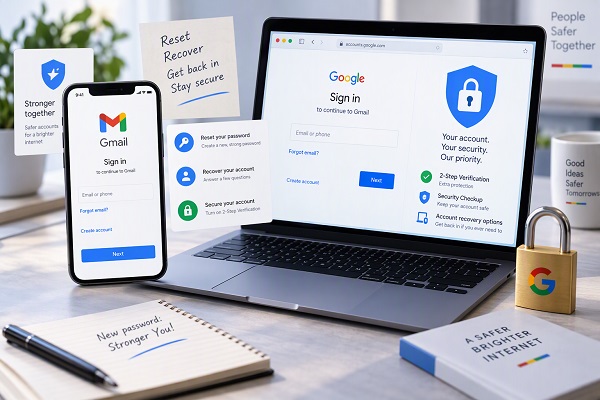
Gmail uses your Google Account password, so the official way to regain access is through Google’s Account Recovery process. Google will ask you to provide information that can help confirm that the account belongs to you before allowing you to reset the password.
Here is how to recover a forgotten Gmail password safely.
ALSO READ: 15 Android Settings You Should Change Immediately After Buying a New Phone
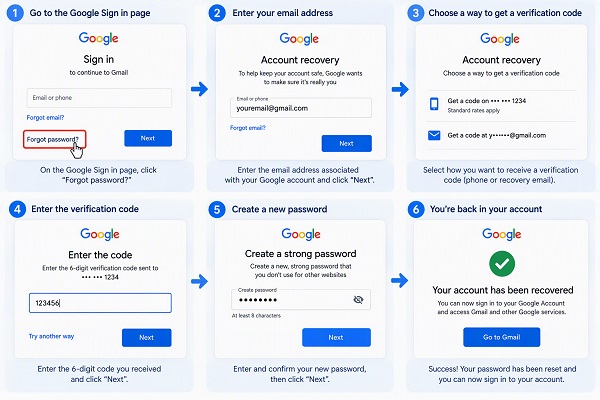
1. Go to Google’s Account Recovery Page
The first step is to use Google’s official account recovery page.
Do not search for random “Gmail password recovery” websites or give your password to someone who claims they can recover the account for you.
Enter the Gmail address associated with the account and follow the instructions provided by Google.
Google’s recovery system may ask questions designed to confirm that you are the legitimate account owner.
2. Enter Your Gmail Address
When prompted, enter the Gmail address whose password you have forgotten.
Make sure you enter the correct address.
If you have several Gmail accounts, it can be easy to accidentally attempt to recover the wrong account.
If you have forgotten your Gmail address as well as your password, Google provides a separate process for finding your username using information such as a recovery phone number or recovery email address.
3. Answer Google’s Verification Questions
Google may ask you questions to determine whether you own the account.
Answer as many questions as possible.
If you are unsure about an answer, Google recommends giving your best answer rather than simply skipping the question. Wrong guesses do not automatically lock you out of the recovery process.
For example, Google may ask you to confirm information associated with the account or use another available verification method.
4. Use a Device You Normally Use
One of the most useful account-recovery tips is to use a familiar device.
If possible, try recovering the account from:
- Your usual Android phone
- Your regular computer
- A familiar tablet
- Your normal web browser
Google specifically recommends using a device where you frequently sign in when attempting account recovery.
This can help Google determine that the recovery attempt is legitimate.
5. Use Your Usual Location
Your location can also matter during account recovery.
If possible, attempt the recovery from a place where you normally sign into your Google Account, such as your home or workplace.
Google recommends using a familiar location as part of its account-recovery guidance.
This does not guarantee successful recovery, but it can provide additional context to Google’s verification systems.
6. Enter a Previous Password You Remember
If Google asks you for a previous password, enter the most recent password you remember using with the account.
Try to be as accurate as possible.
Google notes that details matter when answering recovery questions, so avoid accidental spelling or capitalization errors.
If you do not remember your old password exactly, provide your best possible answer rather than inventing information.
7. Use Your Recovery Phone Number
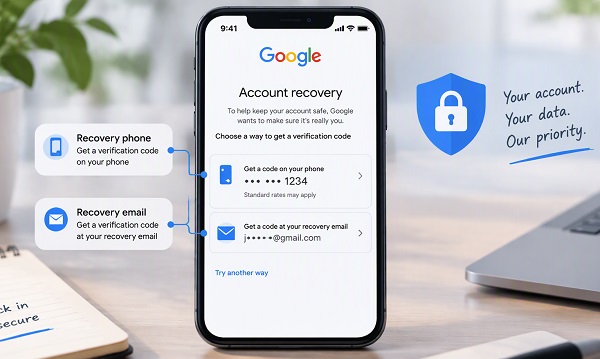
If you previously added a recovery phone number to your Google Account, Google may offer it as a way to verify your identity.
A recovery phone number can be used to receive a code that helps you regain access to the account.
Google recommends using a mobile number that you own, use regularly and can access.
Never give a verification code to another person claiming they need it to recover your account.
8. Check Your Recovery Email
You may also be able to verify your identity using a recovery email address.
Check the recovery inbox for an email from Google.
If you do not see the message, check your:
- Spam folder
- Junk folder
- Promotions folder
- Other email categories
Google recommends checking spam or junk folders if a recovery email does not appear.
9. Check Your Phone for Google Prompts
If your Google Account is still signed in on another trusted device, Google may offer a prompt or another verification method.
For example, your Android phone may display a notification asking you to confirm that you are trying to sign in.
Follow the instructions displayed on your trusted device.
Do not approve a sign-in request that you did not initiate.
📖 Related Reads
10. Enter the Verification Code Carefully
If Google sends a verification code to an available recovery method, enter the code on the official Google recovery page.
Never send the code to another person.
Scammers sometimes impersonate Google support agents and ask users for passwords or verification codes.
Google states that it does not work with services that claim to provide account or password support.
11. Create a New Password
If Google successfully verifies that you own the account, you may be given the option to create a new password.
Choose a strong password that you have not previously used with that account. Google specifically recommends choosing a password that has not already been used with the account.
Avoid passwords based on information that other people could easily guess, such as:
- Your name
- Date of birth
- Phone number
- Child’s name
- Simple number combinations
- Common words
A password manager can also help you create and store strong, unique passwords.
12. Sign Back Into Gmail
After successfully changing your password, return to Gmail and sign in with your Gmail address and new password.
Your Google Account password is also used for other Google services, including products such as YouTube.
Depending on your account and security settings, changing your password may sign you out of many devices and services.
What If Google Cannot Verify Your Account?
Sometimes Google may determine that there is not enough information to confirm that you own the account.
Do not immediately assume that the account is permanently lost.
Try the recovery process again using Google’s recommendations.
Use your usual device, browser and location, and answer as many questions as possible.
If you recently changed your recovery information, Google says changes may take up to seven days to take effect.
ALSO READ: How to Check if Someone Has Signed Into Your Google Account
What If Someone Changed Your Gmail Password?
If you suspect that someone else changed your Gmail password, do not treat it as an ordinary forgotten-password problem.
Use Google’s account-recovery process to regain access.
Google specifically recommends its recovery process when someone has changed account information such as your password or recovery phone number.
Once you regain access, review your account’s recent security activity and signed-in devices and secure the account.
What If You Forgot Your Gmail Address Too?
If you cannot remember the Gmail address itself, Google provides a username-recovery process.
You may need information such as:
- A recovery phone number
- A recovery email address
- The full name associated with the account
Google can then provide usernames that match the information you supplied.
How to Prevent Forgetting Your Gmail Password Again
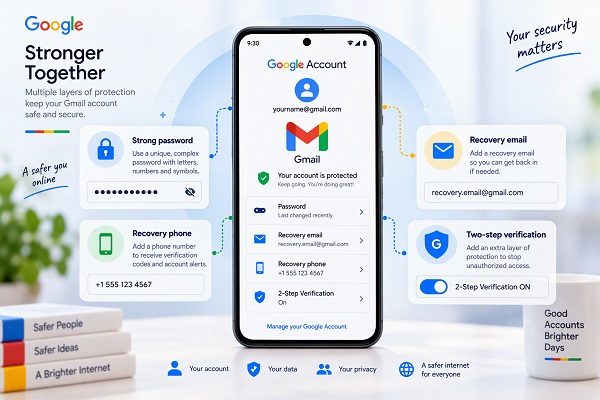
Once you regain access, take a few minutes to strengthen your account recovery options.
Add a Recovery Phone Number
A recovery phone can help you regain access if you forget your password or become locked out.
Add a Recovery Email
Use an email address that you regularly access and that is different from the Gmail address you use to sign in.
Consider a Recovery Contact
Google also provides a recovery-contact option for eligible accounts and users. This can provide another recovery route if you forget your password or cannot sign in.
Use Two-Step Verification
Two-Step Verification provides an additional layer of security beyond your password.
Google supports several second-step options, including prompts, verification codes, backup codes and security keys, depending on your account configuration.
Use a Password Manager
A password manager can help you store strong, unique passwords so you do not have to memorise every password manually.
Be Careful of Gmail Recovery Scams
One of the biggest mistakes you can make after forgetting your Gmail password is paying an unknown person who claims they can “hack” or recover the account for you.
Avoid anyone who asks you for:
- Your Gmail password
- Your verification code
- Your recovery code
- Your security key
- Your banking information
- Remote access to your computer or phone
Google warns users against account and password recovery services that claim to provide this type of support.
Use Google’s official recovery process instead.
ALSO READ: How to Tell if an Android App Is Safe Before Installing It
Final Thoughts
Forgetting your Gmail password does not automatically mean you have lost your Google Account.
The safest approach is to use Google’s official Account Recovery process, answer the verification questions as accurately as possible, and use a familiar device, browser and location when available.
After recovering the account, add a recovery phone number and recovery email, enable additional security measures and store your new password securely.
Most importantly, never give your Gmail password or verification codes to someone claiming they can recover your account for you.