
Students deal with many digital files every day. Assignments, lecture notes, past questions, examination materials, project documents, presentations and PDF textbooks can quickly fill up a phone or computer.
Instead of keeping everything on one device, students can use Google Drive to store and organize their school documents online.
Google Drive is a cloud storage service that allows users to save files and access them from compatible devices with an internet connection. This can be particularly useful for students who regularly switch between smartphones, tablets and computers.
Here is how students can use Google Drive to keep their academic documents organized and accessible.
What Is Google Drive?
Google Drive is an online storage service from Google. It allows users to upload, store, organize and share digital files.
Students can use it to store documents such as Word files, PDFs, PowerPoint presentations, images, spreadsheets and other school-related materials.
One major advantage is that files stored in Drive are not limited to one physical device. Once uploaded and synchronized, students can access them from another supported device by signing into their Google account.
1. Create a Google Account
The first step is to have a Google Account.
Students who already use Gmail, YouTube or other Google services generally already have one.
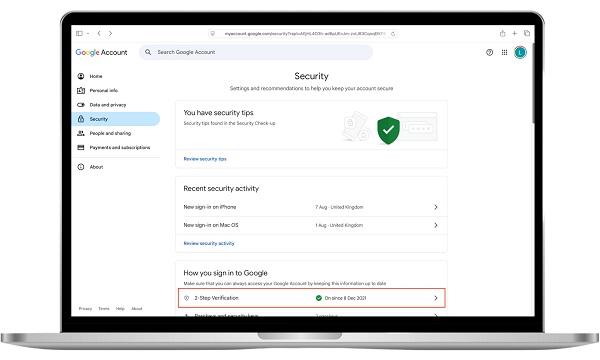
When creating an account, use a strong password and protect the account with available security features such as two-step verification.
Your Google Account is important because it provides access to Google Drive and other Google services.
2. Open Google Drive
Students can access Google Drive through the Drive app on an Android or iPhone, or through a web browser on a computer.
After signing in, the main Drive interface displays files and folders stored in the account.
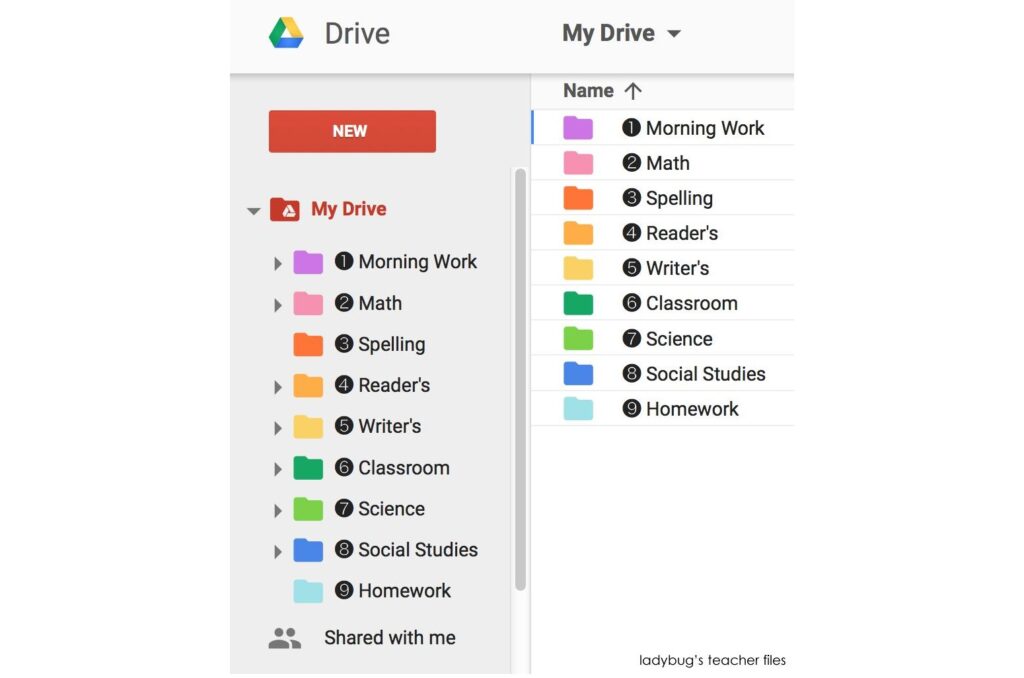
If you have many school documents, creating folders immediately can make your Drive much easier to manage.
3. Create Folders for Different Subjects
One of the easiest ways to organize school documents is to create separate folders.
For example, a student could create folders such as:
- Mathematics
- English Language
- Biology
- Chemistry
- Physics
- Computer Studies
- Past Questions
- Assignments
- Projects
University students can create folders based on departments, courses or semesters.
For example:
2026/2027 Session → First Semester → GST 101 → Lecture Notes
This structure makes it easier to find a document later.
4. Upload School Documents
After creating folders, students can upload their existing school documents.
On a smartphone, open Google Drive, select the option to add or upload a file, and choose the document from your device.
On a computer, files can also be uploaded from the Drive website.
Students can upload PDFs, documents, presentations, images and other supported files.
It is better to place each document in the correct folder immediately instead of uploading everything into the main Drive area.
5. Rename Files Properly
Good file names can save students a lot of time.
Instead of keeping a document named:
Document1.pdf
rename it to something descriptive, such as:
Mathematics_Algebra_Notes_2026.pdf
Similarly, an assignment could be named:
PHY101_Assignment_Week3.pdf
A consistent naming system makes files easier to locate using Drive’s search function.
6. Store Assignment and Project Files
Google Drive can also serve as a central location for assignments and school projects.
Students can create a folder for each major project and keep related materials together.
For example:
📖 Related Reads
Final Year Project
Inside the folder could be:
- Research notes
- Project proposal
- References
- Draft chapters
- Presentation slides
- Final document
This reduces the risk of losing important project materials because of a damaged phone or computer.
7. Access Documents From Different Devices
One of Google Drive’s biggest benefits for students is accessibility.
A student might start working on an assignment using a phone and later continue on a laptop.
Instead of transferring the file manually with a USB cable or messaging app, the student can access the document from Drive after signing into the same Google Account.
This can make studying and completing assignments more convenient.
8. Share Documents With Classmates
Students can also use Drive to share school materials with classmates.
For example, a student who has created useful revision notes can share a file or folder with classmates.
However, students should pay attention to sharing permissions.
Depending on the situation, a file can be shared so that another person can view, comment on or edit it.
Avoid giving editing permission when someone only needs to read a document.
9. Keep Important School Documents Backed Up
Google Drive can provide an additional copy of important academic files.
Students should consider uploading important documents such as admission letters, registration documents, project files, certificates and examination materials.
However, cloud storage should not be treated as the only backup for extremely important files.
For critical documents, keep another copy on a computer, external storage device or another trusted backup location.
10. Protect Your Google Account
Storing important documents online means protecting the account used to access them.
Students should never share their Google Account password with friends or classmates.
Use a strong, unique password and enable additional security protections where available.
Be particularly careful with suspicious links and websites asking for your Google login details.
If someone gains access to your account, they may potentially gain access to files stored in Drive as well.
11. Use Search to Find Files Quickly
Students do not always need to manually browse through every folder to find a document.
Google Drive includes a search feature that can help locate files.
For example, if you are looking for a Chemistry assignment, searching for terms such as Chemistry, CHM101 or part of the file name can make the document easier to find.
This becomes increasingly useful as the number of stored files grows.
12. Avoid Storing Everything Without Organization
Although cloud storage makes it easy to keep files, uploading everything without a system can eventually create another problem.
A Drive account containing hundreds of files with random names can be difficult to navigate.
Students should periodically delete unnecessary files, organize loose documents into folders and rename important files.
A few minutes of organization can make the account much more useful throughout the school year.
Final Thoughts
Google Drive can be a valuable digital storage tool for students. It provides a convenient way to keep assignments, notes, projects, PDFs and other school documents accessible across devices.
The best approach is to create folders based on subjects, courses or semesters, use descriptive file names and regularly organize stored documents.
Students should also protect their Google Accounts and maintain additional backups of their most important files.
With a simple organization system, Google Drive can become a personal digital filing cabinet that makes schoolwork easier to manage.