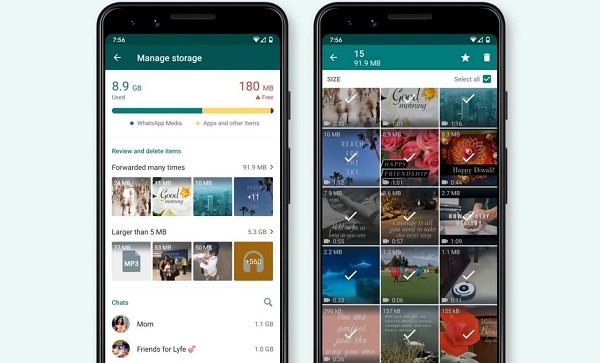
Have you ever checked your phone’s storage and discovered that WhatsApp is using several gigabytes of space?
This is common, especially if you belong to active WhatsApp groups or frequently receive photos, videos, voice messages and documents.
WhatsApp itself may not be the only thing consuming your storage. Much of the space can come from media and files downloaded through your conversations.
Fortunately, you can identify what is using the space and remove unnecessary files without deleting your important conversations.
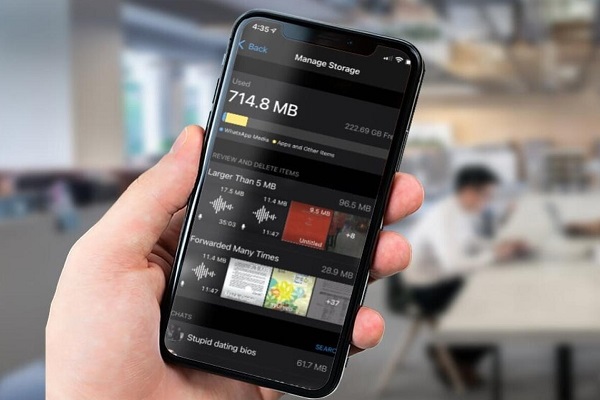
Why Does WhatsApp Use So Much Storage?
1. Photos and Videos Accumulate Over Time
Every photo and video you receive or download can occupy storage on your phone.
If you participate in several groups where people regularly share videos, memes, images and status-related content, these files can accumulate quickly.
Videos are particularly problematic because a single video can be much larger than a typical photograph.
2. WhatsApp Groups Can Generate Lots of Files
Busy groups are one of the biggest reasons WhatsApp storage can grow.
For example, a group may receive hundreds of images and videos every month. Even if you don’t personally need those files, they can remain stored on your device.
Family, school, workplace, business and community groups can therefore contribute significantly to WhatsApp’s storage usage.
3. Documents Can Take Up Significant Space
WhatsApp isn’t limited to pictures and videos.
People can send:
- PDF files
- Word documents
- PowerPoint presentations
- ZIP files
- Spreadsheets
- APK files
- Other attachments
Large documents can consume considerable storage, particularly if they are downloaded repeatedly.
How to Check What Is Using WhatsApp Storage
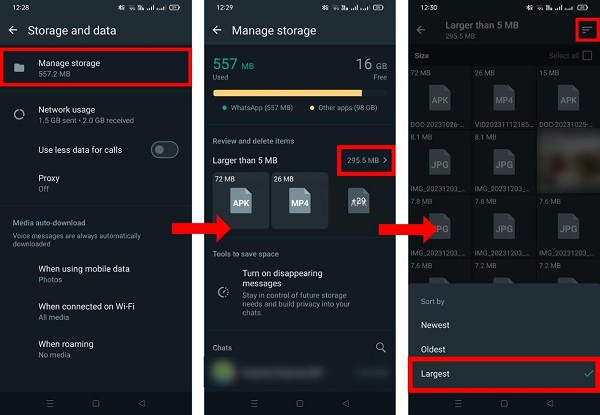
WhatsApp includes a built-in storage management feature.
Open WhatsApp and go to:
Settings → Storage and data → Manage storage
The exact appearance can vary slightly between Android and iPhone.
The storage management section can help you identify large files and conversations that are consuming significant amounts of space.
You can then review the files before deciding what to delete.
How to Free Up WhatsApp Storage
Delete Large Videos and Files
Start with the largest files because removing a few large videos can free more space than deleting hundreds of small images.
Review the files carefully before deleting them.
📖 Related Reads
If an important document or photograph is stored only in WhatsApp, consider saving it somewhere else first.
Remove Unnecessary Media From Large Chats
WhatsApp can show which conversations are responsible for significant storage usage.
Open a large conversation from the storage management screen and review its media.
You can select unnecessary items and delete them.
Stop Automatically Saving Unwanted Media
You can also reduce future storage consumption by changing WhatsApp’s media settings.
Depending on your device, you can control whether photos, videos and other media are automatically downloaded when using mobile data, Wi-Fi or roaming.
Reducing automatic downloads can prevent unwanted files from accumulating.
Be Careful With WhatsApp Groups
You don’t necessarily have to leave every group to reduce storage usage.
Instead, consider disabling automatic media downloads for groups where people frequently share large files.
You can then manually download only the files you actually need.
Does Deleting WhatsApp Media Delete the Chat?
Not necessarily.
WhatsApp’s storage management tools allow you to remove selected media and files while keeping your conversations.
However, always review the items carefully before confirming deletion.
If a photograph, document or video is important, save another copy before deleting it.
What About WhatsApp Backups?
WhatsApp backups are different from the media stored locally on your phone.
Depending on your backup settings and platform, your WhatsApp backup may contain messages and media that can contribute to cloud storage usage.
Therefore, managing WhatsApp storage on your phone does not necessarily mean that your cloud backup storage will immediately decrease by the same amount.
How to Prevent WhatsApp From Filling Your Storage Again
Once you’ve cleaned up WhatsApp, take a few preventive steps:
- Disable automatic downloads for unnecessary media.
- Review large files regularly.
- Avoid downloading videos you don’t need.
- Clean up media from busy groups.
- Check WhatsApp’s storage management page periodically.
- Back up important files before deleting them.
Final Thoughts
WhatsApp can consume a surprising amount of phone storage because conversations accumulate photos, videos, documents, voice messages and other media over time.
The best solution isn’t necessarily to delete WhatsApp. Instead, use its built-in Manage Storage feature to identify the largest files and remove content you no longer need.
A few minutes of regular cleanup can free several gigabytes of storage and help prevent your phone from running out of space.