Accidentally deleting an important WhatsApp message can be frustrating, especially when you discover that you do not have a recent backup.
Many websites and apps claim that deleted WhatsApp messages can always be recovered without a backup. However, the reality is more complicated. WhatsApp does not provide an official tool that can restore a message that was deleted and never included in a backup.
WhatsApp says that deleted messages cannot be recovered unless they were included in a backup.
That does not mean you should immediately give up. There are several things you can check before assuming that the message is permanently lost.
ALSO READ: How to Transfer WhatsApp From an Old Phone to a New Phone
Can You Really Recover Deleted WhatsApp Messages Without a Backup?
In most cases, no.
WhatsApp messages are primarily stored on your device, while backups can provide a separate copy that can be restored later. WhatsApp states that it cannot restore chats for users because chat history is not stored on its servers.
Therefore, if a message was deleted and there is no backup or another legitimate copy of the information, WhatsApp does not offer an official recovery method.
However, you can check the following possibilities.
1. Check Whether the Message Is Actually Deleted
Before trying complicated recovery methods, open the relevant WhatsApp conversation and search for the message.
Sometimes a message may appear to be missing because of an accidental deletion, chat filtering, archived conversations or synchronization issues.
Use WhatsApp’s search function to look for a distinctive word or phrase from the conversation.
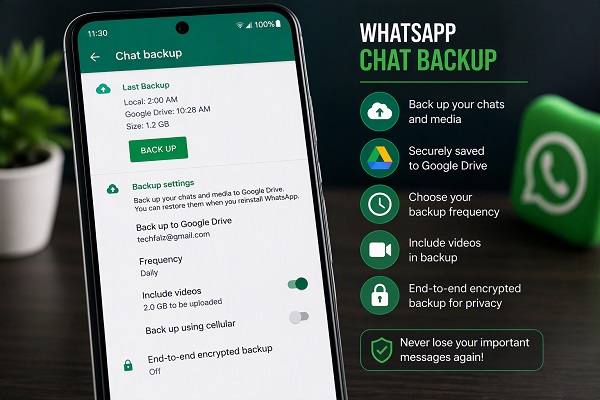
2. Check Your WhatsApp Backup
Even if you believe you never created a backup, it is worth checking.
On Android, open:
WhatsApp > Settings > Chats > Chat backup
Look at the date and time of the most recent backup.
If the backup was created before the message was deleted, there may be a possibility of restoring the conversation from that backup.
WhatsApp’s Android backup system can use a Google Account to store chat backups.
Important
Do not immediately uninstall WhatsApp simply because you discover an old backup.
First check the backup date and determine whether it is likely to contain the deleted message.
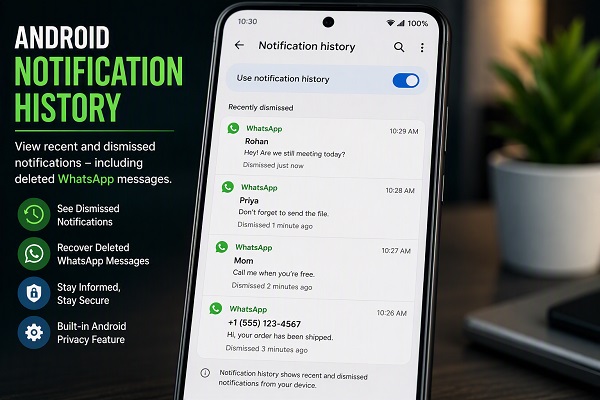
3. Check the Notification History on Android
Some Android phones have a Notification history feature.
If the deleted WhatsApp message generated a notification before it was deleted, part of the message may still appear in your notification history.
Go to: Settings > Notifications > Notification history
The exact menu may differ depending on your Android phone.
This method does not recover the message inside WhatsApp. It may only allow you to see notification content that Android previously recorded.
It also will not work if Notification history was not enabled beforehand.
4. Ask the Sender to Send the Message Again
If another person sent you the message and you deleted your copy, the sender may still have the original conversation.
This is often the simplest solution.
Ask the person to resend the message, forward it to you or provide a screenshot if appropriate.
If the message contained a document, photograph, phone number or other important information, the sender may still have the original file.
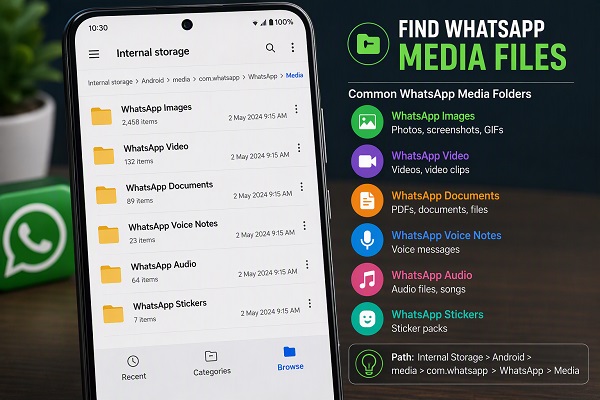
5. Check Your Phone’s Gallery or File Manager
Deleting a WhatsApp message does not necessarily mean every copy of an associated photograph, video or document has disappeared from your phone.
Check your:
- Gallery
- Google Photos
- Files app
- Downloads folder
- WhatsApp media folders
This is particularly useful when you are trying to recover a photo, video or document rather than the actual text message.
Remember that recovering a media file is different from recovering the deleted WhatsApp conversation.
📖 Related Reads
6. Check Other Devices Carefully
If you previously linked WhatsApp to another device, check whether the relevant information is still visible there.
However, do not assume that WhatsApp Web or another linked device provides a permanent backup of your complete chat history.
WhatsApp says message history on linked devices is synchronized from the primary phone and that deletion can synchronize across connected devices.
ALSO READ: How to Check App Permissions on Android
Therefore, this should not be treated as a guaranteed recovery method.
7. Avoid Random WhatsApp Recovery Apps
Be extremely careful with applications that promise to recover every deleted WhatsApp message.
Some apps require extensive notification, storage or accessibility permissions. Giving an unknown application these permissions can expose sensitive information on your phone.
Avoid entering your WhatsApp password, verification code or Google Account credentials into an unofficial recovery application.
Your WhatsApp conversations may contain personal, financial and confidential information.
8. Do Not Share Your WhatsApp Verification Code
Some scammers use the promise of recovering deleted WhatsApp messages to trick people into providing their six-digit WhatsApp registration code.
Never give this code to another person.
WhatsApp specifically advises users not to share their registration code with anyone.
If someone gets your verification code, they may be able to register your WhatsApp account on another device.
9. What If You Have an Old Backup?
An old backup can be useful if it was created before the message was deleted.
However, restoring an old backup may not bring back newer messages that were received after that backup was created.
For this reason, check the backup date carefully before attempting a restoration.
WhatsApp’s official restoration system is designed around existing backups rather than recovering arbitrary deleted messages from WhatsApp’s servers.
10. Prevent the Problem in the Future
The best way to avoid losing important WhatsApp conversations is to maintain regular backups.
On Android, open:
WhatsApp > Settings > Chats > Chat backup
ALSO READ: How to Back Up WhatsApp Chats Before Changing Phones
Choose an appropriate Google Account and set a backup frequency.
WhatsApp also provides end-to-end encrypted backup options. If you enable encrypted backups, make sure you remember the password or securely store the 64-digit encryption key because WhatsApp cannot recover the encrypted backup for you if you lose the required credentials.
Can WhatsApp Recover Deleted Messages From Its Servers?
No. You should not expect WhatsApp support to retrieve a deleted conversation from its servers.
WhatsApp explains that chat history is not stored on its servers in a way that allows the company to simply restore your deleted messages for you.
This is why backups and device-based copies are so important.
Final Verdict
If you deleted a WhatsApp message and it was never included in a backup, there is no guaranteed official method to recover it.
Before giving up, check your Android notification history, phone gallery, file manager, other devices and the sender’s copy. These may help you recover the information even though they do not restore the deleted WhatsApp message itself.
Most importantly, avoid suspicious recovery applications and never give anyone your WhatsApp verification code.
For the future, enable regular WhatsApp backups and consider using end-to-end encrypted backups if you want additional protection for your backup data.