WhatsApp calls are useful for staying in touch with friends, family, colleagues and customers without relying entirely on traditional phone calls. However, you may sometimes notice that incoming WhatsApp calls are not ringing on your Android phone.
You may only see the missed call notification after opening WhatsApp, or the caller may hear the call ringing while your phone remains silent. In some cases, WhatsApp messages arrive normally but incoming calls do not produce a sound or appear on the screen.
This problem can be caused by notification settings, Do Not Disturb mode, battery restrictions, background-data settings, a muted ringtone or an outdated version of WhatsApp.
Here are practical ways to fix WhatsApp calls that are not ringing on Android.
ALSO READ: How to Recover Deleted WhatsApp Messages Without a Backup
1. Check Your Phone’s Volume
Start with the simplest possible cause: your phone may be muted or the ringtone volume may be too low.
Press one of the volume buttons on your Android phone and check the volume controls. Make sure the Ring volume is turned up.
Also check whether the phone is set to:
- Silent mode
- Vibrate mode
- Do Not Disturb
- Another notification-suppression mode
If your phone is silent, WhatsApp calls may arrive without producing the ringtone you expect.
2. Check WhatsApp Call Notifications
Android allows you to control notifications for individual apps and notification categories.
If WhatsApp’s call notifications have been disabled or changed, incoming calls may not ring normally.
To check:
- Open Settings on your Android phone.
- Go to Apps or Apps & notifications.
- Select WhatsApp.
- Tap Notifications.
- Make sure WhatsApp notifications are enabled.
- Look for notification categories related to calls and make sure they are allowed.
The exact names and locations can differ between Samsung, Xiaomi, Tecno, Infinix, Google Pixel and other Android phones.
3. Check Do Not Disturb Mode
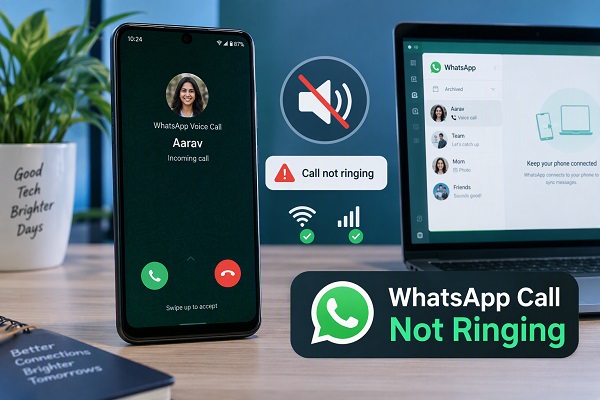
Do Not Disturb can prevent notifications and calls from producing sounds.
Open your phone’s quick settings panel and look for Do Not Disturb.
If it is enabled, temporarily turn it off and ask someone to call you on WhatsApp.
If the call now rings normally, review your Do Not Disturb settings. You may be able to configure exceptions for certain people or apps instead of disabling the feature completely.
4. Make Sure WhatsApp Has Notification Permission
Some Android versions allow you to control notification permission when an app is installed or updated.
If WhatsApp does not have permission to send notifications, incoming calls may not alert you properly.
Go to:
Settings → Apps → WhatsApp → Notifications
Make sure notifications are allowed.
If you recently changed your Android privacy or notification settings, this is particularly worth checking.
5. Turn Off Battery Restrictions for WhatsApp
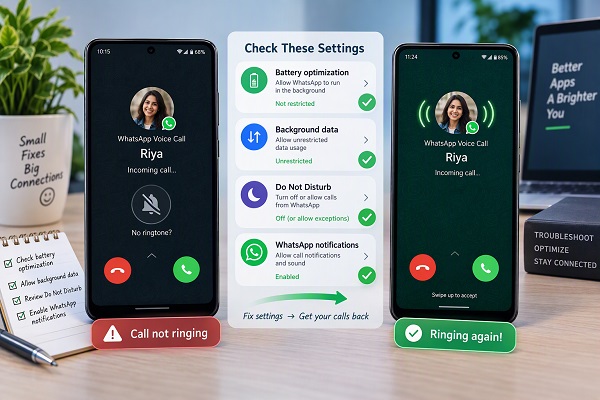
Battery-saving features can restrict an app’s background activity.
This is particularly important for WhatsApp because the phone needs to allow the app to operate in the background so that incoming calls and messages can reach you promptly.
Depending on your Android phone, look under:
Settings → Apps → WhatsApp → Battery
If WhatsApp is set to a highly restricted battery mode, consider allowing normal background activity.
The exact option may be called Unrestricted, Optimized, Allow background activity or something similar.
6. Allow WhatsApp to Run in the Background
Some Android manufacturers aggressively manage background applications to extend battery life.
If WhatsApp is prevented from running in the background, you may experience delayed notifications or missed calls.
Check WhatsApp’s app settings and look for options relating to:
- Background activity
- Auto-start
- Battery optimization
- Background data
- Mobile data usage
If your phone has an Auto-start permission, make sure WhatsApp is allowed to start automatically.
7. Check Your Internet Connection
WhatsApp calls require an internet connection.
A weak or unstable connection can cause problems with incoming calls.
Try switching between:
- Wi-Fi and mobile data
- Different Wi-Fi networks
- Mobile network bands where available
You can also temporarily turn Airplane Mode on and off to refresh the phone’s network connection.
If WhatsApp messages are also arriving late, the problem may be related to your internet connection or background connectivity rather than the ringtone itself.
8. Check Background Data Restrictions
If WhatsApp cannot use data while running in the background, incoming calls may be affected.
Go to:
Settings → Apps → WhatsApp → Mobile data & Wi-Fi
Depending on your device, make sure options such as Background data or Allow background data usage are enabled.
Also check whether your phone’s Data Saver feature is restricting WhatsApp.
9. Check WhatsApp’s Ringtone
WhatsApp has its own notification and call settings.
📖 Related Reads
Open WhatsApp and go to:
WhatsApp → Settings → Notifications
Review the available notification settings and make sure a suitable notification sound is selected.
If your phone allows you to configure WhatsApp call notification categories separately, also check that the selected ringtone is not set to None or Silent.
10. Restart Your Android Phone
A simple restart can fix temporary problems involving Android’s notification system, network connection or background processes.
Restart your phone and wait for Android to load completely.
Then ask someone to place a WhatsApp call to you.
If the call starts ringing normally after the restart, the problem may have been caused by a temporary software or background-process issue.
ALSO READ: Why WhatsApp Is Taking So Much Storage on Your Phone
11. Update WhatsApp
An outdated version of WhatsApp can sometimes cause compatibility or notification problems.
Open the Google Play Store, search for WhatsApp and check whether an update is available.
If an update is available, install it and restart your phone if necessary.
You should also keep Android itself reasonably up to date because system updates can contain fixes for notification and connectivity problems.
12. Clear WhatsApp’s Cache
Temporary cached data can occasionally cause an app to behave unexpectedly.
On many Android phones, you can clear WhatsApp’s cache by going to:
Settings → Apps → WhatsApp → Storage → Clear cache
Clearing the cache is different from clearing app data.
Do not tap “Clear storage” or “Clear data” unless you understand the consequences and have confirmed that your WhatsApp data is safely backed up.
13. Check Whether Your Phone Is Blocking WhatsApp
Some Android security, privacy or optimization applications can interfere with notifications.
If you use a phone cleaner, battery optimizer or security application, check whether WhatsApp has been restricted.
Look particularly for settings that:
- Block notifications
- Stop background applications
- Restrict mobile data
- Automatically close apps
- Put applications to sleep
Add WhatsApp to any available exception or allowed-app list where appropriate.
14. Check Bluetooth and Connected Devices
If your phone is connected to Bluetooth headphones, a car system or another audio device, notification sounds may be routed differently.
Temporarily turn Bluetooth off and ask someone to call you through WhatsApp.
If the ringtone works after disconnecting the Bluetooth device, check its audio and notification settings.
15. Check WhatsApp Call Notifications on the Lock Screen
Some phones allow notifications to appear silently or hide their content on the lock screen.
Go to your Android notification settings and check WhatsApp’s lock-screen notification options.
Make sure WhatsApp notifications are allowed to appear when the phone is locked if you want to see incoming calls immediately.
16. Reinstall WhatsApp as a Last Resort
If none of the previous solutions work, reinstalling WhatsApp may resolve a damaged installation or persistent software problem.
Before uninstalling WhatsApp:
- Open WhatsApp.
- Go to Settings → Chats → Chat backup.
- Confirm that your chats have been backed up successfully.
- Make sure you know the phone number associated with the account.
- Reinstall WhatsApp from an official app store.
- Restore your backup when prompted.
Do not uninstall WhatsApp simply to test a solution if you have not confirmed that your important chats and media are backed up.
Why WhatsApp Calls May Not Ring While Messages Still Arrive
This can happen because calls and message notifications do not necessarily behave identically when Android is restricting an app’s background activity.
For example, WhatsApp messages may eventually appear when the app reconnects, while a real-time call requires the app and phone to respond promptly to the incoming call.
Battery restrictions, notification permissions, background-data restrictions and unstable connectivity can therefore produce a situation where messages appear but incoming WhatsApp calls do not ring normally.
Quick Fix Checklist
If WhatsApp calls are not ringing on your Android phone, work through this checklist:
- Increase your phone’s ringtone volume.
- Turn off Silent mode and Do Not Disturb.
- Enable WhatsApp notifications.
- Check WhatsApp call notification settings.
- Allow WhatsApp to run in the background.
- Remove aggressive battery restrictions.
- Enable background data for WhatsApp.
- Check your Wi-Fi or mobile-data connection.
- Restart your phone.
- Update WhatsApp.
- Clear WhatsApp’s cache.
- Check Bluetooth connections.
- Check lock-screen notification settings.
- Back up your chats before considering a reinstall.
Frequently Asked Questions
Why does my WhatsApp call not ring but show as a missed call?
This can happen when Android restricts WhatsApp’s background activity or notification delivery. Check notification permissions, battery restrictions, background data and Do Not Disturb settings.
Why do WhatsApp messages work but calls do not ring?
WhatsApp calls require timely background connectivity and notification delivery. Battery optimization, data restrictions, notification settings or an unstable connection can interfere with incoming calls.
How do I make WhatsApp calls ring again?
Check your phone’s ringtone volume, WhatsApp notification permissions, call notification settings, Do Not Disturb, battery optimization and background-data permissions. Restarting and updating WhatsApp can also help.
Will clearing WhatsApp cache delete my chats?
Clearing an app’s cache normally removes temporary files rather than your stored chats. However, avoid selecting Clear data or Clear storage unless you understand what it will remove and have a verified backup.
Should I reinstall WhatsApp if calls are not ringing?
Reinstallation should generally be a later troubleshooting step. First check notification, battery, background-data, network and sound settings, and make sure your chats are backed up before uninstalling WhatsApp.
Conclusion
When WhatsApp calls are not ringing on Android, the cause is often related to notification permissions, sound settings, battery optimization, background data or connectivity.
Start with the simple checks such as ringtone volume, Do Not Disturb and WhatsApp notifications. If the problem continues, review battery and background-data restrictions, update WhatsApp and clear its cache.
If you eventually need to reinstall WhatsApp, make sure your important chats are backed up first.