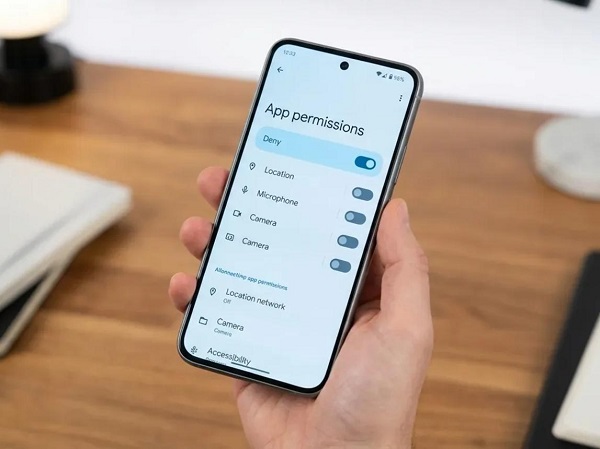
Many Android apps request access to different features on your smartphone. An app may ask for permission to use your camera, microphone, location, contacts, photos, files or other information.
Some permissions are necessary for an app to work properly. For example, a video-calling app may need access to your camera and microphone. However, other permissions may not be necessary for the app’s main function.
Checking app permissions regularly can help you understand what information your apps can access and improve your phone’s privacy and security.
The exact names and locations of settings can vary depending on your Android version and phone manufacturer, but the general process is similar.
What Are App Permissions?
App permissions are controls that determine what an application can access or use on your Android device.
When you install or use an app, it may request permission to access certain features.
Common permissions include:
- Camera
- Microphone
- Location
- Contacts
- Phone
- SMS
- Photos and videos
- Music and audio
- Files
- Notifications
Android allows you to review many of these permissions and decide whether an app should be allowed to use them.
1. Open Settings on Your Android Phone
Start by opening the Settings app.
Depending on your phone manufacturer, the appearance of Settings may be different. Samsung, Xiaomi, Tecno, Infinix, Google Pixel and other Android devices can use slightly different menus.
Look for an option such as Apps, Applications, App management or Apps & notifications.
If you cannot find it, use the search box inside Settings and search for app permissions.
2. Select the App You Want to Check
After opening the Apps section, you should see a list of applications installed on your phone.
Select the app whose permissions you want to examine.
For example, if you want to check what permissions Facebook has, find and select the Facebook app.
You should see information about the application, including options for managing its permissions.
3. Open the Permissions Section
Look for Permissions.
Tap it to see the permissions that the app has requested or currently has access to.
Depending on your Android version, permissions may be grouped into categories such as allowed and not allowed.
This gives you a quick overview of what the app can access.
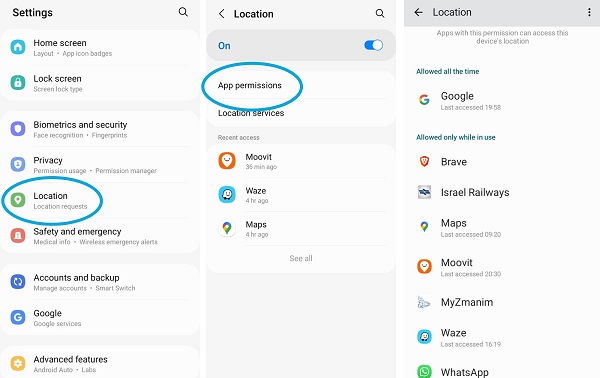
4. Check Location Permission
Location is one of the permissions worth checking carefully.
Some apps genuinely need your location. A navigation application, for example, needs location information to provide directions.
However, you should consider whether every app needs access to your location.
Depending on your Android version, you may have options such as:
- Allow all the time
- Allow only while using the app
- Ask every time
- Don’t allow
If an app does not need your location to perform its main function, consider denying the permission or selecting a more restrictive option.
5. Check Camera and Microphone Access
Camera and microphone permissions deserve particular attention.
A video-conferencing app may reasonably require both. A camera application obviously needs camera access.
But if an app has no clear reason to use either feature, review whether the permission is necessary.
Android versions that support privacy indicators may also show when the camera or microphone is being used.
If you notice unexpected access, investigate the application and its permissions.
6. Review Contacts Permission
Some applications request access to your contacts.
Messaging and communication applications may need this permission to help you find people you know.
However, many other apps do not need access to your entire contact list.
📖 Related Reads
If an application has contact access without an obvious reason, consider changing the permission.
Remember that your contacts can contain information belonging to other people, so unnecessary access should be avoided.
7. Check Photos, Videos and Files
Apps may request access to photos, videos or other files stored on your device.
This can be necessary when an app allows you to upload photographs, attach documents or edit media.
On newer Android versions, you may have more granular controls over which photos or media an application can access.
Review these options where available and avoid giving broader access than an app actually needs.
8. Change a Permission
If you decide that an application should no longer have access to a particular feature, open its permission settings and change the permission.
For example, you might change location access from Allow all the time to Allow only while using the app, or select Don’t allow if the permission is unnecessary.
The available options depend on the permission, Android version and device.
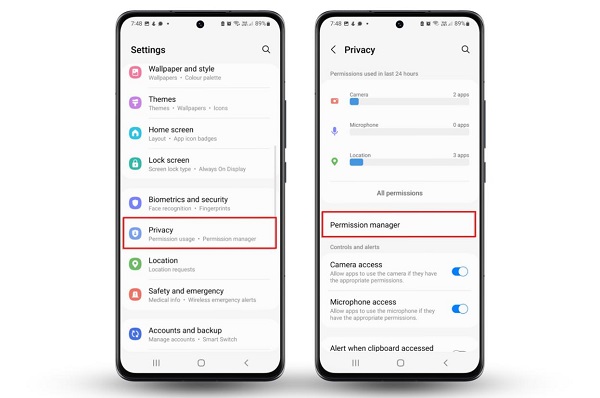
Some permissions may also be controlled through separate privacy settings.
9. Review Permissions by Permission Type
You do not always have to check applications one at a time.
Many Android phones provide a way to see which apps have access to a particular permission.
For example, you may be able to select Location and see the applications that can access your location.
This approach can help you identify apps with access to particularly sensitive features.
You can then review whether each application still needs that access.
10. Remove Permissions From Apps You Rarely Use
Some Android devices can automatically remove permissions from unused applications.
This can be useful for apps that you installed months ago but rarely open.
If your phone provides an option for automatically managing permissions for unused apps, consider enabling it where appropriate.
You should still review important applications manually rather than relying entirely on automatic controls.
Why You Should Check App Permissions Regularly
Apps can change over time. An application that originally required one permission may later request additional access after an update.
You may also install apps without paying close attention to every permission request.
Regularly checking permissions helps you identify unnecessary access before it becomes a privacy concern.
It is particularly useful when you have many applications installed on your phone.
Be Careful With Suspicious Apps
App permissions are only one part of smartphone security.
You should also be cautious when installing applications from unknown sources.
Whenever possible, download apps from reputable sources and check the developer, reviews and requested permissions before installation.
If an app requests highly sensitive permissions that do not appear relevant to its purpose, think carefully before granting access.
Final Thoughts
Checking app permissions on Android is a simple privacy habit that can help you maintain greater control over your smartphone.
Review permissions for your camera, microphone, location, contacts, photos, files and other sensitive features. If an app does not need a particular permission, consider restricting or removing its access.
Because Android interfaces differ between manufacturers and software versions, the exact menu names may vary. If you cannot find a permission setting, use the search function within your phone’s Settings app.
A few minutes spent reviewing app permissions can help you understand what your installed apps can access and reduce unnecessary exposure of your personal information.