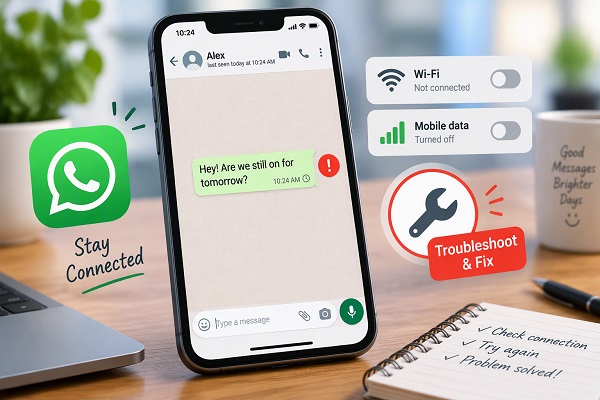
WhatsApp is one of the most widely used messaging apps for chatting with friends, family, customers, colleagues and businesses. However, there are times when you may try to send a message and it remains stuck with a clock icon, shows a single tick for a long time, or simply refuses to send.
The problem can be caused by something as simple as a weak internet connection, incorrect phone settings, an outdated WhatsApp application or a temporary service problem.
If WhatsApp is not sending messages on your Android phone or iPhone, the steps below can help you identify and fix the problem.
1. Check Your Internet Connection
The first thing to check is your internet connection.
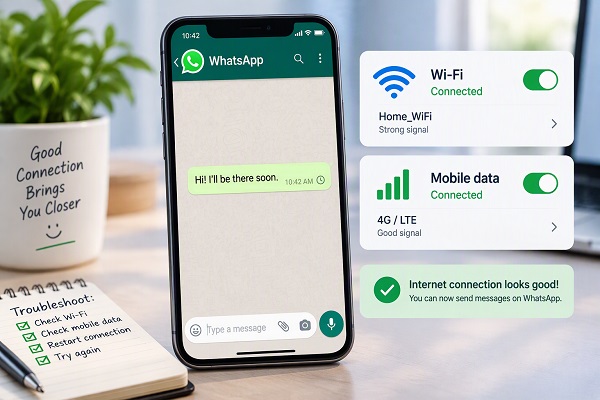
WhatsApp requires an active internet connection to send and receive messages. If you are using mobile data, open another website or app that requires internet access to see whether it works.
If you are connected to Wi-Fi, try opening a website in your browser.
You can also try switching between Wi-Fi and mobile data.
For example:
- Turn Wi-Fi off and use mobile data.
- Turn mobile data off and connect to Wi-Fi.
- Move to an area with better network coverage.
- Restart your Wi-Fi router if the connection appears unstable.
If other internet-dependent apps are also not working, the problem may be your internet connection rather than WhatsApp.
2. Turn Airplane Mode On and Off
A quick network reset can sometimes resolve temporary connectivity problems.
Open your phone’s Quick Settings or Control Centre and turn on Airplane Mode.
Wait for about 10 seconds and turn it off again.
Your phone will reconnect to the mobile network and, if applicable, Wi-Fi.
Then open WhatsApp and try sending the message again.
3. Check Your Mobile Data Balance
If you are using mobile data, check that you still have an active data plan.
In Nigeria, it is possible to exhaust a data bundle without immediately noticing, particularly when other apps are using data in the background.
Check your network provider’s app or the appropriate USSD service to confirm your remaining data balance.
If you have no available data, WhatsApp may not be able to send messages over mobile data.
4. Check Whether WhatsApp Is Allowed to Use Mobile Data
Your phone may have restricted WhatsApp from accessing mobile data.
On Android, open:
Settings > Apps > WhatsApp > Mobile data & Wi-Fi
The exact menu names can differ between manufacturers.
Make sure WhatsApp is allowed to use mobile data and Wi-Fi.
On iPhone, go to:
Settings > Cellular/Mobile Data
Scroll down and make sure the switch next to WhatsApp is enabled.
If mobile data access is disabled for WhatsApp, messages may not send when you are away from Wi-Fi.
5. Disable Data Saver Temporarily
Android’s Data Saver feature can restrict how applications use mobile data.
If WhatsApp is not sending messages while you are using mobile data, temporarily disable Data Saver and test the application again.
On many Android phones, you can find this under:
Settings > Network & internet > Data Saver
The exact location may differ depending on your phone manufacturer and Android version.
If disabling Data Saver fixes the problem, review your WhatsApp data-use settings instead of permanently disabling useful data-saving features.
6. Check WhatsApp’s Background Data Permission
WhatsApp needs appropriate background access to maintain its connection and receive messages reliably.
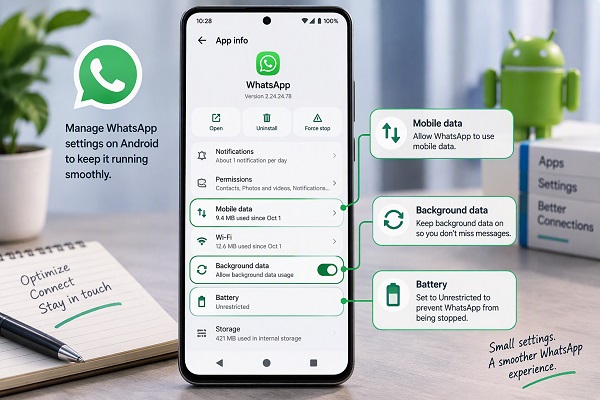
On Android, open WhatsApp’s app information page and look for options such as:
Mobile data & Wi-Fi > Allow background data usage
The wording varies by Android device.
If background data has been restricted, enable it and test WhatsApp again.
7. Turn Off Battery Saver Temporarily
Battery-saving features can restrict background activity for some applications.
If WhatsApp is behaving unusually, temporarily turn off Battery Saver or Power Saving Mode and try sending a message.
You can also check WhatsApp’s battery settings.
On some Android phones:
Settings > Apps > WhatsApp > Battery
Look for restrictions that prevent WhatsApp from running normally in the background.
Do not automatically disable battery optimization for every application. Only change WhatsApp’s setting if it is relevant to the problem.
8. Check Whether WhatsApp Is Down
Sometimes the problem is not your phone.
WhatsApp can experience temporary technical problems that affect messaging, calls or other services.
If WhatsApp suddenly stops sending messages even though your internet connection works normally, check reliable outage-monitoring services and reputable technology news sources for reports of a wider service disruption.
You can also ask someone else who uses WhatsApp whether they are experiencing the same problem.
If many people are affected at the same time, there may be little you can do except wait for the service to be restored.
9. Restart Your Phone
Restarting your phone is a simple troubleshooting step that can resolve temporary software and network problems.
Press and hold the power button and select Restart, if available.
After the phone starts again, open WhatsApp and try sending the message.
A restart can refresh network connections, background processes and temporary system resources.
10. Check Whether WhatsApp Is Updated
An outdated WhatsApp application can sometimes cause compatibility or performance problems.
Open the Google Play Store on Android or the App Store on iPhone.
Search for WhatsApp.
If an Update button appears, install the available update.
After updating, open WhatsApp and try sending a message again.
Keeping WhatsApp updated is also important because updates can contain security fixes, bug fixes and compatibility improvements.
11. Check Your Phone’s Date and Time
Incorrect date or time settings can sometimes interfere with internet-connected services.
Go to your phone’s date and time settings and enable automatic date and time where available.
On Android, this may appear as:
Settings > System > Date & time
On iPhone:
Settings > General > Date & Time
Enable automatic settings if appropriate.
Then restart WhatsApp and test messaging again.
ALSO READ: How SIM Swap Fraud Works and How to Protect Yourself
12. Check WhatsApp’s Storage and Your Phone’s Free Space
A phone that is almost completely out of storage can experience problems with applications.
Open your phone’s storage settings and check how much free space remains.
If your storage is nearly full, remove unnecessary:
- Videos
- Photos
- Downloads
- Duplicate files
- Unused applications
- Large documents
You can also review WhatsApp’s own storage management tools.
Avoid deleting important WhatsApp media or chats unless you have confirmed that you no longer need them or have an appropriate backup.
13. Clear WhatsApp Cache on Android
Android users can sometimes clear an application’s temporary cache when troubleshooting performance problems.
Go to:
Settings > Apps > WhatsApp > Storage
Then look for Clear cache.
📖 Related Reads
Clearing the cache is different from clearing WhatsApp’s data.
Do not select “Clear storage” or “Clear data” unless you understand the consequences and have confirmed that your important WhatsApp information is safely backed up.
After clearing the cache, open WhatsApp and test messaging.
14. Check Whether You Can Receive Messages
Try to determine whether the problem affects sending only or both sending and receiving.
Ask a contact to send you a WhatsApp message.
If you can receive messages but cannot send them, the problem may be related to your outgoing connection, app configuration or another account/device issue.
If you cannot send or receive messages, concentrate first on your internet connection, phone settings and possible WhatsApp service problems.
15. Check the Recipient’s Number
If you cannot send a message to only one person, the problem may not be with WhatsApp generally.
Check that you have the correct phone number saved.
If the person recently changed their phone number, confirm the new number.
You can also try sending a message to another WhatsApp contact.
If messages work with other contacts, the problem is likely specific to that conversation, contact or recipient.
16. Check Whether You Are Sending to a Group or Broadcast
If individual messages work but messages to a particular group or broadcast list do not, check whether the problem is limited to that feature.
For a group, confirm that you are still a member and that there is no unusual restriction affecting the conversation.
For broadcast messages, remember that WhatsApp’s broadcast functionality has specific requirements for recipients.
Testing an ordinary one-to-one message can help determine whether the problem affects WhatsApp messaging generally.
17. Disable a VPN Temporarily
If you use a VPN on your phone, temporarily disconnect it and test WhatsApp again.
VPNs can change how your internet connection is routed. Although many VPN services work normally with WhatsApp, connection problems can occasionally occur.
If WhatsApp starts working after disconnecting the VPN, investigate the VPN configuration or try another server.
18. Check Your Wi-Fi Network
If WhatsApp works on mobile data but not Wi-Fi, the Wi-Fi network is probably worth investigating.
Restart your router and reconnect your phone.
You can also forget the Wi-Fi network and connect again.
On Android and iPhone, open Wi-Fi settings, select the network and use the option to forget or remove it before reconnecting.
If WhatsApp works on another Wi-Fi network, the original network may be responsible for the problem.
19. Restart Your Router
If several devices connected to your Wi-Fi are experiencing internet problems, restart your router.
Switch it off, wait briefly and turn it back on.
Allow the connection to stabilize before testing WhatsApp again.
If the problem continues across multiple devices, contact your internet service provider.
20. Check Your Phone’s Network Signal
Mobile network coverage can affect WhatsApp messaging.
If your phone shows weak or unstable signal, move to an area with better coverage and try again.
You can also temporarily switch between available network modes if your device and network provider support them.
Avoid assuming that a 4G or 5G icon automatically means your internet connection is working properly. Signal strength and actual data connectivity are separate considerations.
ALSO READ: How to Recover Deleted WhatsApp Messages Without a Backup
21. Force Close and Reopen WhatsApp
If WhatsApp appears frozen, close the application completely and open it again.
On Android, open the recent-apps screen and remove WhatsApp.
On iPhone, open the app switcher and swipe WhatsApp away.
Then launch WhatsApp again.
This can resolve temporary application glitches without deleting your chats or account.
22. Update Your Phone’s Software
If WhatsApp continues to malfunction, check whether your phone has a pending operating system update.
On Android, look under:
Settings > System > Software update
On iPhone:
Settings > General > Software Update
The exact menus vary by device.
Before installing a major operating system update, make sure your important information is backed up.
23. Avoid Unofficial WhatsApp Versions
Do not rely on unofficial or modified WhatsApp applications simply because they claim to provide extra features.
Examples include modified versions distributed outside official app stores.
Using unofficial applications can create security, privacy and account-access risks.
For troubleshooting, use the official WhatsApp application from a trusted app store.
24. Reinstall WhatsApp as a Last Resort
If none of the earlier steps works, reinstalling WhatsApp may help resolve a corrupted application installation.
However, do not uninstall WhatsApp before confirming that your important chats are backed up.
Open WhatsApp’s backup settings and check when the most recent backup was created.
After confirming your backup, uninstall WhatsApp, reinstall the official application from your device’s app store and sign in using your phone number.
When prompted, follow the available restoration process.
Remember that anything not included in a backup may not be recoverable after reinstalling the application.
25. Check Whether Your Account Has Been Restricted
If WhatsApp displays a specific warning that your account cannot use the service or has been restricted, follow the instructions shown inside the application.
Do not pay people online who claim they can “unlock” your WhatsApp account.
Avoid sharing your WhatsApp verification code, password or other security information with anyone.
If you believe the restriction is an error, use WhatsApp’s official support or appeal process where available.
26. Contact Your Mobile Network Provider
If WhatsApp works over Wi-Fi but consistently fails over mobile data, contact your mobile network provider.
Tell them that other internet services may work inconsistently or that WhatsApp cannot connect over mobile data.
The provider may be able to identify an account, network or connectivity problem.
27. Contact WhatsApp Support
If you have tried the appropriate troubleshooting steps and WhatsApp still cannot send messages, use WhatsApp’s official support channels.
Before contacting support, note:
- Your phone model
- Android or iOS version
- WhatsApp version
- Whether you are using Wi-Fi or mobile data
- Whether receiving messages works
- Any error message displayed
- When the problem started
This information can make troubleshooting easier.
Quick WhatsApp Troubleshooting Checklist
If you need a quick solution, work through this list:
- Check your internet connection.
- Switch between Wi-Fi and mobile data.
- Turn Airplane Mode on and off.
- Restart your phone.
- Check your mobile data balance.
- Make sure WhatsApp can use mobile data.
- Disable Data Saver temporarily.
- Check WhatsApp’s background-data permission.
- Temporarily disable Battery Saver.
- Update WhatsApp.
- Check your phone’s date and time.
- Check available storage.
- Clear WhatsApp’s cache on Android.
- Test another WhatsApp contact.
- Temporarily disconnect a VPN.
- Check whether WhatsApp is experiencing a wider outage.
- Reinstall WhatsApp only after confirming your backup.
When Should You Be Concerned?
A WhatsApp message failing to send once is usually not a reason to panic.
However, pay closer attention if the problem happens together with other unusual activity, such as unexpected verification codes, unfamiliar account activity, sudden loss of mobile service or notifications about changes you did not make.
Never give anyone your WhatsApp verification code because they claim they need it to fix your account.
If you suspect that someone has gained access to your account, take steps to secure your WhatsApp account and other accounts connected to your phone number.
ALSO READ: Why WhatsApp Is Taking So Much Storage on Your Phone
Final Thoughts
When WhatsApp is not sending messages, start with the simplest explanations. Check your internet connection, restart your phone, verify mobile-data permissions and make sure WhatsApp is up to date.
If the problem affects only one contact, investigate that conversation rather than immediately changing your entire phone configuration. If WhatsApp does not work for multiple contacts and other internet services are also failing, investigate your network connection.
Most importantly, avoid risky troubleshooting methods such as installing unofficial WhatsApp versions, downloading unknown “message recovery” applications or giving your verification code to another person.
With the steps above, you can usually identify whether the problem is caused by your phone, network, WhatsApp application or a wider service issue.